Solved: C Drive Is Full After Windows 10 Update
- C drive is full after updating to Windows 10
- Free up disk space on C drive after Windows 10 update
- ▌Solution 1. Run Disk Cleanup to free up disk space
- ▌ Solution 2. Uninstall unwanted applications to reclaim disk space
- ▌ Solution 3. Move application from C drive to another drive to free up space
- ▌ Solution 4. Delete hibernate file to get more free disk space
- Enlarge C drive in Windows 10 to fix C drive full issue
- Upgrade to a larger hard drive without OS & apps reinstallation
- Wrap things up
C drive is full after updating to Windows 10
"Hi, guys! I have upgraded my operating system to Windows 10 from Windows 7. But now my C: drive is full after Windows 10 update. I'm not familiar with computer knowledge. I have no idea about what occupies my disk space on partition C and how to deal with this issue. Is there any advice? Thanks for your help!"

Free up disk space on C drive after Windows 10 update
To address the issue of a full C: drive in Windows 10, it's essential to identify the space-hogging culprits. Typically, C: drive space is consumed by page files, previous Windows installations, temporary files, system files, and large application files that may have gone unnoticed. To resolve this, consider the solutions outlined in the following text.
▌Solution 1. Run Disk Cleanup to free up disk space
To free up disk space, use the Disk Cleanup tool, which can delete system files, previous Windows installations, the Recycle Bin, and other items that take up space on your computer.
1. In File Explorer, right-click C: drive and choose "Properties".
2. In the pop-up window, click "Disk Cleanup" and wait for the calculating process to complete.
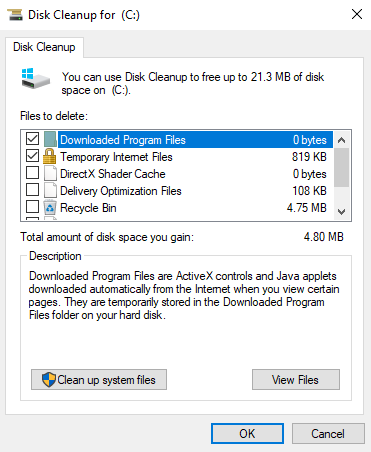
3. In the Disk Cleanup window, select the files you want to delete and click "OK".
PS.: To avoid accidentally deleting necessary files, you can click to confirm what the files are before proceeding with the deletion. This allows you to review the files and make an informed decision about which ones to delete.
▌ Solution 2. Uninstall unwanted applications to reclaim disk space
To free up disk space on your C drive, you can remove unused applications by following these steps: uninstall unnecessary programs, check for and remove any updates that are no longer needed, and consider deleting temporary files or system logs that are taking up space. This will help declutter your C drive and make it easier to manage your computer's resources.
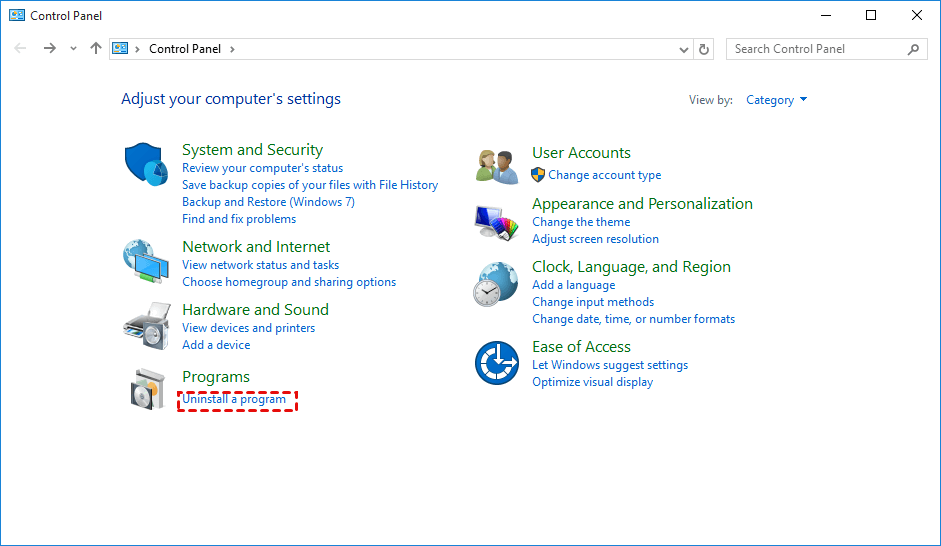
1. Click Start button and choose "Control Panel".
2. In the pop-up window, go to Programs> "Programs and features"
3. Right-click the program you don't need and choose "Uninstall" to remove it.
▌ Solution 3. Move application from C drive to another drive to free up space
To transfer applications from the C drive to another drive with enough free space to resolve the C drive full issue, you can use a professional application mover like Qiling Disk Master Professional. This tool allows you to safely and easily move one or multiple apps from the C drive to another drive, whether it's on the same hard drive or an external hard drive.
The software PA Pro allows users to simulate the operation of a production line, including the processing of raw materials, the assembly of components, and the packaging of finished products. A demo version of PA Pro is available for free download, enabling users to test the software's capabilities without committing to a purchase. This allows potential customers to experience the software's features and functionality firsthand, giving them a better understanding of how it can be used in real-world applications.
After moving your files, you can delete large files on your PC to free up more space on the C drive.
▌ Solution 4. Delete hibernate file to get more free disk space
The hibernation file may occupy a large space on C drive for a small hard disk. Thus, to get more usable disk space on C drive, you can delete hibderfile.sys file. Here are the steps.
1. To open the Command Prompt as an administrator, type "command prompt" in the search box, right-click on Command Prompt among the listed results, and choose "Run as administrator".
2. In the pop-up window, type "powercfg.exe -h off" and press Enter.
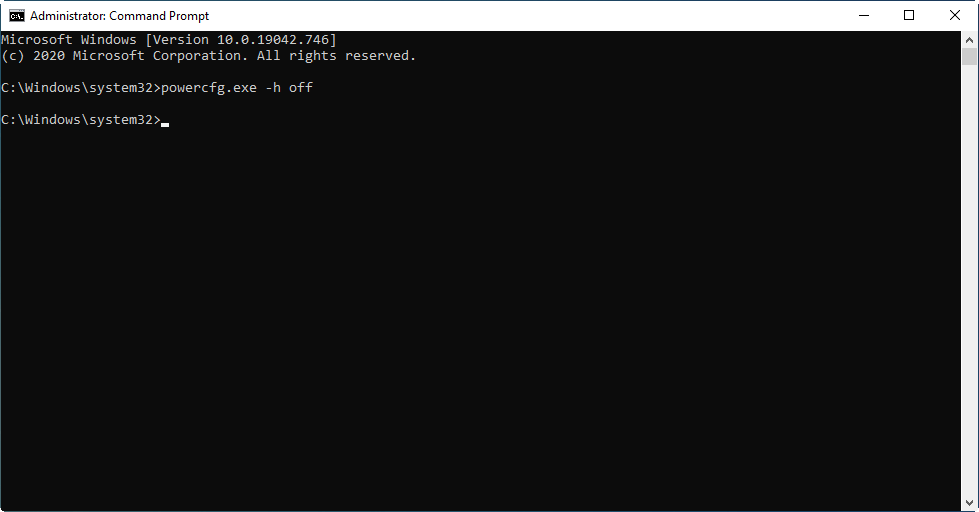
Then, you can gain some free space on partition C.
Enlarge C drive in Windows 10 to fix C drive full issue
If you're experiencing a full C: drive in Windows 10, you can try the solutions mentioned earlier to solve the issue. However, if you're still not satisfied with the available space, you can consider extending C drive. If there's unallocated space adjacent to C drive, you can use Disk Management to extend it. Alternatively, if there's no such space, you can use software like Qiling Disk Master Professional to reallocate space from another drive to C drive.
Step 1. Install and fire up the software. In the main interface, right-click the partition with enough space, choose "Allocate Free Space" and select the partition where you want to allocate the free space.
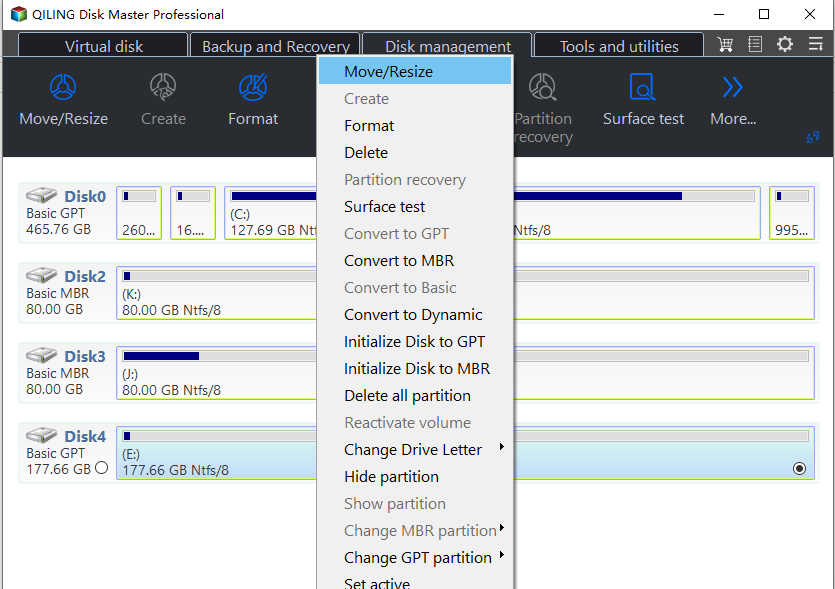
Step 2. In the pop-up window, specify the free space to be allocated and choose which partition you want to extend.
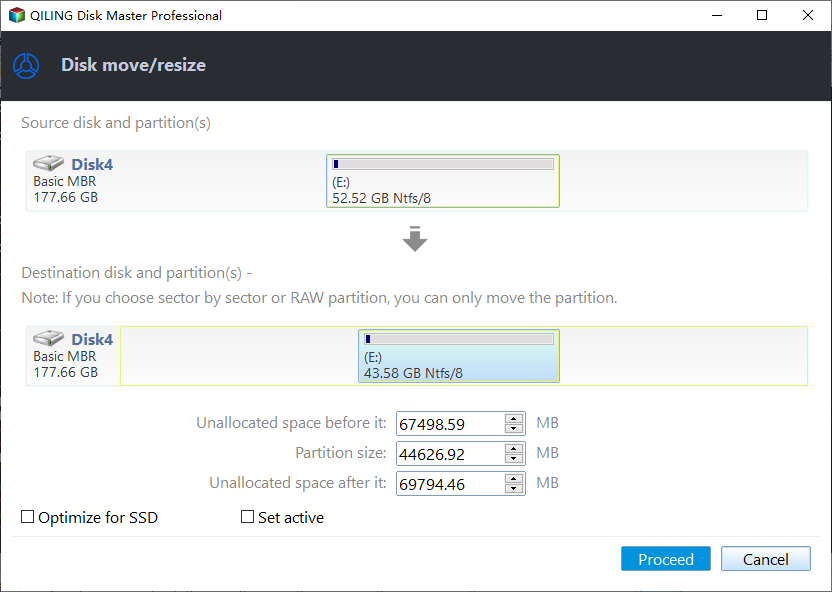
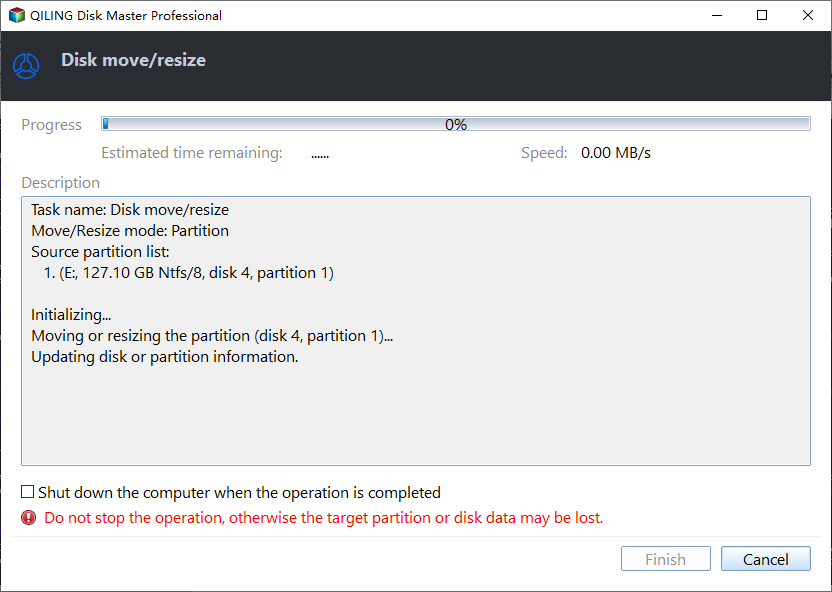
Step 3. Then click "Proceed" to execute the operation.
Upgrade to a larger hard drive without OS & apps reinstallation
When your disk's storage capacity is insufficient, consider upgrading to a larger one to avoid issues like a full C drive after a Windows 10 update. To resolve this without reinstalling Windows and applications, you can clone your disk to a larger one using Qiling Disk Master. Alternatively, if you only want to transfer your operating system to the new disk, you can migrate OS to the larger disk.
Wrap things up
When the C drive is full after a Windows 10 update, freeing up space can be done in various ways. However, if the C drive wasn't properly managed initially or the overall hard drive capacity is insufficient, it's possible to expand the C drive without losing data or replace the existing disk with a larger one.
Related Articles
- Easily & Safely Free up Disk Space in Window 10 [Updated in 2020]
This post tells four effective ways to free up disk space, especially for C drive on Windows 10. - How to Clone OS Drive to SSD/HDD in Windows 7/8/10?
Learn how to Clone OS Drive to SSD/HDD in Windows 7/8/10 with clear steps, key checks, and practical tips. - Recovery Partition After Upgrading to Windows 10 from Windows 7/8
This guide explains Recovery Partition After Upgrading to Windows 10 from Windows 7/8 with clear steps, key checks, and practical tips. - How to Make Windows Server Backup Mapped Network Drive
Learn how to Make Windows Server Backup Mapped Network Drive with clear steps, key checks, and practical tips. - How to Merge Partitions without Data Loss
In this article, we will show you how to merge partitions without losing data in Windows 11, 10, 8, 7 via two free methods. - Microsoft Surface Data Eraser - Free Tool to Wipe Data
If you are new to Microsoft Surface Data Eraser, please continue to read this article, I'll introduce you to this tool and how to use it step by step. Try Qiling Disk Master if it is not working.
Products
Articles & Tutorials
- Data Recovery
- Data Backup
- File Recovery
- File Backup
- File synchronize
- System Backup and Restore
- Disk and Partition Clone
- Technical articles
- Disk Master Help
- Windows Deleted File and Disk Recovery Tutorials
- Windows File and Data Recovery Tutorials
- More Windows Tutorials for Install, Security, Files, and PC Tips
- Windows Boot, Repair, and Recovery Environment Tutorials
- Windows Backup Tutorials
- Windows Restore Tutorials
- Windows Clone and Migration Tutorials
- Windows Server Backup, Recovery, and Management Tutorials
- Windows Disk, Partition, and Storage Management Tutorials