How to Resolve Dell Boot Loop in Windows 10 (3 Ways)
The issue: Dell laptop stuck in boot loop
Dell laptops, desktops, and tablets are popular worldwide for their innovative and high-performance features. However, users may experience issues such as Dell Alert Hard Drive Not Found, Dell Invalid Partition Table, and Dell Boot Loop. For example, some users may encounter a Dell Boot Loop, where the system repeatedly restarts without completing the boot process.
"About 3 days ago I tried to completely reset my Dell laptop. Half way through the reset process it hit some type of bump, saying that 'Windows has encountered an error'.
It does this about eight times before I decide to force shutdown the laptop. I then power it back on and get stuck on the boot screen with the Dell logo on it where it loops infinitely. On this screen I hit f2 to get myself to the BIOS menu.
I have no idea what to do now, if someone could help me out that would be awesome!"
Dell laptop won't boot past Dell screen issue can be caused by hardware interference, software conflicts, or damaged system files. To resolve the boot loop problem, you can try booting in safe mode, running a system file checker, checking for BIOS updates, or performing a system restore. If none of these methods work, you may need to perform a factory reset or seek professional help.
How do I fix Dell boot loop in Windows 10 easily?
Sorry to hear that your Dell computer won't boot up. To troubleshoot the issue, try the following two steps: First, try pressing the F2, F12, or Del key (depending on your computer model) to access the BIOS settings and see if the boot order is set correctly. If not, try resetting the BIOS to its default settings.
1. Press the FN key (Function key) while powering on the system.
2. To bypass the Windows login issue, hold the FN key and start tapping the Windows key, which should bring up the login screen.
If the problem persists, there are three additional solutions to fix the Dell boot loop issue. You can choose the one that best suits your situation, such as trying a different boot option, running a diagnostic test, or resetting the BIOS settings. Alternatively, you can try booting in safe mode, running a system file checker, or restoring the system to a previous point in time.
- Solution 1: perform a hard reset
- Solution 2: clean boot troubleshooting
- Solution 3: reset the operating system
Solution 1: perform a hard reset
To resolve a Dell boot loop, try removing any recently added hardware, such as a USB device or a peripheral, and see if the issue persists. If it does, try booting in safe mode or using a bootable USB drive to access the system and troubleshoot the issue. You can also try resetting the BIOS to its default settings or updating the BIOS to the latest version.
1. Unplug all devices from your computer, including printers, scanners, media card readers, USB flash drives, CDs and DVDs, except for the monitor, mouse, and keyboard.
2. Unplug the wall power, remove the laptop battery (if applicable) and hold the power button down for 15 seconds.
3. Plug wall power back into the computer and attempt to restart. If the computer still doesn't turn on, try using a different power source, such as a battery pack or a different outlet, to rule out any issues with the electrical supply.
Solution 2: clean boot troubleshooting
Software conflicts can cause boot errors in Windows 10, especially when installing programs or updates, or running certain programs. To troubleshoot the issue, you can perform a clean boot to determine the source of the conflict. This process allows you to identify the specific program or update causing the problem, enabling you to resolve the issue and get your Dell device running smoothly again.
1. Boot into Safe Mode.
1.1. To enter the Windows Recovery Environment (WinRE), simply power on and off your computer three times. On the third shutdown, your computer should automatically boot into the WinRE, allowing you to access advanced troubleshooting tools and repair options.
1.2. To troubleshoot, go to Advanced Options, then Advanced Startup Options, followed by Startup Settings, and finally restart your computer successively.
1.3. The computer will restart and enter the Startup Settings menu. Press 4 to select Enable Safe Mode.
2. Perform clean boot.
2.1. Tap the Search button on the taskbar and type msconfig. Select System Configuration from the search results.
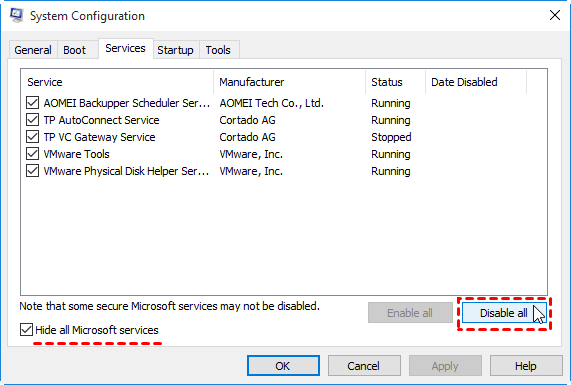
2.2. On the Services tab of the System Configuration dialog box, check Hide all Microsoft services and then click Disable all.
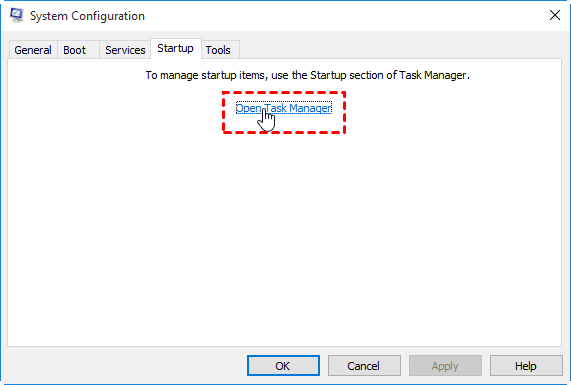
2.3. On the Startup tab of the System Configuration dialog box, click Open Task Manager.
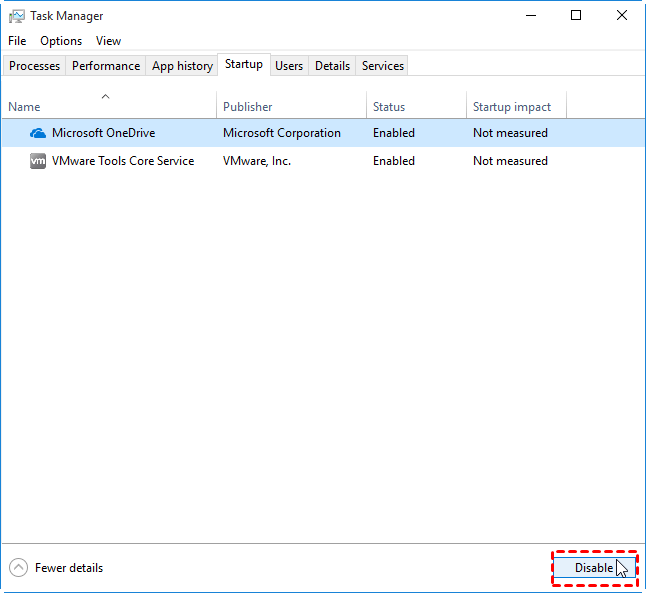
2.4. To disable startup items, go to the Startup tab in Task Manager, select each item, click Disable, and then close Task Manager.
2.5. On the Startup tab of the System Configuration dialog box, click OK, and then restart the computer.
3. Determine the problem item.
3.1. If the boot loop doesn't happen in a clean boot environment, you can identify the problematic startup application or service by turning them on and off in the System Configuration dialog box and restarting the computer one by one.
Tips: To efficiently identify the cause of a computer problem, test half of the potential causes at a time, eliminating half of them with each reboot, and repeat the process until you've isolated the issue. This method allows you to systematically narrow down the possible causes and find the root of the problem.
3.2. Once the problem item is found, contact the program manufacturer to see if the issue can be resolved or run Windows with the item disabled.
4. Reset the computer to start normally.
4.1. Enter System Configuration as mentioned above.
4.2. On the General tab, click the Normal Startup option.
4.3. On the Services tab, uncheck Hide all Microsoft services and click Enable all.
4.4. On the Startup tab, click Open Task Manager, enable all startup programs, close Task Manager, then click OK on the Startup tab of the System Configuration dialog box.
4.5. Click restart when prompted.
Solution 3: reset the operating system
Damaged system files can cause a Dell boot loop, but a Windows 10 reset can reinstall these files without harming your data. To reset Windows 10, follow these steps:
1. After the third failed boot attempt, Windows 10 will automatically boot into the Windows Recovery Environment (WinRE) instead.
2. Select Troubleshoot > Reset this PC > Keep my files in sequence.
3. Select your user account and enter the password if prompted.
4. Select Reset. Windows will perform the reset process.
Protect your Dell computer with a powerful freeware
Fixing a Dell boot loop can be done using various solutions, but the process of clean boot troubleshooting and Windows reset can be complicated and time-consuming. However, a simpler approach is to perform a system restore from boot, which can help resolve the issue more quickly.
Qiling Disk Master Standard is a free backup software that provides a reliable solution for data protection and disaster recovery. It allows users to create backups of their files, folders, and entire disks, and also supports incremental backups, which can save time and storage space.
- It allows users to create image backups for the system, disk, partition, or even individual files.
- You can restore your computer to an earlier date and recover lost files whenever it is needed.
- The software can be used on all Windows PC operating systems, including Windows 11, 10, 8.1, 8, 7, Vista, and XP, to resolve system issues on these platforms.
Just download this freeware to have a try.
When encountering a Dell boot loop in Windows 11/10/8/7, you can try restoring the system using Qiling Disk Master. Before doing so, two things should be done in advance:
1. To prepare for a potential boot error, create bootable media, such as a USB drive or CD/DVD, with a bootable operating system or a recovery environment. This allows you to boot the Dell computer from the media instead of the internal hard drive, which can help resolve boot issues.

2. Perform a system backup on your Dell computer when it's in good working condition. This ensures that your important files and settings are safely stored in case something goes wrong in the future.

With the bootable drive and system image, you can easily restore your Dell computer to its previous state when it encounters problems.
Tip: If your computer won't boot and you don't have backups, you can try creating a system backup and bootable media on another computer. However, if the system image was created on different hardware, you'll need to use the "Universal Restore" feature in Qiling Disk Master Professional to restore it.
Conclusion
If your Dell computer is stuck in a boot loop on Windows 10, there are four effective solutions you can try: using the FN key, performing a hard reset, running a clean boot troubleshooting, or resetting Windows. To protect your system and data, you can also use Qiling Disk Master, which can help you run Dell factory restore in Windows 7 Command Prompt with its higher edition.
To run backup and restore on any computer without repetitive installation, you can create a portable Qiling Disk Master using Qiling Disk Master Technician or Technician Plus, allowing for easy and convenient use on any computer.
Related Articles
- Fix Windows Automatic Repair Loop using Command Prompt
Learn how to Fix Windows Automatic Repair Loop using Command Prompt with clear steps, key checks, and practical tips. - Quick Fix to Windows is Loading Files Loop
This guide explains Quick Fix to Windows is Loading Files Loop with clear steps, key checks, and practical tips. - Cloned SSD Won't Boot in Windows 10/8/7 - How to Solve?
Read this article to learn how to fix cloned SSD won't boot on Windows 11/10/8/7. If you don't want to get trapped, try an alternative in Windows to clone HDD to SSD without booting problem. - Perform Acer Boot System Recovery in 5 Steps
Quickly guide for Acer crushed operating system recovery when boot the machine up. - How to Clone Hard Drive with Different Sector Size
Learn how to Clone Hard Drive with Different Sector Size with clear steps, key checks, and practical tips. - How to Clone HDD to M.2 NVMe SSD on Windows 10 using Ghost
Learn how to Clone HDD to M.2 NVMe SSD on Windows 10 using Ghost with clear steps, key checks, and practical tips.
Products
Articles & Tutorials
- Data Recovery
- Data Backup
- File Recovery
- File Backup
- File synchronize
- System Backup and Restore
- Disk and Partition Clone
- Technical articles
- Disk Master Help
- Windows Deleted File and Disk Recovery Tutorials
- Windows File and Data Recovery Tutorials
- More Windows Tutorials for Install, Security, Files, and PC Tips
- Windows Boot, Repair, and Recovery Environment Tutorials
- Windows Backup Tutorials
- Windows Restore Tutorials
- Windows Clone and Migration Tutorials
- Windows Server Backup, Recovery, and Management Tutorials
- Windows Disk, Partition, and Storage Management Tutorials