How to Downgrade Laptop from Windows 10 to Windows 8.1/7?
Downgrade laptop Windows 10 within 30 days
Windows 10 allows users to downgrade their laptop to Windows 8.1 or Windows 7 by clicking the "Go back to Windows 8.1 or 7" button, but this option is only available for a month after upgrading to Windows 10.
- To open the Settings application, click on the Start button and select Settings.
- Navigate to Update & security, and then click Recovery.
- Click on the option "Go back to Windows 8.1 or 7" and then select "Get started" from the dropdown menu.
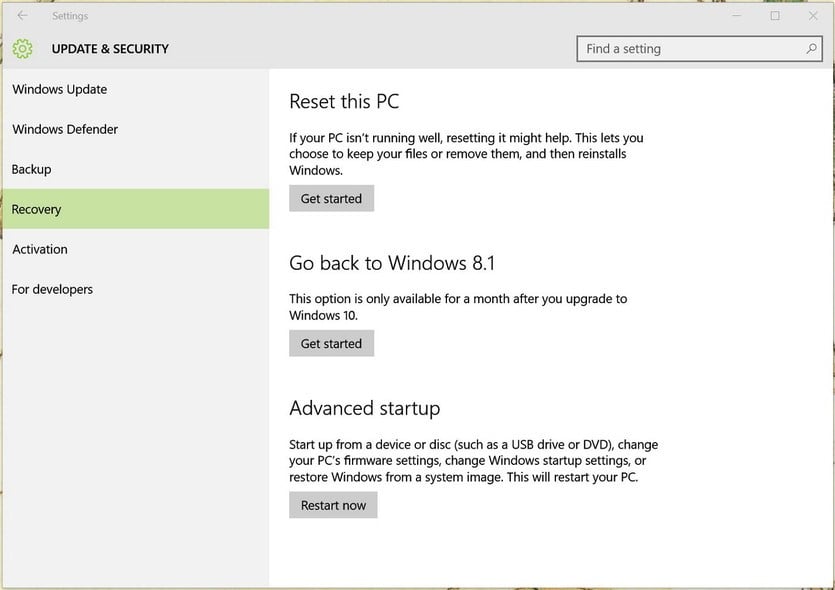
- At the next screen, explain why you want to roll back to a previous version of Windows, and then click through the prompts to continue.
- Click on the button "Go back to Windows 8.1 or 7" and wait for the process to finish.
The process of cleaning up the Windows.old folder on your computer will take around 1-2 hours, depending on the amount of data stored in it.
Downgrade laptop Windows 10 after 30 days
When upgrading to Windows 10 from Windows 7 or 8.1, the laptop will create the Windows.old, $Windows.~BT, and $Windows.~WS directories, saving all previous version data in the Windows.old folder. These folders will automatically be deleted after 30 days of running Windows 10, which will then remove the "Go back to Windows 8.1/7" option. However, you can still rollback to the previous version within 30 days by renaming or backing up these folders to another location, keeping their original names.
To revert to Windows 8.1 from Windows 10, change the names of the "Windows.old" and "Windows.~WS" folders to their original names, or restore them to their original location. Then, change your computer's date and time to a date within the 30-day period. This should make the "Go back to Windows 8".
If the upgrade to Windows 10 fails, you can reinstall the previous version of Windows (Windows 8.1 or 7) and then recover your data from the Windows.old folder, which contains a copy of your files and settings from before the upgrade.
More convenient way to downgrade
To have a simpler and safer way to roll back your laptop to Windows 8.1 or Windows 7, you can create a system backup using the freeware Qiling Disk Master Standard before upgrading to Windows 10. This allows you to easily back up or restore to the previous version of Windows, and even restore your system when your computer fails to boot using the Qiling PXE boot tool or bootable media.
- Install and open Qiling Disk Master or boot your computer from the bootable media, which will bring you the Qiling Disk Master interface.
- To recover your system, click on the "Backup and recovery" tab, and then select the system image backup you created before upgrading to Windows 10 by clicking on "Select Task" or "Browse for recovery".

- To recover your system to a previous state, select a backup image and click the "Next" button. This will restore your system to the point in time the backup was taken.

- Choose to restore the entire image or a selected part and click "Next".

- In the "Operation Summary" page, preview the operation that will be executed, then click "Proceed". Wait for the process to complete, and click "Finish" afterwards.

Conclusion
With Qiling Disk Master, you can easily downgrade your laptop from Windows 10 to Windows 8.1 or 7 with just a few clicks, and it also supports dissimilar hardware restore, system clone, file sync, and other useful features.
Related Articles
- Top Two Ways to Do Lenovo Yoga 300/720 Factory Reset
Lenovo OneKey Recovery, Reset this PC or Qiling Disk Master can help you factory reset Lenovo Yoga/Thinkpad/Ideapad, the previous two option can bypass entering password while the last one applies to all branded computers. - One Click Backup System with 1 Click Backup Software
This article will introduce you to Lenovo OneKey Recovery, Asus Backtracker, and Qiling Disk Master, the best 3 software for one click system backup, and how to use it. - How to Restore an EEE PC Notebook to Factory Settings (2 Ways)
Restoring ASUS EEE pc to factory settings is a good choice when you have trouble with your computers. Try Asus System Recovery or Qiling Disk Master. - Easy Way to Transfer Windows System to Different Computer
Transfer a Windows system to a different computer with backup, restore, and hardware compatibility checks. - Can I Clone NVMe SSD to SATA SSD? How to Do it?
Follow practical steps to clone NVMe SSD to SATA SSD How to Do it while keeping files, partitions, and boot settings safe. - How to Clone Windows 8 Hard Drive Easily Along with Operating System And Applications
This tutorial is designed for users looking for a simple, quick, and secure disk imaging and cloning software to clone a Windows 8/8.1 hard drive, ghost the Windows 8/8.1 operating system, and applications.
Products
Articles & Tutorials
- Data Recovery
- Data Backup
- File Recovery
- File Backup
- File synchronize
- System Backup and Restore
- Disk and Partition Clone
- Technical articles
- Disk Master Help
- Windows Deleted File and Disk Recovery Tutorials
- Windows File and Data Recovery Tutorials
- More Windows Tutorials for Install, Security, Files, and PC Tips
- Windows Boot, Repair, and Recovery Environment Tutorials
- Windows Backup Tutorials
- Windows Restore Tutorials
- Windows Clone and Migration Tutorials
- Windows Server Backup, Recovery, and Management Tutorials
- Windows Disk, Partition, and Storage Management Tutorials