Auto Backup Windows 10 to WD My Cloud | 2 Easy Ways
Need My Cloud auto backup on PC
The My Cloud is a popular network-attached storage device for home and small office users, allowing users to store and access their files from anywhere using the MyCloud.com website or My Cloud app.
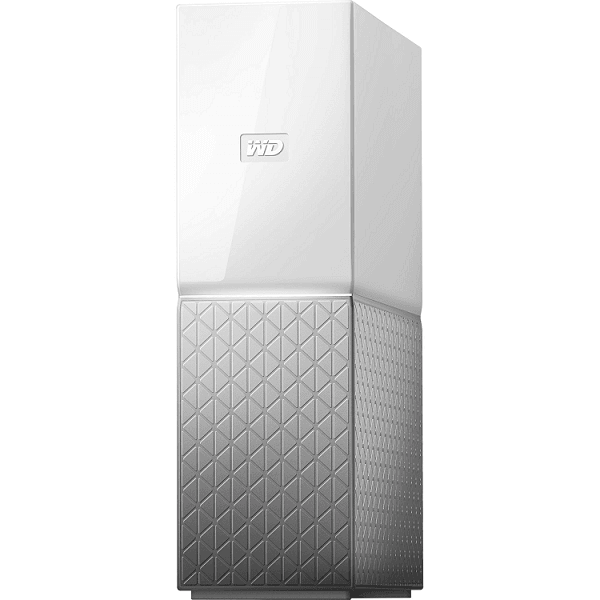
Backing up your Windows 10 data to WD My Cloud is a wise decision, as it keeps your files separate from your PC and allows for data recovery in case of a computer crash. To automate this process, you can use WD My Cloud to backup your PC in two efficient ways.
- # 1. Auto backup Windows 10 files to WD My Cloud via File History
- # 2. Auto backup Windows 10 PC to My Cloud using a free tool
# 1. Auto backup Windows 10 files to WD My Cloud via File History
If you want to backup specific folders to My Cloud, you can use the built-in tool File History. This tool allows you to select specific folders to backup, rather than backing up your entire computer. To use File History, you'll need to follow the instructions provided by the tool, which will guide you through the process of setting up a backup schedule and selecting the folders you want to backup.
1. To access the backup settings, type "backup" in the search box of the taskbar, then click on "Backup settings" from the search results.
2. Under "Back up using file history", click "Add a drive", then click "Show all network locations" and select the network path of WD My Cloud.
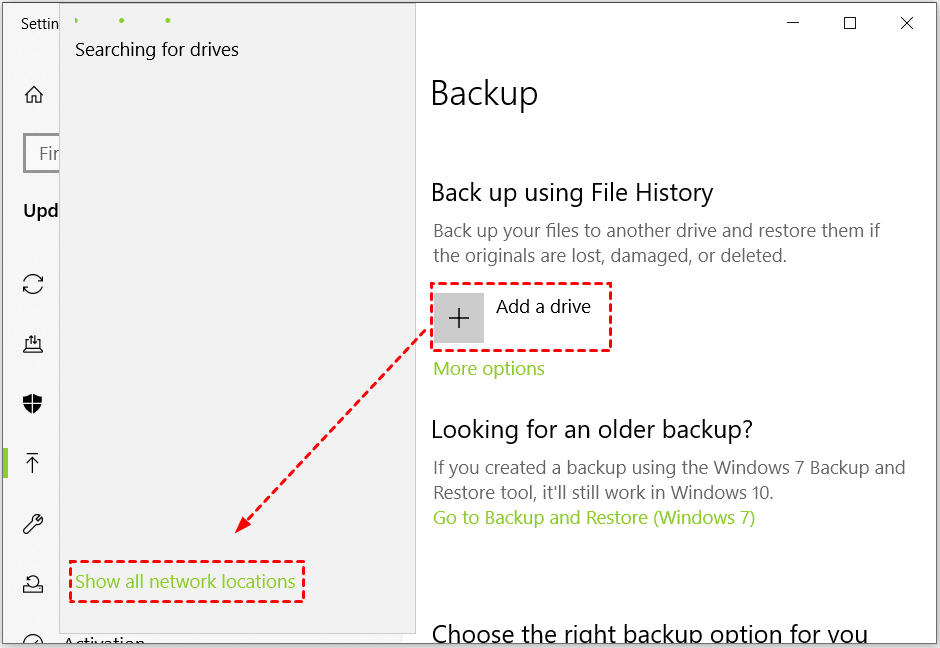
3. The "Automatically back up my files" heading will have a switch that is automatically turned on, and clicking on "More options" under the switch.
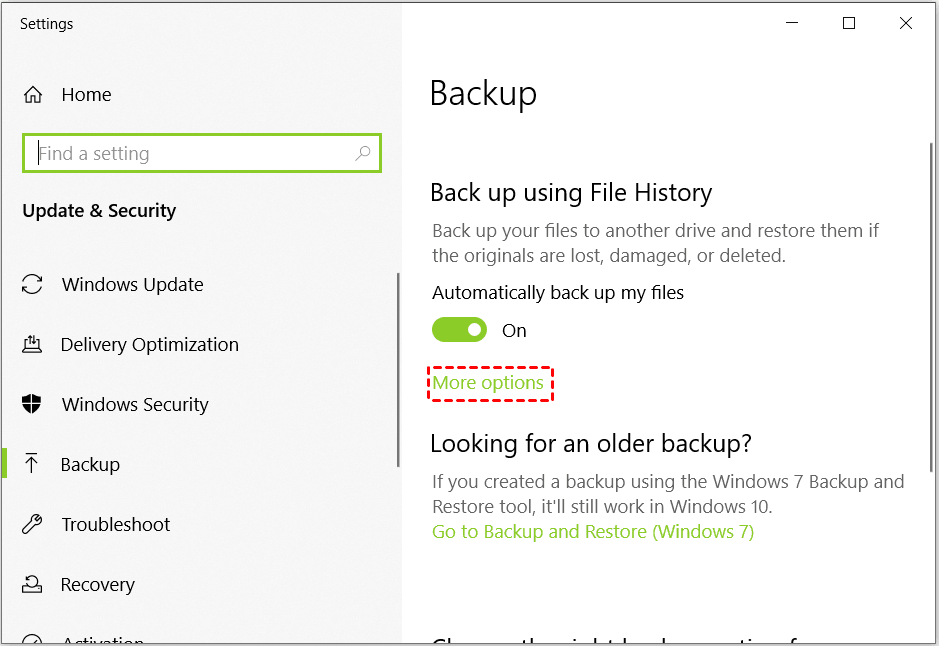
4. In the "Backup options" window, you can configure various settings to customize your backup process, including setting the backup location, choosing the backup type, and selecting which files and folders to include or exclude from the backup.
You can select a backup frequency from every 10 minutes to daily, with the default being every hour.
You can choose to delete backups older than a specified time period, such as one month, three months, etc., with the default option being to keep backups forever.
Windows Backup automatically adds folders in your user account's home folder, including the Desktop, Documents, and Music folders, allowing you to add or remove folders as needed.
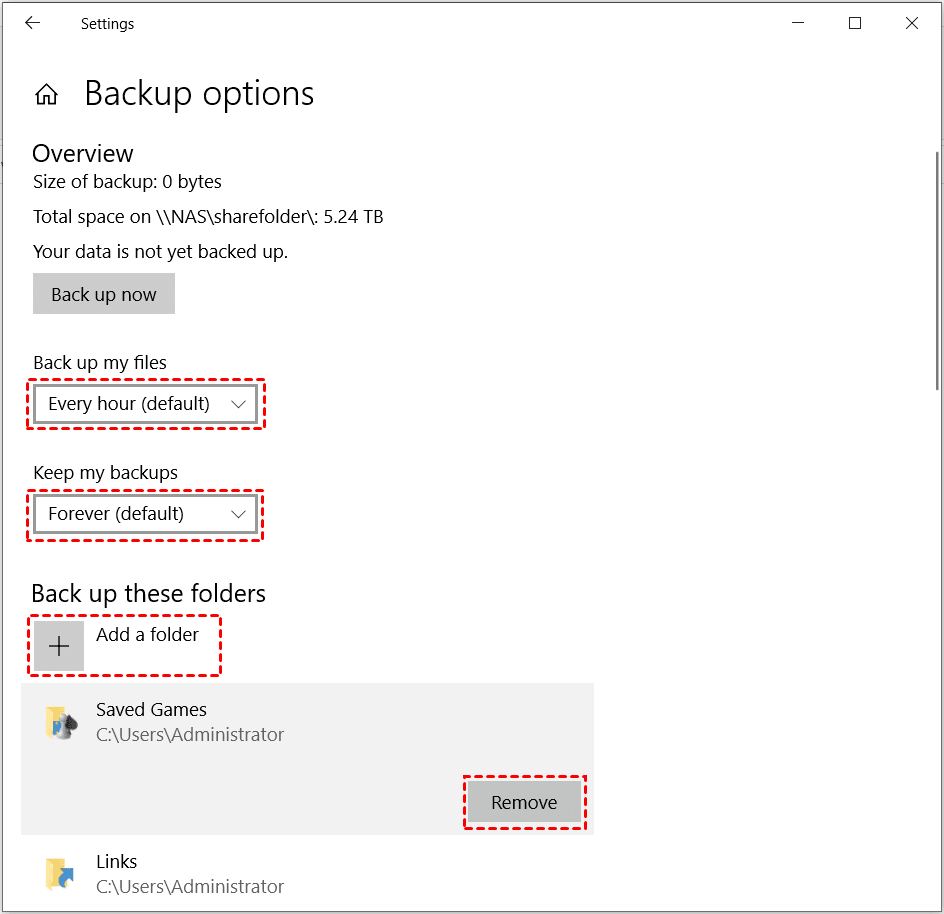
Tip: The "Exclude these folders" section allows you to exclude specific subfolders from being backed up, which can help resolve the "Windows 10 backup cannot add folders" error.
5. Confirm your backup settings and click "Back up now" to initiate a backup of your Windows 10 files to the WD My Cloud device.
File History is a feature in Windows 10 that allows you to automatically back up your files to a separate drive. However, its limitations may disappoint you, such as the inability to back up system files, limited storage capacity, and the need for a separate drive to store backups.
- You can only add folders to be backed up instead of files. This means you can't select individual files to back up, only entire folders and their contents.
- You cannot backup Windows 10 OS with File History.
- You're right, the "Weekly" and "Monthly" options are not available for backing up files that are updated less frequently. This is because these options are designed for more frequently updated files.
A more advanced backup tool like Backblaze or CrashPlan is ideal for these cases. They offer automatic backups, versioning, and encryption, making it easy to protect your data. These tools also provide a user-friendly interface and are relatively inexpensive, with prices starting at around $5-6 per month.
# 2. Auto backup Windows 10 PC to My Cloud using a free tool
If File History can't meet all your demands, you can turn to the best free backup software - Qiling Disk Master Standard. It offers a range of features, including.
✔ Qiling Backup offers four backup types: System Backup, Disk Backup, Partition Backup, and File Backup. You can choose to backup your entire Windows OS, an entire disk or partition, or select specific files and folders to backup, catering to different backup needs.
✔ It supports various backup destinations, including local disk, external drive, USB drive, NAS device, and cloud service.
✔ It allows you to schedule backups to run daily, weekly, or monthly, depending on how frequently the backed up data changes.
✔ It runs smoothly on all editions of Windows 11, 10, 8.1/8, 7, Vista, and XP.
To backup your PC to a WD My Cloud automatically, follow these steps. First, install the WD My Cloud software on your computer, which will allow you to configure automatic backups.
Step 1. Download, install and run Qiling Disk Master.
Step 2. To backup the whole system disk, select Disk Backup, or choose System Backup if you only want to backup system partitions.

Step 3. Click on the Disk icon to select the disk where Windows 10 is installed, which will be the target for the backup.

Step 4. Click the right edge of the second bar and select 'Add Share or NAS Devices' from the drop-down menu. In the next window, enter the IP address of WD My Cloud and click the blue button to add it.


Step 5. Select a shared folder on your My Cloud device to save the backup image and click OK.
Step 6. To set up a backup schedule, click on the "Schedule Backup" button located in the bottom left corner of the page. This will allow you to choose a frequency for your backups, such as daily, weekly, or monthly, based on your specific needs.

Step 7. Review your settings and click Proceed, then Add the schedule and Proceed now to backup your whole PC to My Cloud instantly.
Notes:
● The scheduled backup will run as an incremental backup by default to minimize backup time and storage space usage. It is recommended to perform a full backup manually after a certain period to ensure data safety.
● To have old backups deleted automatically, you can upgrade to Qiling Disk Master Professional and enable Backup Scheme.
To sum up
Both File History and Qiling Disk Master can help with WD My Cloud auto backup on Windows 10, but they serve different purposes. File History is limited to file backup, while Qiling Disk Master offers comprehensive PC backup solutions. Additionally, Qiling Disk Master is specialized in PC clone software and bootable hard drive eraser, making it a more versatile option.
Related Articles
- Best Way to Backup Windows 7 to WD My Cloud
- Backup WD My Cloud to Google Drive with the Best Freeware
- 3 Ways to Backup Files on My Cloud Home to External Drive
- Best Way to Backup Windows Program Files to External Hard Drive
This article introduces 2 methods to backup programs files in Windows 11, 10, 8, 7 to external hard drive or other suitable storages. - Fixed: Encrypt Contents to Secure Data Greyed Out Windows 10
If you find "Encrypt contents to secure data" option greyed out and therefore can't secure folders via EFS technology in Windows 10/8/7, try following solutions to fix it. - Error Loading Operating System in Windows 10 - Solved
If you get the error message "Error loading operating system" in Windows 10 while booting your computer, you can refer to four solutions in this article. Data loss prevention measures are included.
Products
Articles & Tutorials
- Data Recovery
- Data Backup
- File Recovery
- File Backup
- File synchronize
- System Backup and Restore
- Disk and Partition Clone
- Technical articles
- Disk Master Help
- Windows Deleted File and Disk Recovery Tutorials
- Windows File and Data Recovery Tutorials
- More Windows Tutorials for Install, Security, Files, and PC Tips
- Windows Boot, Repair, and Recovery Environment Tutorials
- Windows Backup Tutorials
- Windows Restore Tutorials
- Windows Clone and Migration Tutorials
- Windows Server Backup, Recovery, and Management Tutorials
- Windows Disk, Partition, and Storage Management Tutorials