Windows 11 Made My Computer Slow: Fixes That Help
Windows 11 may feel slow after upgrade because indexing, updates, driver changes, startup apps, low storage, or unsupported hardware are still settling or failing.
Understand the problem
Do not rush to reset Windows before checking the cause. A few targeted checks can separate normal post-upgrade activity from real driver or storage problems.
- Confirm the exact disk, partition, file system, Windows version, boot mode, or sync setting before making changes.
- Back up or recover important files before wiping, formatting, converting, cloning, reinstalling, or repairing Windows.
- For boot and update tasks, prepare recovery media and check BIOS or UEFI settings before deeper repair.
Use Windows built-in tools
Start with the common causes.
- Install pending Windows and driver updates.
- Restart after updates finish.
- Disable unnecessary startup apps in Task Manager.
- Check C drive free space and Storage Sense.
- Check SSD health, memory usage, and background processes.
Use Qiling tools for guided steps
 Qiling Disk Master
Back up files before rollback, reset, or major cleanup on a slow Windows 11 PC.
Function. Back up important files first
Step 1. Connect an external drive or choose a safe network location with enough free space for important Windows 11 user files.
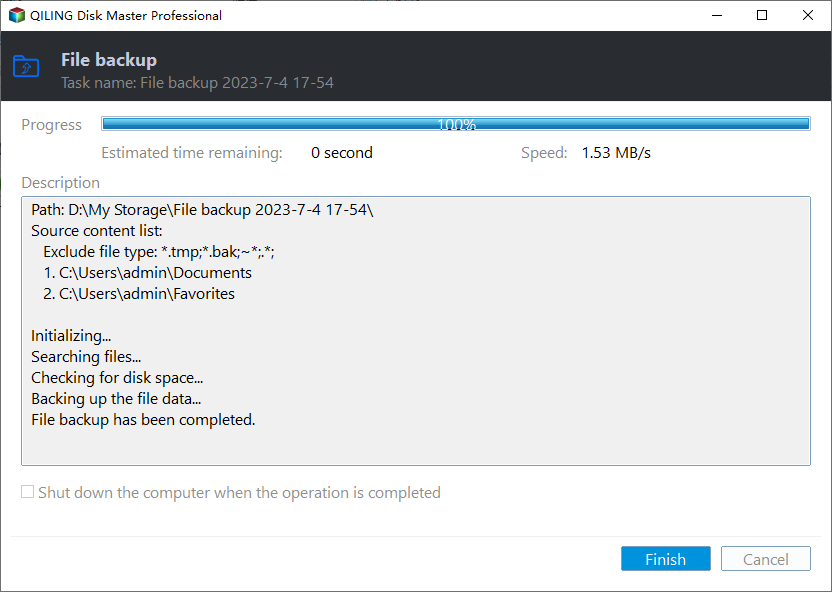
Step 2. Open Qiling Disk Master and choose File Backup. This protects files before cleanup, partition changes, repair, or system updates.

Step 3. In the tree control, select the files and folders that must be protected. Protect files before uninstalling updates, resetting Windows, or rolling back

Step 4. Choose a destination that is not affected by the operation, such as another disk, external drive, NAS, or shared folder.

Step 5. Review the source and destination, then click Proceed. Wait for the backup to finish before continuing.
Check the result
After changes, monitor startup time and Task Manager. If performance remains poor, consider rollback or hardware upgrades.
Related Articles
- Make Windows 11 faster
Find the actual CPU, memory, or disk bottleneck before changing settings. - Windows 11 SSD Slow
Fix SSD performance issues that can make Windows 11 sluggish. - PC Crashing Randomly
Check hardware and drivers when slowdowns turn into crashes. - Check Disk Speed in Windows 11
Measure storage activity and interpret HDD or SSD results before blaming a slow system on the drive.
Products
Articles & Tutorials
- Data Recovery
- Data Backup
- File Recovery
- File Backup
- File synchronize
- System Backup and Restore
- Disk and Partition Clone
- Technical articles
- Disk Master Help
- Windows Deleted File and Disk Recovery Tutorials
- Windows File and Data Recovery Tutorials
- More Windows Tutorials for Install, Security, Files, and PC Tips
- Windows Boot, Repair, and Recovery Environment Tutorials
- Windows Backup Tutorials
- Windows Restore Tutorials
- Windows Clone and Migration Tutorials
- Windows Server Backup, Recovery, and Management Tutorials
- Windows Disk, Partition, and Storage Management Tutorials