Best NAS Backup and Disaster Recovery Solution in Windows
The necessity for NAS disaster recovery
Data stored in NAS devices like QNAP, Synology, and Seagate may not always be safe due to various factors. These devices can be vulnerable to hacking, malware, and other cyber threats. Additionally, NAS devices can be affected by hardware failures, power outages, or physical damage, which can result in data loss. Furthermore, NAS devices may not have built-in backup mechanisms, leaving users to manually manage data backups, which can be time-consuming and prone to errors.
NAS can be a central backup location for multiple computers, but it lacks a built-in option to recover deleted files, making it vulnerable to data loss due to accidental deletion, hardware failure, or other unforeseen circumstances.
Losing data on a NAS (Network-Attached Storage) device can have severe consequences, affecting all connected clients. To avoid unexpected data loss, it's essential to back up your NAS on a regular basis and have a plan in place to restore it when needed. If you've already lost important files without a backup, consider using a data recovery tool to try and retrieve them.
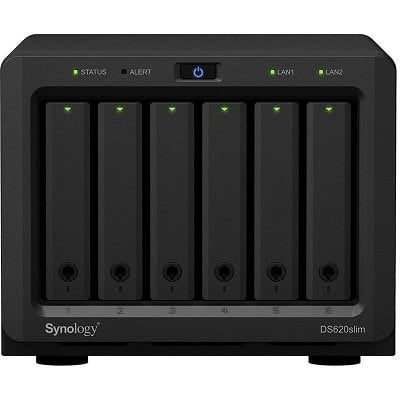
Best NAS Backup and Disaster Recovery Solution
To avoid data loss due to NAS disaster, an effective backup and restore tool is essential. However, if you're caught off guard without any preparation, NAS data recovery software can be used to retrieve deleted files. In either situation, considering the following suggestions can be helpful.
- 1. Free Backup and Restore Solution in Case of NAS Data Disaster
- 2. Best NAS Data Recovery Software to Recover Deleted Files without Backup
1. Free Backup and Restore Solution in Case of NAS Data Disaster
Regular backups are essential to prevent data loss and system crashes, even for NAS devices. It's recommended to follow the 3-2-1 backup strategy and choose a suitable data protection solution. This ensures that only the most recent backup can be used for effective NAS disaster recovery.
Even if you've lost some data without preparation, it's best to start making regular backups after retrieving lost data with Solution 2.
To safely and easily backup and restore NAS data, you need a tool that can transfer data from NAS to different storage devices and set up automatic backups to keep data up-to-date, saving you effort. Additionally, it should have fast recovery speed to minimize downtime.
Based on the conditions, Qiling Disk Master Standard is a good choice due to its high compatibility and complete features.
● This software works on all Windows PCs and supports all NAS brands without limitation, making it a versatile tool for various NAS recovery needs, including Synology, Seagate, and QNAP.
● This tool allows you to back up data from your NAS to various storage options, including your local PC, network share, cloud drive, external hard drive, or USB device. You have the flexibility to specify the backup source and target among these options, giving you more control over your data backup process.
● It includes automatic backup on a regular basis, incremental and differential backup modes, various compression levels, email notifications, and more.
The free Standard version of the software includes features such as data encryption, customizable permissions, and automatic backups, allowing users to try out the software without any financial commitment.
How to backup NAS for disaster recovery:
Step 1. Install and launch the software, then go to the Backup tab and select File Backup.
You can also consider other backup options like partition, disk, or system backup, depending on your needs. For instance, you might want to backup Windows 10 to NAS in case of system failures or other issues.

Step 2. Click on the "Files" or "Folder" option according to your need, and then select "Share/NAS" from the dropdown menu that appears.

To add a share or NAS device, click on "Add Share or NAS Devices", enter the network path of your NAS, and select the files or folders you wish to backup, allowing for multiple selections in the process.
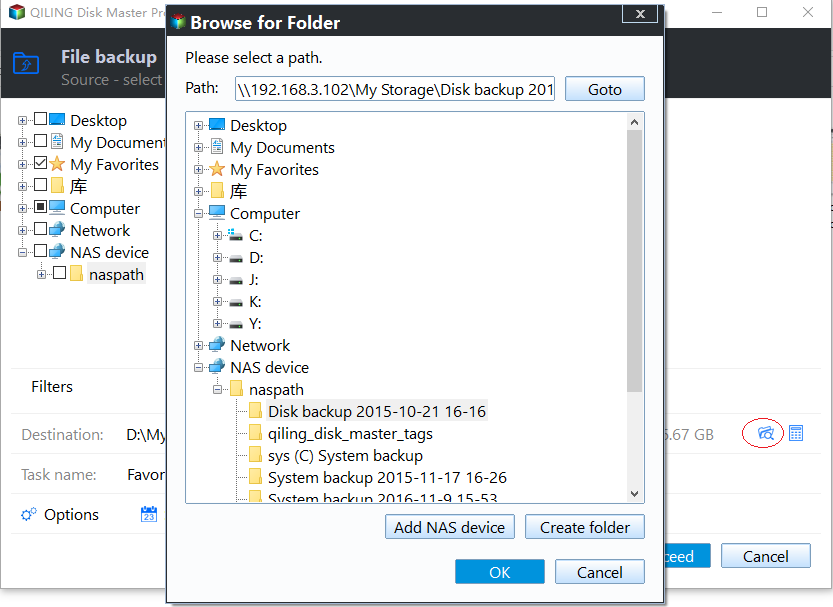
Step 3. To save NAS data, select the destination where you want to store the backup, which can be a removable device, cloud drive, or another NAS drive, and set a schedule for automatic execution. Proceed with the backup process.

Schedule Backup - The software allows users to schedule backups on a daily, weekly, or monthly basis and runs in incremental mode by default. This means that it only backs up new or changed data since the last backup, making the process more efficient and reducing the storage space required. Upgrading to a higher frequency or changing the mode can be done as needed.Professional In newer editions, you can enjoy features such as event triggers, which allow you to automate tasks based on specific events, and USB plug-in capabilities, which enable you to easily back up data from external devices. Additionally, scheduled differential backup allows you to create backups of your data at specific intervals, making it easier to recover in case of data loss.
Backup Scheme - If you're running low on storage space, consider setting up a cloud storage service to access your files from any device with an internet connection, freeing up space on your device. Alternatively, you could upgrade your device's storage capacity, use an external hard drive, or delete unnecessary files and apps to free up space.backup scheme to delete older backups automatically. Available in advanced editions.
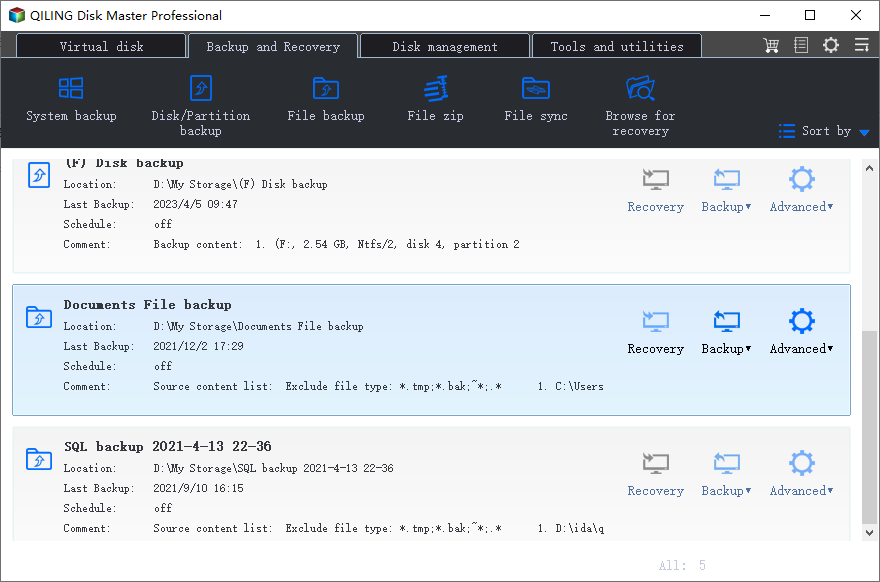
Step 4. To implement NAS data recovery from a backup, go to the Restore tab and choose Select Task or Select Image File to locate the backup image, then restore the data to either the original NAS or a new location.
Related tips:
- If you want to copy NAS files with original formats for direct use, you can use the sync feature instead of copying. This can also be used as a continuous backup software to sync any changed files immediately.
- Many NAS manufacturers offer their own backup and sync solutions, such as Synology's Hyper Backup and QNAP's Hybrid Backup and Sync, but these are typically tailored for their specific devices and not compatible with other products.
2. Best NAS Data Recovery Software to Recover Deleted Files without Backup
When facing NAS disaster recovery without prior backup, Deep Data Recovery can be a helpful assistant. This professional NAS recovery tool can retrieve data from various scenarios and is compatible with Windows 10/8/7/Vista/XP. It can also recover deleted files from NAS devices like QNAP, Synology, and Seagate.
Deep Data Recovery has a simple yet comprehensive interface, making it easy to operate. To recover data from a NAS drive, connect the drives to a Windows computer and use Deep Data Recovery to scan and recover lost files.
Recovering deleted files from a NAS drive can be a time-consuming process, especially when using a deep scan. Some files may be unrecoverable due to severe damage.
To avoid data loss, it's more efficient to recover data from a backup rather than trying to recover from a NAS that's been compromised. Regular backups are strongly suggested to ensure your data's safety.
Verdict
When disaster strikes, having a backup plan in place can make all the difference. If your NAS devices have been backed up in advance, recovering your data becomes a much simpler and safer process. Once you've retrieved your data, don't forget to backup them with Qiling Disk Master Standard to ensure your peace of mind.
This freeware provides flexible backup solutions, including NAS mirror backup, and is suitable for backing up Windows Server to NAS drive or vice versa using Qiling Disk Master Server.
Related Articles
- Easy Steps to Backup NAS to External Hard Drive
Easy-to-use and free NAS backup software will help you easily backup NAS to external hard drive. - How to Backup Windows Server 2016 to NAS Device?
Backup Windows Server 2016 to NAS is very safe and convenient for data protection and disaster recovery. - Synology Replication between Two NAS (2 Ways Included)
For data security and transmission, you may need to do Synology replication between two NAS. Two ways are shown in the article to help you complete this task. - How to Perform Disk Restore or Recovery with Qiling Disk Master?
You will get the best free disk recovery software - Qiling Disk Master Standard and perform disk restore to get your data back if your disk is damaged. - Solved: Automated Windows 10 Updates Deleted All My Documents and Files
This guide explains Solved: Automated Windows 10 Updates Deleted All My Documents and Files with clear steps, key checks, and practical tips. - How Do I Backup My Dell Laptop with Windows 10?
In this article, you are going to backup Dell laptop with Windows 10 using Dell Backup and Recovery alternative. Here are 3 alternative backup software, but the last one is the best free.
Products
Articles & Tutorials
- Data Recovery
- Data Backup
- File Recovery
- File Backup
- File synchronize
- System Backup and Restore
- Disk and Partition Clone
- Technical articles
- Disk Master Help
- Windows Deleted File and Disk Recovery Tutorials
- Windows File and Data Recovery Tutorials
- More Windows Tutorials for Install, Security, Files, and PC Tips
- Windows Boot, Repair, and Recovery Environment Tutorials
- Windows Backup Tutorials
- Windows Restore Tutorials
- Windows Clone and Migration Tutorials
- Windows Server Backup, Recovery, and Management Tutorials
- Windows Disk, Partition, and Storage Management Tutorials