The Best Choice for Samsung T7 SSD Backup Software
About Samsung Portable SSD T7
The Samsung T7 and T5 SSDs are external storage devices that prioritize speed and security, but differ in their capacities, transfer rates, and durability. The T7 has higher capacities and faster transfer rates than the T5, and is also more rugged and water-resistant. The T5, on the other hand, is more compact and has a lower price point, making it a more affordable option for users who need basic external storage.
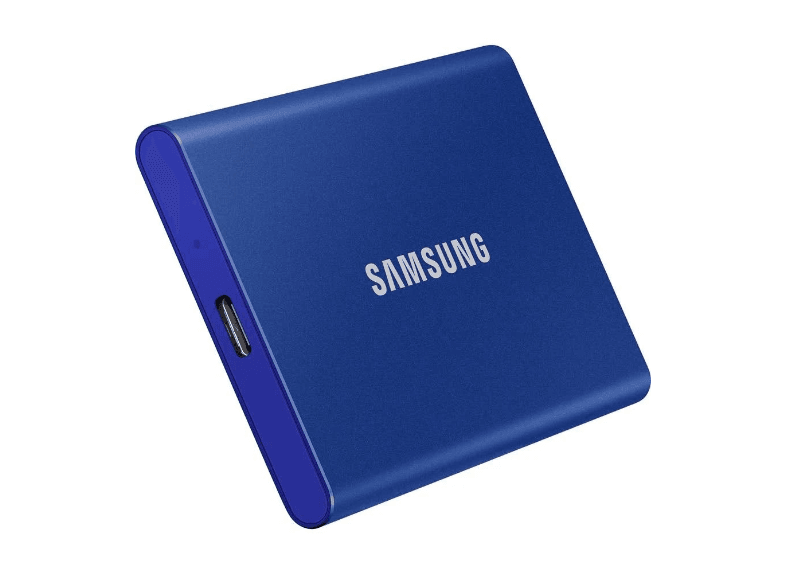
The Samsung T7 Touch is a cutting-edge external storage device that combines style, security, and convenience in a sleek and durable aluminum body, designed to withstand daily use, and features built-in security to protect your private data.
While a higher level of security can provide a sense of protection, it's not foolproof. In fact, even with robust security measures in place, data loss can still occur unexpectedly, often without the user's knowledge or consent, as a result of various scenarios.
- While Samsung portable SSD is a convenient and reliable storage device, it's worth noting that its connectivity to various devices also poses a risk of computer bugs or viruses.
- Samsung SSDs, known for their reliability, can still experience failures, potentially causing data loss and making data recovery challenging from a damaged drive.
- Samsung SSDs, known for their reliability and durability, are not completely disaster-proof. In the event of a failure, data storage can be damaged or lost, making it difficult to recover data from a damaged Samsung SSD.
To backup your Samsung T7 data, you can use a reliable backup software that supports Samsung SSD T7. This will ensure that your important files and data are safely stored and can be easily restored in case of any data loss or system failure. There are several backup software options available that can help you backup your Samsung T7 data, including Qiling Disk Master Standard.
Does Samsung T7 have backup software?
To improve data security with a Samsung T7 SSD, consider using a reliable Samsung SSD backup software. A top recommendation for ease of use and efficient backup is the free Samsung T7 backup software, Qiling Disk Master Standard.
- It provides full backup solutions, including system backup, disk backup, partition backup, file backup, and cloud backup.
- The software allows for automatic backup of external hard drives, such as the Samsung T7 SSD, using a schedule-based approach with options for daily, weekly, or monthly backups.
- This software can support almost all types of storage devices that Windows recognizes, including IDE, SATA, SCSI, SSD, USB external disks, hardware RAID, and Network Attached Storage (NAS).
How to backup your Samsung T7 SSD data
Here are the detailed steps about how to back up Samsung T7 SSD. Before you start, please do the following preparations.
- Connect your Samsung T7 SSD to your computer and verify that it is detected by your system.
- Download the free backup software Qiling Disk Master Standard and install it on your computer.
Now follow the instructions below:
1. In the left tab page, select Backup and then select Disk Backup.

2. You can choose to rename this backup using the "Task Name" field to help you distinguish it from other backups.

3. To select the source disk in Qiling Disk Master Standard, you can simply choose the correct disk from the available options, making sure it's the one you want to work with.
4. To save the image file, click on the destination path where you want to store it and confirm that the path has enough space for the file.

5. To begin your Samsung backup SSD in Windows 10, click the Proceed button.

6. You can set up your PC to perform a specific action, such as restarting or shutting down, after a disk backup is complete. This can help ensure your PC is in a desired state after the backup is finished.
7. Once the backup process is complete, click the "Finish" button to finalize the backup and ensure it is successfully completed. This allows you to proceed with other tasks.
The professional version of this software offers more advanced features, including the ability to resolve the backup disk space issue by automatically deleting backups, and the option to perform differential backups, which requires only one full backup and allows for safer backup of only new or modified files on the disk.
Summary
The Samsung portable SSD T7 boasts impressive data storage speeds and robust security features, but even with these built-in protections, there's always a risk of data loss or unauthorized access. This is where Qiling Disk Master comes in, offering an additional layer of protection and peace of mind to safeguard against potential threats.
To back up your Samsung T7 SSD using Qiling Disk Master, you can simply connect the drive to your computer, launch the software, and follow the on-screen instructions to select the files and folders you want to backup. The software will then create a mirror image of your drive, allowing you to restore your data in case of any issues. This process is designed to be quick, easy, and stress-free, ensuring that your valuable data is safely backed up and protected.
FQA
Can I schedule automatic backups with Samsung T7 SSD software?
Does the software allow for the encryption of backup files?
Is it possible to restore individual files from a backup?
Related Articles
- Best Free Samsung Auto Backup Software in Windows 11, 10, 8, 7
This guide explains Best Free Samsung Auto Backup Software in Windows 11, 10, 8, 7 with clear steps, key checks, and practical tips. - Powerful Samsung SSD Image Software to Protect Data
This guide explains Powerful Samsung SSD Image Software to Protect Data with clear steps, key checks, and practical tips. - How to Backup OneDrive to NAS like Synology or QNAP in Windows
Learn how to Backup OneDrive to NAS like Synology or QNAP in Windows with clear steps, key checks, and practical tips. - What Is Block Level Backup and How to Use It?
Block-level backup and file-level backup are two different approaches to backing up data. While file-level backup involves copying entire files, block-level backup involves copying only the changed blocks of data. - Upgrade Windows 11/10 32 Bit to 64 Bit FREE without Losing Data
Be sure your computer meets the upgrade requirements and you have a copy of your important data. Then you can upgrade Windows 10 from 32 bit to 64 bit without losing data. - Best Free USB Image Tool for Windows 10/8/7
This guide explains Best Free USB Image Tool for Windows 10/8/7 with clear steps, key checks, and practical tips.
Products
Articles & Tutorials
- Data Recovery
- Data Backup
- File Recovery
- File Backup
- File synchronize
- System Backup and Restore
- Disk and Partition Clone
- Technical articles
- Disk Master Help
- Windows Deleted File and Disk Recovery Tutorials
- Windows File and Data Recovery Tutorials
- More Windows Tutorials for Install, Security, Files, and PC Tips
- Windows Boot, Repair, and Recovery Environment Tutorials
- Windows Backup Tutorials
- Windows Restore Tutorials
- Windows Clone and Migration Tutorials
- Windows Server Backup, Recovery, and Management Tutorials
- Windows Disk, Partition, and Storage Management Tutorials