Clone OS to M.2 SSD in Windows 11/10/8/7 - the Easiest Way
Quick Navigation:
- User Case: How Do I Clone my OS to M.2?
- Prerequisites of OS Clone to M.2 SSD
- Clone OS to M.2 SSD with Most Reliable M.2 SSD Cloning Software
- How to Migrate OS to M.2 SSD Step by Step
- How to Boot from Cloned M.2 SSD
- Conclusion
User Case: How Do I Clone my OS to M.2?
You can use a tool like Qiling Disk Master to clone your existing OS to the new M.2 SSD. This will move your OS, including your games, to the new drive. You won't need to reinstall your games. Just make sure to back up your data before starting the cloning process.
- Question from Tom's Hardware
M.2, formerly known as Next Generation Form Factor (NGFF), is a small, gumstick-shaped form factor for SSDs that offers faster speeds and smaller size, making it ideal for laptops and other space-constrained devices.
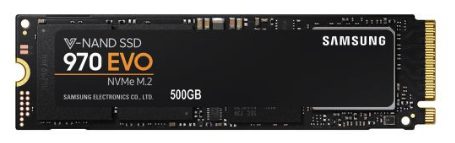
If you need to upgrade or migrate your OS by cloning it from an HDD to an M.2 SSD, this article is for you. We'll guide you through the process of cloning your OS using professional disk cloning software, and also cover how to boot from the cloned M.2 SSD for a seamless transition.
Prerequisites of OS Clone to M.2 SSD
The main steps of how to clone OS to M.2 SSD include:
- Install M.2 SSD on your computer
- Boot Windows from the original HDD
- Clone OS to M.2 SSD
- Boot your computer from the cloned M.2 SSD
To clone an OS from a HDD to an M.2 SSD, ensure your motherboard has an M.2 slot and supports booting from an M.2 SSD. Also, confirm that the M.2 SSD is detected by your computer. If it's not detected, check the linked post for solutions.
To easily and quickly clone from a HDD to an M.2 SSD, the most excellent M.2 SSD Cloner is the best option.
Clone OS to M.2 SSD with Most Reliable M.2 SSD Cloning Software
As your computer's disk slows down, it may take longer to start up or open files and programs. Consider upgrading to an M.2 SSD for faster performance, and use a reliable cloning software like Qiling Disk Master Professional to transfer your OS and data without reinstalling. This software supports various Windows versions, including Windows 11/10/8/7/XP/Vista.
The tool offers a range of features that cater to all your M.2 SSD cloning needs, providing a comprehensive solution for your requirements.
♨ The device supports various types of disks, including SATA SSDs, NVMe SSDs, and M.2 SSDs, among others.
♨ As a migration tool, it supports all brands of SSDs, including WD Blue, Kingston, Samsung, and others, as well as other hard drives such as USB flash drives and SD cards.
♨ Although the target SSD is smaller than the original hard drive, the cloning process can still be performed through the 'Intelligent Sector Clone' method, which clones only used sectors, skipping bad ones, unlike the 'Sector by Sector Clone' method.
♨ The software provides an SSD Alignment option, which enhances SSD performance and prolongs its lifespan when cloning to an SSD.
♨ After replacing your old hard drive, you can also use it for disk wipe to protect your private data.
How to Migrate OS to M.2 SSD Step by Step
To move Windows 10 from a hard disk drive (HDD) to an M.2 solid-state drive (SSD), you can use a professional third-party tool like Qiling Disk Master Pro. Before cloning, some preparations are necessary, including.
◑ Backup files. If your target SSD isn't brand new and contains important files, back up those files first, as the destination disk will be overwritten or deleted after cloning.
◑ Clean up your old hard drive. Delete unwanted files, uninstall unnecessary apps, perform a disk cleanup, and free up space on your device.
◑ Install M.2 SSD properly. To replace the SSD, turn off your device, disconnect the power cord and any other connected cables, then unscrew the back panel. Next, install the new SSD properly into the M.2 slot on the motherboard.
When all preparations are complete, download Qiling Disk Master Professional and install it, or Qiling Disk Master Server if you're a Windows Server user.
Step 1. After installation, start Qiling Disk Master. You can then access the main interface, where you can click on "Clone" in the left panel and select "System Clone" to transfer the Windows system from the HDD to the M.2 SSD.

Step 2. This program automatically selects the system drive and related drives by default. Select connected M.2 SSD as the destination disk and click Next to continue.

Step 3. Confirm all your settings to clone OS to NVMe M.2 SSD, checking SSD Alignment for improved reading and writing speed, then click Proceed.

Step 4. Wait until the operation is complete, and click Finish.

How to Boot from Cloned M.2 SSD
After moving your operating system from a hard disk drive (HDD) to a solid-state drive (SSD) via M.2, you can access the BIOS settings and modify the boot device to start your computer from the cloned M.2 SSD. To do this, follow these steps.
Step 1. To enter the BIOS or UEFI setup, restart your computer and press the F2 key (or another key as specified by your computer's manufacturer) repeatedly during the restart process. This will allow you to access the settings and make changes as needed.
Step 2. Navigate to the "Change boot order" option, and set the cloned M.2 SSD as the first boot drive in the boot order.
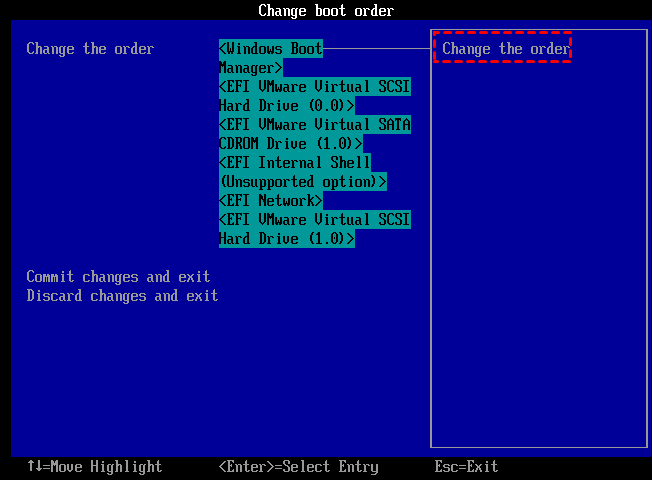
Step 3. Press Enter to confirm your selection.
If your computer can only fit one hard drive, you can remove the old HDD and install the M.2 SSD in its place, allowing your computer to run directly off the new SSD.
Conclusion
Qiling Disk Master Professional makes it easy to clone an OS to an M.2 SSD, allowing you to transfer the operating system and all data without reinstalling, saving time and energy.
This software not only allows you to clone an SSD to an M.2 SSD, but also provides features to back up, restore, and synchronize files and folders. Each feature supports files or data from different locations, enabling tasks such as backing up Windows 10 to a NAS, restoring deleted files from Synology, and performing bidirectional folder syncing in different cloud storages.
Related Articles
- SSD Clone VS Fresh Install, Which Is Better?
This guide explains SSD Clone VS Fresh Install, Which Is Better with clear steps, key checks, and practical tips. - How to Clone C Drive to SSD/HDD in Windows 10/8/7 Easily?
Learn how to Clone C Drive to SSD/HDD in Windows 10/8/7 Easily with clear steps, key checks, and practical tips. - How to Use Samsung Data Migration on Windows 10 to Clone a Hard Drive
Learn how to Use Samsung Data Migration on Windows 10 to Clone a Hard Drive with clear steps, key checks, and practical tips. - How to Transfer Windows 10 from One SSD to Another (2 Ways)
This article illustrates how to transfer Windows 10 from one SSD to another, as well as an easier way to migrate OS than using the built-in system image recovery. - How to Install Windows 11 from USB via CMD
Here's a tutorial to help users install Windows 11 from USB via CMD and with an easier way to install Windows 11 with a handy tool. - [Solved]: Laptop Slow After Windows 11 Update
This guide explains Laptop Slow After Windows 11 Update with clear steps, key checks, and practical tips.
Products
Articles & Tutorials
- Data Recovery
- Data Backup
- File Recovery
- File Backup
- File synchronize
- System Backup and Restore
- Disk and Partition Clone
- Technical articles
- Disk Master Help
- Windows Deleted File and Disk Recovery Tutorials
- Windows File and Data Recovery Tutorials
- More Windows Tutorials for Install, Security, Files, and PC Tips
- Windows Boot, Repair, and Recovery Environment Tutorials
- Windows Backup Tutorials
- Windows Restore Tutorials
- Windows Clone and Migration Tutorials
- Windows Server Backup, Recovery, and Management Tutorials
- Windows Disk, Partition, and Storage Management Tutorials