Clone Hard Drive to Samsung SSD 850 EVO (2 Ways)
Quick Navigation:
- About Samsung Internal SSD (850/860 EVO)
- Why Clone to Samsung 850/860 EVO SSD Drive?
- Clone HDD to Samsung SSD 850 EVO with Samsung Data Migration
- Safely Clone Windows 10 Hard Drive to Samsung 850 EVO (Universal)
- Conclusion
About Samsung SSD (850 EVO)
Samsung SSD 850 EVO is a TLC V-This SSD offers a balance of affordability, performance, and endurance, thanks to its 3D NAND technology, making it a great value for users. It also features a newer generation MGX controller with a dual-core design, which enhances power efficiency and allows for higher clock speeds.
The Samsung SSD 850 EVO comes with a competitive price point, with 250GB costing $99.99, 500GB for $179.99, and 1TB for $349.99. Additionally, Samsung has upgraded the warranty to 5 years, providing users with more confidence in their purchase. The 850 EVO also has newer, high-performance SSD options available, including the Samsung 860 EVO/Pro, 950 Pro, 960 Pro/EVO, and 970 EVO/Pro.
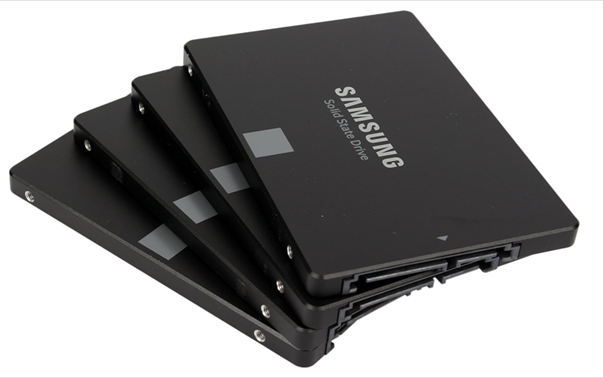
The Samsung SSD comes with cloning software called Samsung Data Migration, which allows you to transfer your operating system, applications, and data to the new SSD. Additionally, the Samsung SSD Magician software enables you to monitor drive health, customize settings, and optimize performance.
Why Clone Hard Drive to Samsung 850 EVO SSD Drive?
Many users would like to upgrade from a hard drive (HDD) to the Samsung 850 EVO SSD to significantly speed up their computer, taking advantage of its benefits.
- Migrate your operating system to a Samsung 850 EVO SSD to enjoy a significantly shorter boot time, faster read and write speeds, and improved overall system performance.
- Clone your hard drive to a Samsung SSD to transfer all data from the original disk to a new one, taking advantage of the SSD's superior performance and reliability.
- To replace a bad or damaged drive without reinstalling Windows and applications, you can use a process called "cloning" or "imaging." This involves creating an exact copy of your current system drive onto the new drive, including the operating system, programs, and data. This can be done using specialized software such as Qiling Disk Master, which can create an image of your current drive and restore it to the new drive.
- To create an alternative backup for your system disk, you can use a tool like Qiling Disk Master to create a disk image of your system drive. This will create a bit-for-bit copy of your drive, including the operating system, programs, and data.
Then, how to clone to Samsung 850 EVO SSD drive in Windows 7/8/10? You could consider using Samsung Data Migration or third-party cloning software - Qiling Disk Master Professional. And I'll introduce you both ways in detail.
Clone HDD to Samsung SSD 850 EVO with Samsung Data Migration
Here you will use Samsung data migration software to clone a hard drive to a Samsung SSD, such as the 850 EVO, using Samsung data migration software. The software can also be used to clone to other Samsung SSDs like the 850, 860, 960, and 970 EVO.
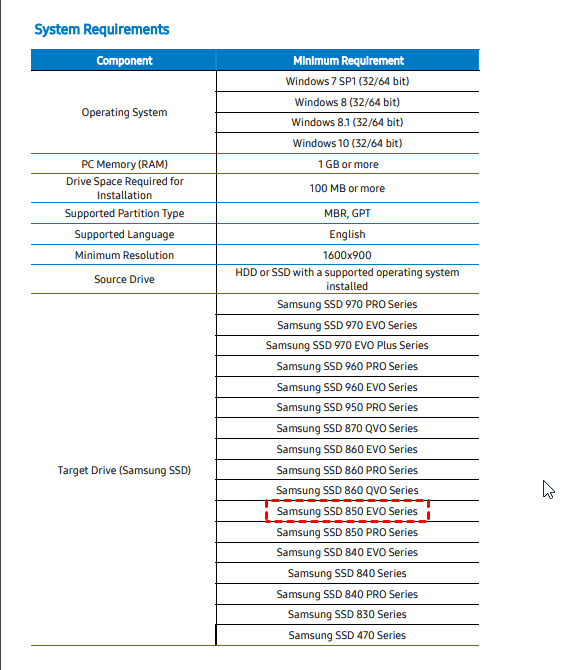
To clone to a Samsung 850 EVO step by step, ensure you have installed the latest motherboard chipset drivers. If the target disk is an NVMe SSD, install NVMe drivers first. Then, follow the cloning process.
1. Connect your Samsung 850 EVO to your computer via the SATA cable. Ensure that the drive is recognized by your computer's operating system. If it's not recognized, try reinstalling the drivers or checking the drive's power connection.
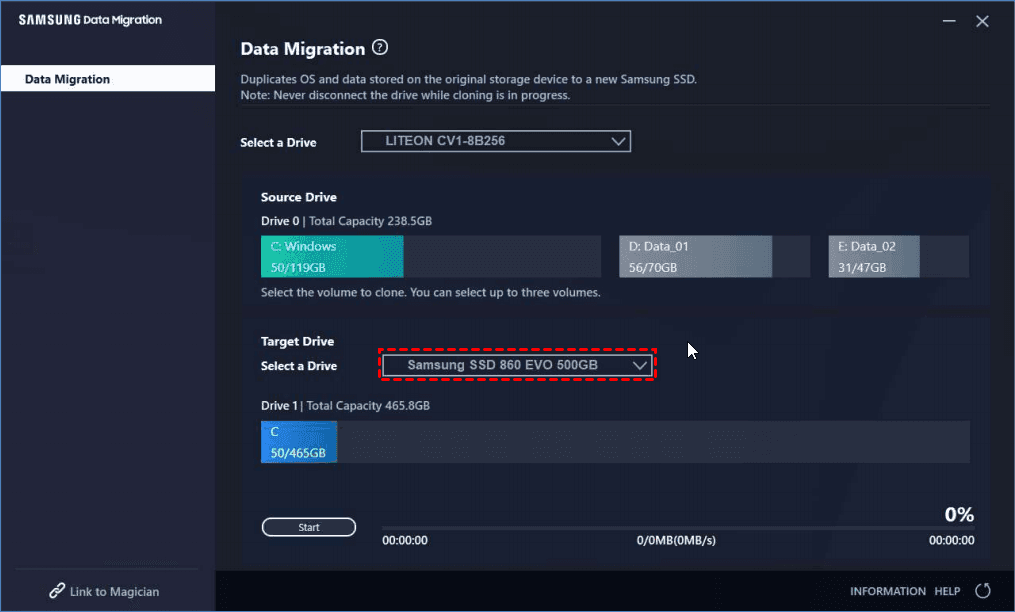
Start Samsung Data Migration on your Windows 7/8/10 computer, and choose Samsung 850 EVO as the target drive.
3. Click Start to clone HDD to Samsung 850 EVO SSD.
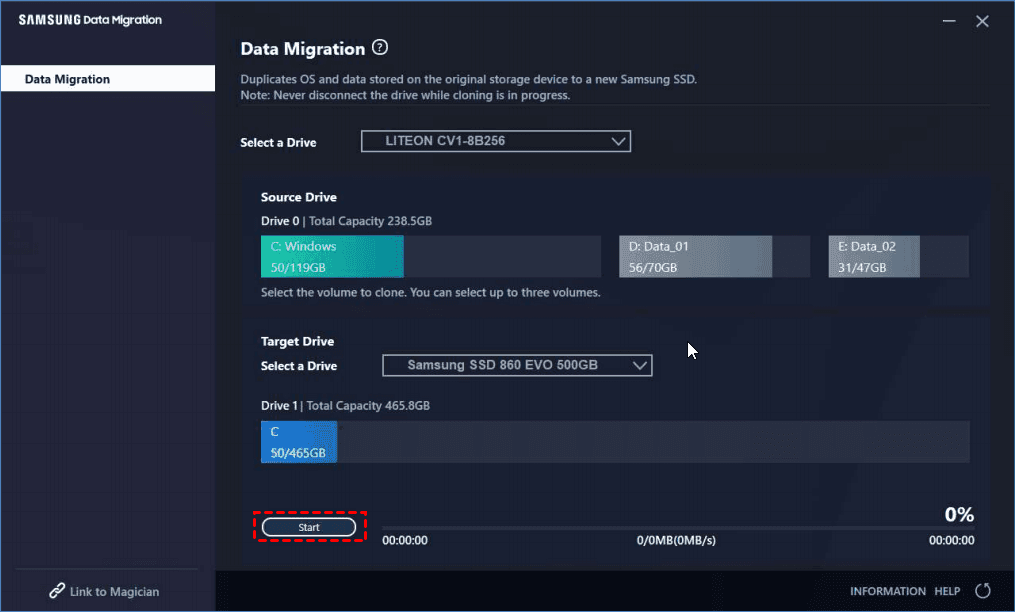
✍ After cloning, the data size may differ by a few gigabytes due to the absence of automatic cloning of virtual memory, such as page files and hibernation files, which are managed by the operating system.
✍ If you clone a Master Boot Record (MBR) disk to a GUID Partition Table (GPT) disk with a capacity greater than 2TB, the space exceeding 2TB will remain unallocated.
✍ If the source drive is encrypted, you'll need to decrypt it first by removing the password, and then you can clone it.
Cloning a hard drive to a Samsung SSD 850 EVO can be done, but it's not without its limitations. The process involves several steps, including preparing the source and destination drives, using a cloning software, and verifying the clone. However, the process may not work properly in all cases, and users may encounter issues during the cloning process.
- You use it to clone to other brands of SSD.
- You want to clone dynamic disk to Samsung SSD 850 EVO.
- The source disk has dual boot systems.
- When the source disk has bad sectors or is damaged.
- It does not have OS.
When using Samsung Data Migration software, you may encounter issues such as cloning failure or the software not responding, which can be frustrating. In these cases, it's recommended to switch to a more compatible cloning software to complete the task.
Safely Clone Windows 10 Hard Drive to Samsung 850 EVO (Universal)
If Samsung Data Migration has too many restrictions for you, consider using Qiling Disk Master, a top-rated software for Windows that offers powerful execution and reliable performance, making it a great alternative for cloning all types of disks, including those needed for a Samsung data migration. Its professional version is sufficient to help you achieve your goal.
- It allows you to clone boot disk and data diskThe Samsung 850 EVO is capable of cloning all partitions, including OEM recovery partition, EFI system partition, and other partitions, whether the system disk is a basic disk or dynamic disk. This means it can clone the entire system, including all partitions, to the Samsung 850 EVO.
- This software uses the Intelligent Clone feature, which clones only used sectors and skips bad ones, allowing you to clone a larger drive to a smaller one, including HDD or SSD, and even clone a hard drive with bad sectors, with the option to clone all sectors.
- The software can adjust the partition size on the destination disk manually or automatically if the target disk is larger, and also allows for the conversion of the destination disk's partition style from MBR to GPT or vice versa if their styles are different.
- It can clone a dual-boot hard drive to an SSD in any Windows system.
- This applies to all brands of SSD/HDD, including Samsung, Seagate, Western Digital (WD), Toshiba, ADATA, HP, and more.
Qiling Disk Master Professional allows users to perform various disk operations with an intuitive interface, making it easy for users to understand and use like a professional. It can be downloaded to try out its features. For server users, Qiling Disk Master Server is also available.
The free trial of the Clone feature can only be used to demonstrate its capabilities. To actually clone a hard drive to a Samsung SSD 850 EVO and boot from it, you need to upgrade to the pro trial.
Step 1. Install and execute the Samsung data migration alternative - Qiling Disk Master Professional. On the main window, click Clone->Disk Clone.

Step 2. Select the source disk and Samsung 850 EVO SSD subsequently. Remember to click Next in each step.

Step 3. Configure the cloning settings and click "Proceed" to clone the Windows 10 hard drive to the Samsung 850 EVO safely and easily.
- Click Edit Partitions to customize partition size, with options to copy without resizing partitions, add unused space to all partitions, or manually adjust partition size. Additionally, you can convert the partition type from MBR to GPT or vice versa.

- Check the SSD Alignment To optimize performance for the Samsung 850 EVO SSD, consider the following:
- Tick Sector by sector clone If you want to clone all sectors of a hard drive or the Samsung 850 EVO SSD, whether it's used or not, you can use a cloning software like Qiling Disk Master. These tools can create an exact copy of the drive's sectors, including empty and unused space, which can be useful for archiving or transferring data. However, keep in mind that cloning a used drive can also copy any existing issues, such as bad sectors or corrupted files, so it's essential to ensure the destination drive is healthy and has sufficient space before initiating the cloning process.

Wait for a moment, the process of cloning to Samsung 850 EVO SSD will be finished. And the cost time varies for disk size and the read & write speed.
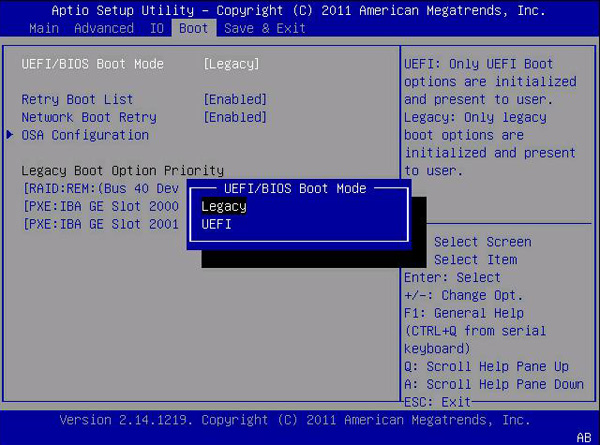
After cloning, replace your old hard drive with the Samsung 850 EVO and set the boot order to boot from the cloned SSD drive. If the cloning process didn't convert the disk to GPT, you'll also need to switch the boot mode from UEFI to Legacy or vice versa.
The software can be used for continuous data protection, such as creating a disk backup and performing a dissimilar hardware restore if issues arise. It also supports creating a portable version and deploying system images to multiple computers simultaneously, especially with the technician or techplus edition.
Conclusion
You can clone a HDD to a Samsung 850 EVO using Samsung Data Migration, but it has limitations and may fail. For a more comprehensive solution, consider using Qiling Disk Master Professional, which can handle the cloning process more effectively.
With this tool, you can clone HDD/SSD, MBR/GPT disk, and dual boot hard drives, regardless of disk capacity and brand. It also supports cloning dynamic disks and allows you to resize partitions to fit the target disk, making full use of its space.
Related Articles
- Top Two Ways to Clone Samsung SSD to another SSD without Reinstalling
This guide explains Top Two Ways to Clone Samsung SSD to another SSD without Reinstalling with clear steps, key checks, and practical tips. - How to Clone Hard Drive to Samsung SSD with Secure Boot in Windows?
Learn how to Clone Hard Drive to Samsung SSD with Secure Boot in Windows with clear steps, key checks, and practical tips. - Cloned SSD Won't Boot in Windows 10/8/7 - How to Solve?
Read this article to learn how to fix cloned SSD won't boot on Windows 11/10/8/7. If you don't want to get trapped, try an alternative in Windows to clone HDD to SSD without booting problem. - 2022 Tips| How to Clone Windows XP to USB Drive
If you are still using Windows XP, it is wise to clone it to a USB drive in case it suddenly breaks or fails to boot, resulting in losing all data. Don't hesitate! let's ensure your data! - How to Clone SSD to New SSD Without Losing (OS Included)
Learn how to Clone SSD to New SSD Without Losing (OS Included) with clear steps, key checks, and practical tips.
Products
Articles & Tutorials
- Data Recovery
- Data Backup
- File Recovery
- File Backup
- File synchronize
- System Backup and Restore
- Disk and Partition Clone
- Technical articles
- Disk Master Help
- Windows Deleted File and Disk Recovery Tutorials
- Windows File and Data Recovery Tutorials
- More Windows Tutorials for Install, Security, Files, and PC Tips
- Windows Boot, Repair, and Recovery Environment Tutorials
- Windows Backup Tutorials
- Windows Restore Tutorials
- Windows Clone and Migration Tutorials
- Windows Server Backup, Recovery, and Management Tutorials
- Windows Disk, Partition, and Storage Management Tutorials