Best Portable Disk Cloning Software for Windows 11, 10, 8, 7
Quick Navigation:
- Why do you need portable disk cloning software?
- Best disk clone software for portable use
- How to migrate hard drive to another successfully
- How to create a portable version of the disk clone software
- Conclusion
Why do you need portable disk cloning software?
Windows has a built-in backup utility, but it's cumbersome to use and prone to errors. As a result, people often use disk cloning software to migrate their OS and data to a new hard drive, such as switching from a hard disk drive (HDD) to a solid-state drive (SSD).
Windows doesn't come with cloning software, making it necessary to download and install 3rd party cloning software on each PC, which can be time-consuming and may involve license key issues.
To avoid reinstalling software and its activation, use portable disk cloning software. Install it on one computer, create bootable media, and run the .exe file on the target computer in the installation directory.
Best disk clone software for portable use
What we care most about this kind of tool is the cloning capability and the portability, and Qiling Disk Master Technician is a good choice that satisfies both counts.
◈ The software is compatible with all Windows PCs, allowing you to clone a disk, partition, or just the OS, as per your preference.
◈ It allows you to clone hard drives of different sizes, such as cloning a larger HDD to a smaller SSD or cloning a smaller SSD to a larger SSD.
◈ All data disks and system disks are supported, regardless of whether they have an MBR or GPT partition style.
◈ For dynamic disks, you can use System Clone and Partition Clone to copy dynamic volumes.
◈ You can create a portable version of the software to back up/clone on any target PC without installing it.
Feel free to download the trial of the Technician edition here. If you want to use these features on Windows Servers as well, please turn to Technician Plus edition.
*Clone features in trial can only be demonstrated. Please upgrade for full functionality.
How to migrate hard drive to another successfully
If you want to migrate your hard drive to another drive, all the steps are the same - you just need to connect the new drive and open the software on the target computer.
>> Install Qiling Disk Master on one computer. For disk migration in one computer, you can download and install the software on the target computer, then search for "Qiling Disk Master" and select it.
>> Execute the portable version of Qiling Disk Master in the installation directory. To use Qiling Disk Master on multiple computers, you need to create a portable version and run the Disk Master.exe file from the installation directory, or install and activate it on each computer individually, which can be time-consuming.
To clone a hard drive to a new drive using this software, follow these steps carefully: open the software, and then proceed with the cloning process to transfer the contents of the old drive to the new one.
1. Connect the target drive and make sure it can be detected. Click Clone on the main interface of the software and select Disk Clone.

Select the source hard drive and target SSD, then click Next to continue.
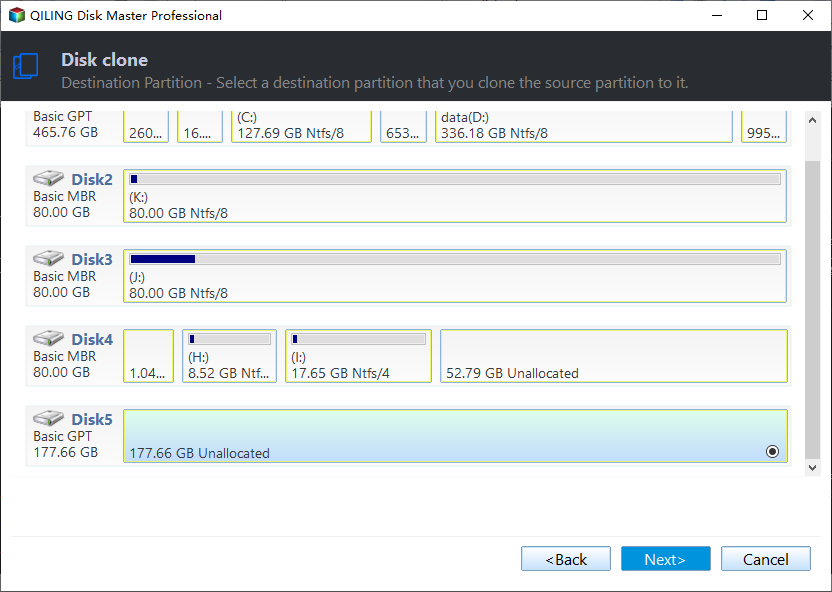
3. For the target SSD, select the option to enable SSD alignment, which can improve its performance, and then click proceed.
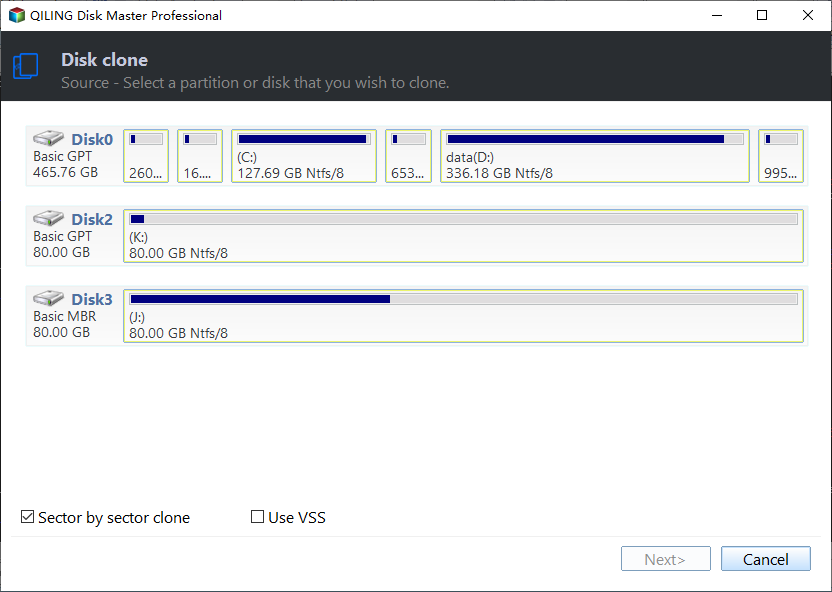
The default cloning mode only copies used sectors, but if the target disk is larger or the same size, you can select "Sector By Sector Clone" to copy all sectors, including blank and bad ones.
To avoid unallocated space on a larger target disk, you can use the Edit Partitions feature to adjust partition sizes, and also convert the destination disk from MBR to GPT or vice versa if necessary.
👉 Copy without resizing partitions: It will not resize the partition size.
👉 Add unused space to all partitions: To reallocate unused space to each partition of the target disk, you can use the `resize2fs` command. This command allows you to resize a file system (in this case, the file system on the target disk) to make use of the free space on the disk.
👉 Manually adjust partition size: Extend the unallocated space on the destination disk to the partition where you want to increase the size.
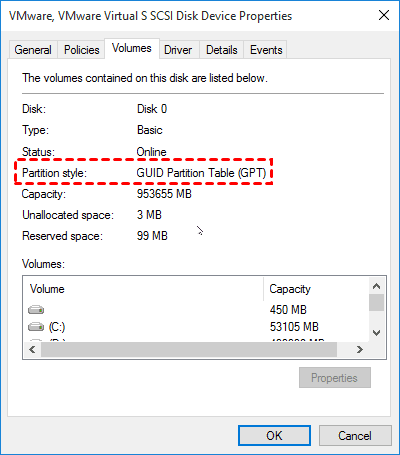
Qiling Disk Master allows direct cloning of MBR to MBR, MBR to GPT, GPT to GPT, and GPT to MBR, but ensures the target disk's partition style matches the boot mode (MBR for legacy BIOS, GPT for UEFI).
If you're unsure about the disk type, you can check the Disk Management section and look at the Properties of both disks. Then, find the Partition style and see if it's GPT or MBR.
After cloning, you can either physically replace the hard drive with the target SSD or enter the BIOS settings during startup and set the SSD as the first boot device.

How to create a portable version of the disk clone software
To copy software to a removable device, start by installing it on a Windows PC. Once installed, follow the steps to create a portable copy, which can then be used on any target PC via the device without the need for installation.
1. Connect a removable device, such as a USB flash drive, then launch the software and select Tools, followed by Create bootable media.
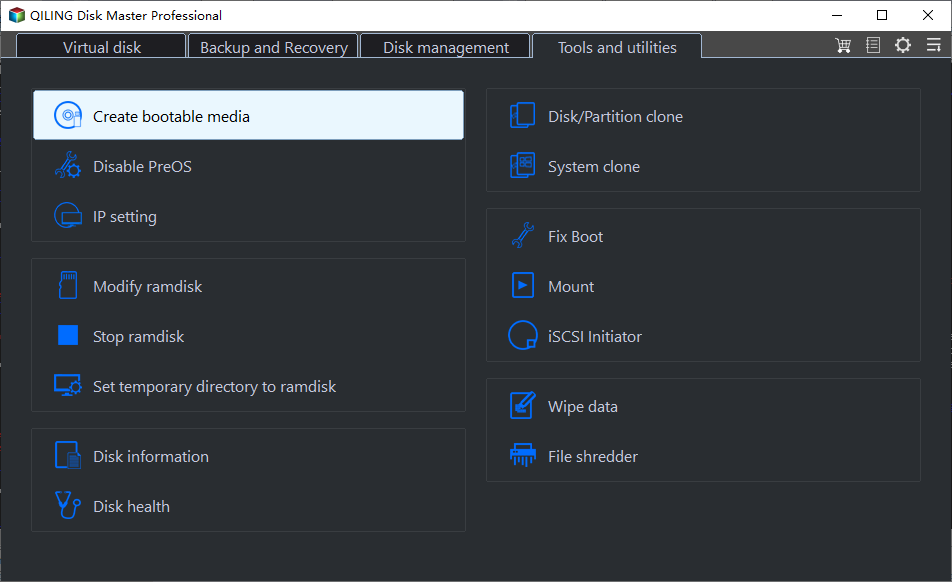
2. The connected USB drive will be automatically selected as the target directory, or you can click "Browse" to choose a different path.

3. To create a portable version of the hard drive clone software, click "Proceed" after which the software will be fully installed on the USB drive, resulting in a portable hard drive clone software.
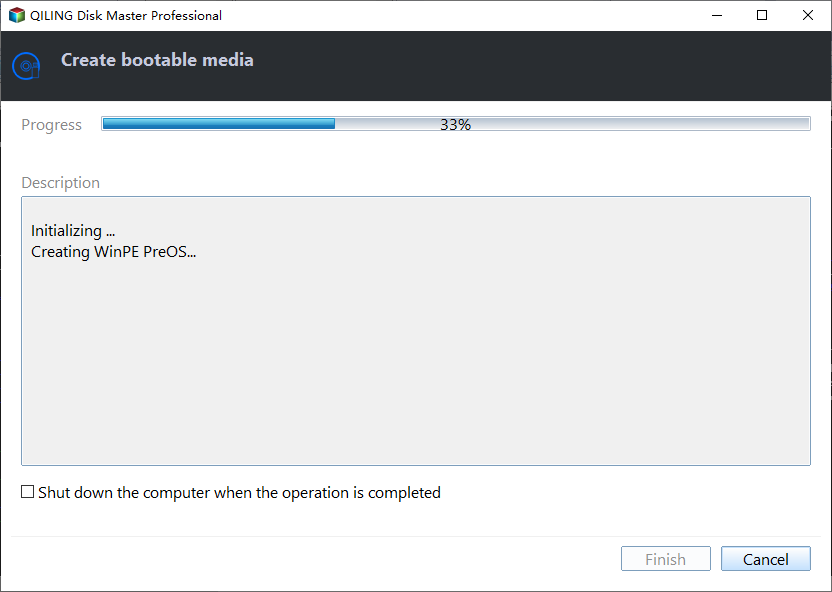
Connect the removable device to a target PC, click the Disk Master.exe file to launch the portable version, and start the hacking process.
If the target computer has previously installed Qiling Disk Master, you may encounter problems using this software. To resolve this, run the registration tool - Register - in the installation directory to register for the advanced edition correctly.
✍Notes:
- The portable version cannot run simultaneously with Qiling Disk Master.
- It's not supported to create bootable media on a network path or CD-ROM drive.
- The Qiling Disk Master technician only supports Windows 11/10/8/7/XP/Vista, while server users may want to try Qiling Disk Master Tech Plus.
Conclusion
For convenient hard drive migration on one or multiple computers, consider using Qiling Disk Master Technician or Tech Plus, a portable disk cloning software that allows you to create a portable version, making it ideal for use on any PC or server without installation or activation.
This software offers additional features beyond cloning, including portable disk imaging, automatic OS backup, restore to dissimilar hardware, system image deployment to multiple computers, and creating a bootable media to rescue a non-booting PC.
Related Articles
- Top Portable Backup Software to Create Backups on Any PC
- Free Western Digital Disk Cloning Software (Securely Boot)
- 3 Free & Easy Ways to Transfer Windows 10 to New Hard Drive
- Best Free SSD Cloning Software for Windows 10/8/7
- How to Use Qiling Disk Clone Wizard Correctly?
To use the Disk Clone wizard of Qiling Disk Master, follow this detailed tutorial. The wizard allows you to clone a disk, which means creating an exact copy of the disk, including all files, settings, and applications. - How to Copy or Clone Dynamic Disk in Windows 7, 8,10?
Learn how to Copy or Clone Dynamic Disk in Windows 7, 8,10 with clear steps, key checks, and practical tips.
Products
Articles & Tutorials
- Data Recovery
- Data Backup
- File Recovery
- File Backup
- File synchronize
- System Backup and Restore
- Disk and Partition Clone
- Technical articles
- Disk Master Help
- Windows Deleted File and Disk Recovery Tutorials
- Windows File and Data Recovery Tutorials
- More Windows Tutorials for Install, Security, Files, and PC Tips
- Windows Boot, Repair, and Recovery Environment Tutorials
- Windows Backup Tutorials
- Windows Restore Tutorials
- Windows Clone and Migration Tutorials
- Windows Server Backup, Recovery, and Management Tutorials
- Windows Disk, Partition, and Storage Management Tutorials