Best Samsung 870 EVO Clone Software to Clone HDD or OS
Quick Navigation:
- Samsung EVO 860 vs EVO 870
- Does Samsung 870 EVO Come with Clone Software?
- How to Use Samsung 870 EVO Clone Software in Windows 10 or 11
- Way 1: Perform Samsung SSD 870 EVO Clone with SDM
- Way 2: Perform Samsung SSD 870 EVO Clone with Qiling Disk Master
- More about Samsung 870 EVO & Cloning Software
- To Sum Up
Samsung EVO 860 vs EVO 870
The Samsung EVO 860 and 870 are SATA SSDs that share similar updates, including 3D NAND, which provides at least a 10% performance boost and 15% power savings. Both drives also come with a five-year warranty. However, despite these similarities, there are still some differences between them.
- Controller: The 870 uses the MKX SATA SSD controller, whereas the 860 uses the MJK controller, with MKX offering better performance and quality.
- Sequential read and write speeds: The 870 and 860 SSDs have high read and write speeds, with the 870 reaching up to 560MB/s and 530MB/s, and the 860 reaching up to 560MB/s and 530MB/s. They also have high IOPS, with the 870 reaching up to 98K and the 860 reaching up to 88K.
- Price: The Samsung 870 EVO is significantly cheaper than the 860, with prices starting at $39.99 for 250GB, compared to the 860's much higher prices. The 870 EVO's prices range from $39.99 for 250GB to $359.70 for 4TB, while the 860's prices are not provided. This suggests that the 870 EVO is a more affordable option for those looking for a high-capacity SSD. The 870 EVO's prices are as follows: 250GB for $39.99, 500GB for $59.99, 1TB for $89.
- SSD disk former: The 860 and 870 drives are available in 2.5-inch and mSATA form factors, with the 860 available in both and the 870 only available in 2.5-inch.
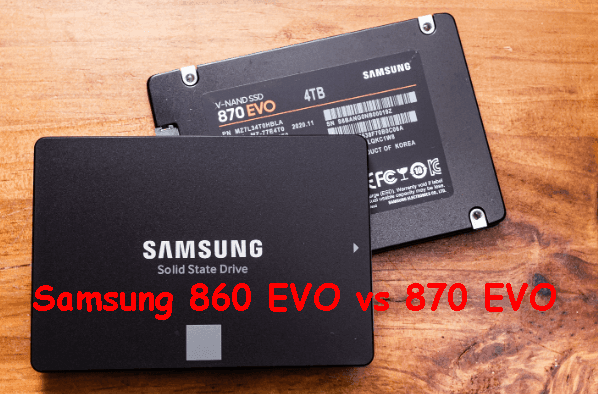
The Samsung 870 EVO SSD offers improved performance and cost-effectiveness compared to the 860, with a maximum potential reached through addressing the SATA 3 protocol.
Does Samsung 870 EVO Come with Clone Software?
Samsung provides a free data migration software called Samsung Data Migration to help clone data from an old disk to a new Samsung SSD, such as the 870 EVO. If you don't have it, you can download it from the official website.
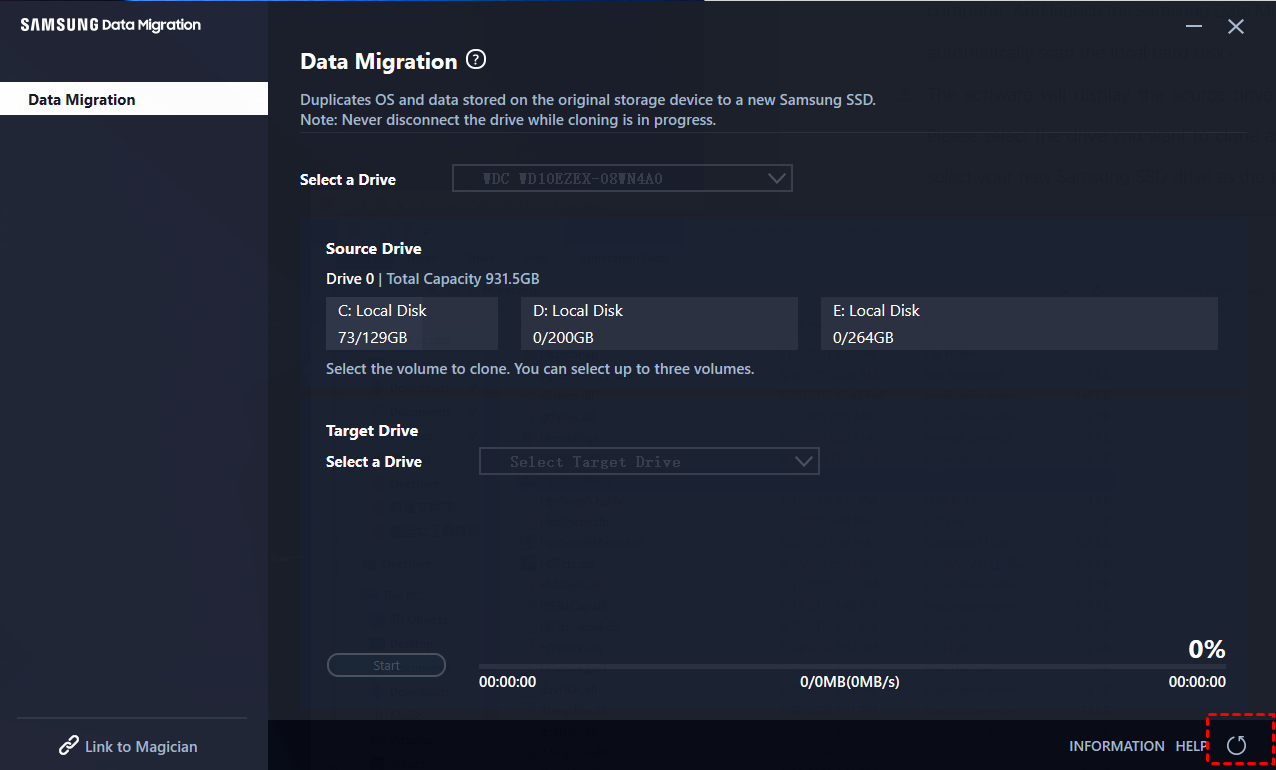
While Samsung Data Migration Windows 11 is a reliable choice for cloning a hard drive to a Samsung SSD, there may be situations where other software like Qiling Disk Master Professional is needed, such as when additional features or functionalities are required.
- The target SSD is other brands.
- The target SSD has more than 3 partitions.
- You want to transfer ONLY OS to Samsung SSD.
- You cannot install Samsung Data Migration or it is not responding.
- You encounter cloning problems, such as SDM stuck at 0, 99, or 100, cannot change source disk, Samsung SSD cannot be recognized, etc.
How to Use Samsung 870 EVO Clone Software in Windows 10 or 11
To clone a Samsung 870 EVO, you can use Samsung Data Migration or Qiling Disk Master, which help transfer everything from one hard drive to another, including the operating system, applications, and user data.
Way 1: Perform Samsung SSD 870 EVO Clone with SDM
Samsung Data Migration only recognizes the system disk as the source disk, and there's no option to change it. If you want to clone the entire system disk, use Samsung Data Migration, but if not, or if you encounter cloning issues, refer to an alternative method.
1. Install Samsung 870 EVO. Plug in the SATA cable and power line to the motherboard and the drive, respectively.
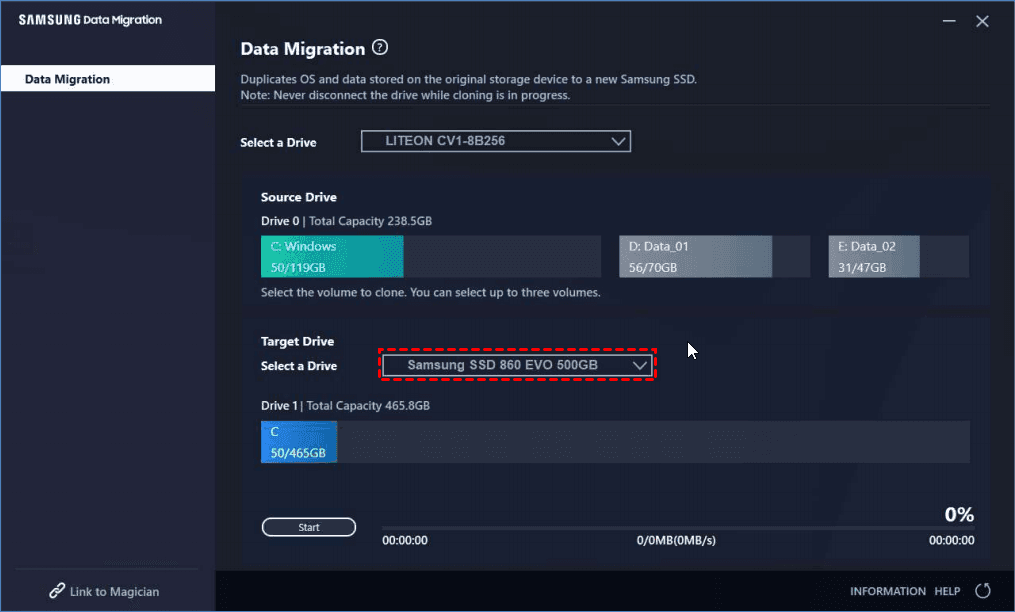
2. Open Samsung Data Migration, it will automatically scan and select the current system disk as the source disk, then select Samsung 870 EVO as the destination disk.
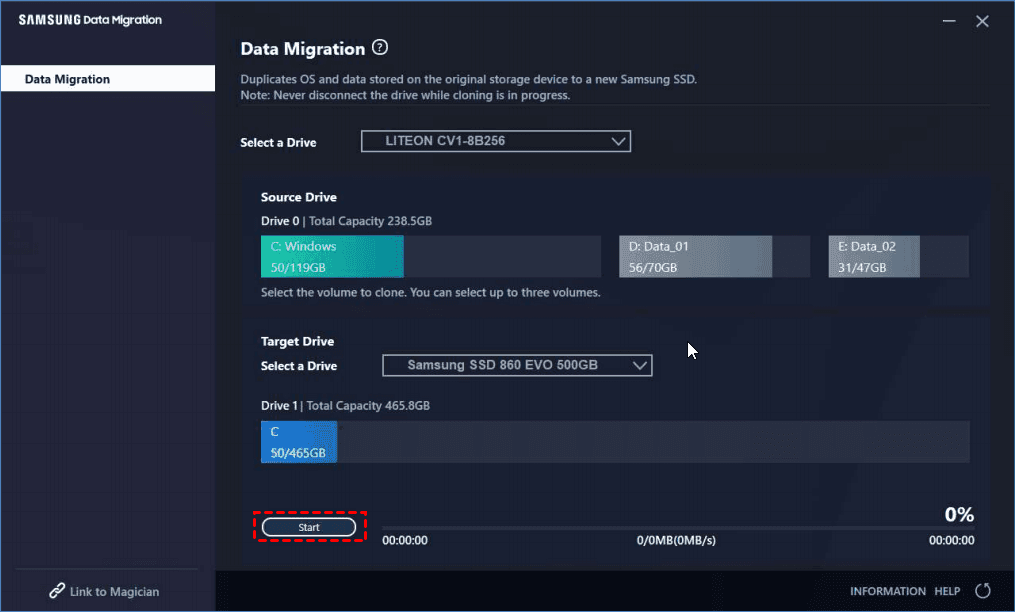
3. Click "Start" to clone the Samsung 870 EVO SSD. Wait for the cloning process to complete, then swap out the system disk and replace it with the 870 EVO. Finally, boot up the system.
Note: To take advantage of improved performance, you'll need to switch your IDE mode to AHCI mode. This newer interface offers faster and more operating mode options compared to IDE.
Way 2: Perform Samsung SSD 870 EVO Clone with Qiling Disk Master
You can also use professional disk cloning software like Qiling Disk Master Professional to copy data from one hard drive to another in Windows 10 or 11, except for Samsung Data Migration. This software has several advantages in cloning, including the ability to copy data.
- 3 cloning methods: System Clone, Disk Clone, and Partition are three options for cloning. The first two, System Clone and Disk Clone, are used to clone only the OS and the entire disk, respectively, including both data and system disks. Partition is another option for cloning.
- 2 cloning modes: This software uses the intelligent clone mode by default, which only clones used sectors from one hard drive to another, saving space and ensuring a secure boot, especially when cloning a large HDD to a smaller SSD.
- 1 SSD clone technology: 4K align is a technique that helps to improve the performance of solid-state drives (SSDs) by aligning the first sectors of both hard disk drives (HDDs) and SSDs. This process optimizes the way data is stored and retrieved, resulting in faster access times and improved overall system performance. By aligning the first sectors, 4K align helps to reduce fragmentation and improve the efficiency of data transfer, making it a useful technique for users who rely heavily on their SSDs.
To get started, please download the Samsung SSD 870 EVO clone software and for server users, try Qiling Disk Master Server.
1. To clone a disk, install Samsung 870 EVO and Qiling Disk Master Professional, then launch the software and navigate to the Tools and Disk Clone menu.

Note: The Professional edition supports cloning both data and system disks, regardless of whether they are the same or different type. For data disks, the free edition Qiling Disk Master Standard is recommended.
2. Choose the system disk as the source disk, or select another disk if desired.

3. Select Samsung SSD 870 EVO as the destination disk. If the cloning process will delete all data on the target disk, please back up any files to an external hard drive first.

4. On the Operation Summary window, check SSD Alignment to accelerate reading and writing of the Samsung 870 EVO, and click Proceed to clone it.

Notes:
- Edit Partitions: It helps to add unused space to all partitions or manually adjust partition size of target disk, and can also be used to clone MBR disk to GPT with secure boot or vice versa.
- Sector by sector clone: Clonezilla is a free and open-source disk cloning software that clones all sectors of a hard drive, including used and unused sectors. However, in most cases, it only clones used sectors, leaving the unused ones untouched. This makes it a useful tool for backing up and restoring data, as well as cloning operating systems and settings.
More about Samsung 870 EVO & Cloning Software
1. Does Samsung migration clone OS?
Samsung migration will clone the disk with Windows on it, and the source disk will be automatically selected.
2. Does cloning OS to SSD reduce performance?
If the OS is on an HDD, cloning to an SSD without proper alignment can cause the SSD to run slowly, as it starts the first partition after 64 sectors, whereas the HDD starts after 63 empty blocks.
3. Should I initialize the SSD disk before cloning?
To prepare the SSD for cloning, you need to initialize it first, then create one or more partitions on it and assign drive letters. This is necessary so that the SSD can be recognized by Windows Explorer and cloning software, allowing the cloning process to proceed.
4. Is it better to clone or fresh install SSD?
If your computer is working fine, cloning is a better option to keep your settings, installed programs, and user data intact.
To Sum Up
Samsung Data Migration and Qiling Disk Master Professional are two software options that can clone a Samsung 870 EVO hard drive, allowing you to migrate all data from one disk to another. Both are viable choices.
Considering OS migration, you may prefer Qiling Disk Master Professional, which can successfully clone hard drives with different sizes and applies to a wide range of SSD disk brands.
Related Articles
- Samsung SSD Data Migration Software for Windows 10, 11
Download Samsung Data Migration software to replace HDD with Samsung SSD without losing data, and follow the steps to transfer data in Windows 11, 10, 7, securely. - Best Samsung SSD 860 Clone Software | Free Download
You will learn how to use Samsung SSD 860 clone software (both Samsung Data Migration and Qiling Disk Master) to migrate all the data from HDD to SSD easily. - Top 2 Ways to Clone Samsung SSD to Another SSD in Windows
This guide explains Top 2 Ways to Clone Samsung SSD to Another SSD in Windows with clear steps, key checks, and practical tips. - How to Replace Your Hard Drive Without Losing Data?
Learn how to Replace Your Hard Drive Without Losing Data with clear steps, key checks, and practical tips. - SSD vs HDD: Which One is Better for You to Select?
This guide explains SSD vs HDD: Which One is Better for You to Select with clear steps, key checks, and practical tips. - How to Clone C Drive to SSD/HDD in Windows 10/8/7 Easily?
Learn how to Clone C Drive to SSD/HDD in Windows 10/8/7 Easily with clear steps, key checks, and practical tips.
Products
Articles & Tutorials
- Data Recovery
- Data Backup
- File Recovery
- File Backup
- File synchronize
- System Backup and Restore
- Disk and Partition Clone
- Technical articles
- Disk Master Help
- Windows Deleted File and Disk Recovery Tutorials
- Windows File and Data Recovery Tutorials
- More Windows Tutorials for Install, Security, Files, and PC Tips
- Windows Boot, Repair, and Recovery Environment Tutorials
- Windows Backup Tutorials
- Windows Restore Tutorials
- Windows Clone and Migration Tutorials
- Windows Server Backup, Recovery, and Management Tutorials
- Windows Disk, Partition, and Storage Management Tutorials