Seagate Disk Clone Software: Clone HDD to Seagate SSD
Quick navigation:
- Why clone Seagate HDD to SSD?
- Does Seagate SSD come with cloning software?
- Use Seagate DiscWizard clone disk to SSD
- Use Qiling Disk Master Professional to Clone HDD to Seagate SSD
- Summary
Why clone Seagate HDD to SSD?
Due to its high performance, many users choose to clone their hard drive to a solid-state drive, such as cloning a hard drive to a Seagate SSD, which is widely used in various industries like the military, IT, and aviation.
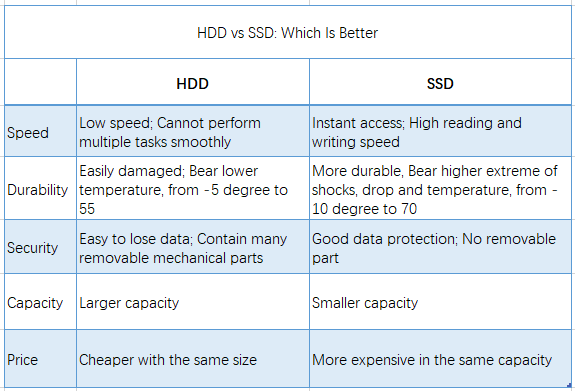
HDDs are renowned for their large storage capacity and affordability, whereas SSDs are prized for their exceptional performance. Additionally, their solid-state design makes them more resilient, withstanding higher levels of shock, drops, and temperature fluctuations, and reducing the risk of data loss due to the absence of removable mechanical parts.
Does Seagate SSD come with cloning software?
Seagate SSD comes with Seagate DiscWizard software, allowing you to clone an entire hard drive to the SSD in Windows, eliminating the need to reinstall Windows and programs when upgrading or replacing an old hard drive.
To clone a HDD to a Seagate SSD, follow these steps: Connect the HDD and SSD to your computer. Use a cloning software like Qiling Disk Master select the source and target disks. Choose the correct cloning method, such as a sector-by-sector clone or a quick clone.
Use Seagate DiscWizard clone disk to SSD
To clone your hard drive to an SSD using Seagate DiscWizard, you'll connect both drives to your computer's SATA/PATA motherboard (if it's a desktop or has extra slots). Then, you'll use the DiscWizard boot CD, but actually perform the cloning process within Windows. This will allow you to easily transfer your data and operating system to the new SSD.
In addition, you still need to make other preparations before cloning Seagate HDD to SSD.
- Put a diet on Seagate HDD. You can delete large files such as documents, audios, and videos, as well as clean up temporary files or unnecessary system files using the "Disk Cleanup" feature, and also uninstall unused programs.
- Partition SSD if it is not. Before using a new disk, whether it's a hard disk drive (HDD) or solid-state drive (SSD), such as a Seagate SSD, it needs to be partitioned. Therefore, format the disk first to prepare it for cloning a hard disk to the new SSD.
- Prepare a SATA-to-USB adapter if your computer is a laptop. Many laptops have limited storage space, so users often need to connect external SSDs via a SATA-to-USB adapter to expand their storage capacity.
Step 1. Start the integrated Seagate DiscWizard from the Seagate SSD and click Clone Disk under the Tools tab.
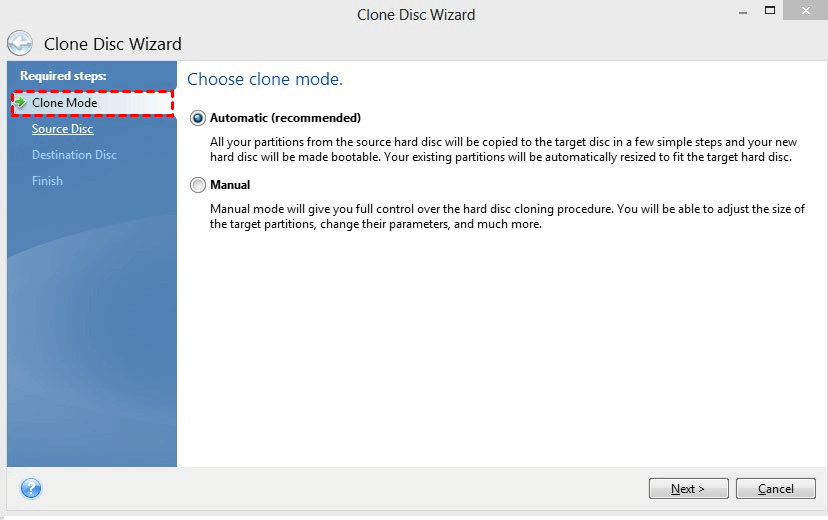
Step 2. Tick Automatic (recommended) clone mode so it will automatically fit the new SSD. Then, click Next.
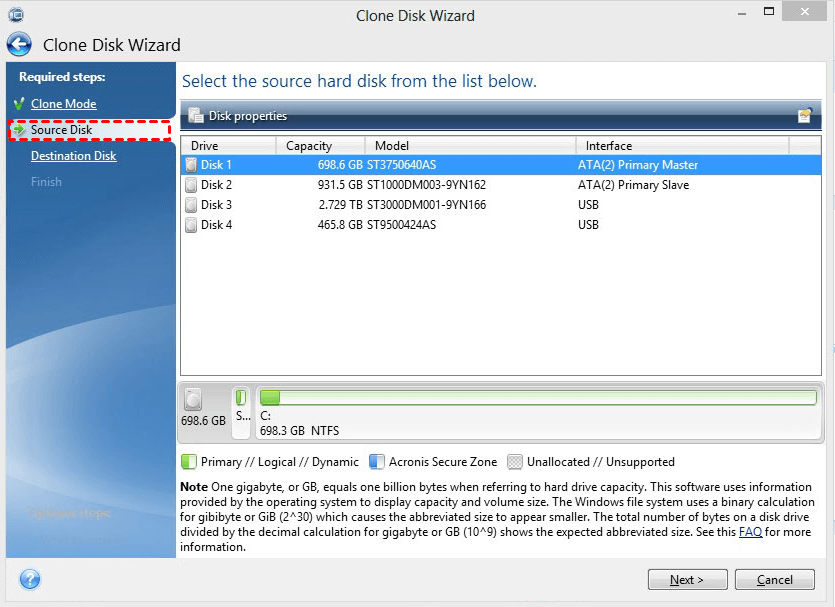
Step 3. Select old HDD as the source disk and click Next.
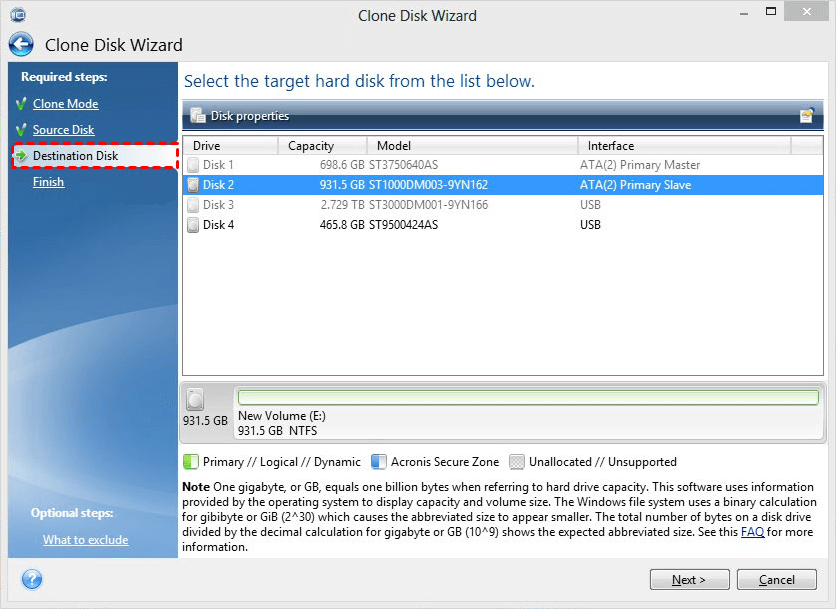
Step 4. Select Seagate SSD as destination disk and click Next. Click "OK" to confirm the deletion when prompted.
Step 5. Finally, preview the operation summary and click "Proceed".
Cloning a hard drive to a Seagate SSD using Seagate DiscWizard involves creating an exact copy of the original disk. If successful, this process allows you to transfer your data to a new SSD, taking advantage of its improved performance. Alternatively, if budget is a concern, you can consider cloning to a Seagate SSHD, which combines the large capacity of a hard drive with the speed of an SSD, offering a balance between storage and performance.
The Seagate DiscWizard clone may not work, typically due to three main reasons.
- The software only clones Seagate and Maxtor hard drives, which may result in failed cloning processes for other disk or SSD brands.
- The system does not support cloning a single partition, whether it's the system partition or a data partition.
- It does not clone dynamic disk as well.
If you're facing difficulties in cloning a hard disk drive (HDD) to a Seagate solid-state drive (SSD), a reliable disk cloning software like Qiling Disk Master Professional can help. It can overcome the limitations and make the process easier, allowing you to successfully clone your HDD to a Seagate SSD in simple steps.
Use Qiling Disk Master Professional to Clone HDD to Seagate SSD
Qiling Disk Master Professional is a reliable clone software that can clone all branded disks, including Seagate, WD, Samsung, and Dell, regardless of the interface type (SATA, PCIe, M.2, or NVMe). It supports various Windows operating systems, from Windows 7 to Windows 11, as well as Windows XP and Vista.
And it still supports other useful features:
- Intelligent Clone: This feature clones only used sectors of a hard drive to another one, ensuring secure boot, and is particularly useful when cloning a large HDD to a smaller SSD.
- Sector by Sector Clone: This feature enables cloning of all disk sectors, including hidden system partitions, to a destination disk that is equal to or larger than the source disk.
- SSD Alignment: This feature aims to enhance the reading and writing speed of SSD disks, further improving their performance.
Clone hard drive to Seagate SSD step by step
Before cloning a Seagate hard drive, prepare by following the necessary steps and connect the SSD via a SATA-USB adapter. Then, download and install Qiling Disk Master Professional, a reliable SSD cloning software, on your computer.
Step 1. Launch Qiling Disk Master Professional, click Clone and Disk Clone in order.

Note: The Professional edition allows for cloning of both data and system disks, including MBR and GPT disks, and the cloned system disk will remain bootable.
Step 2. Select the old HDD as your Source Disk, then click Next.

Step 3. Select the Seagate SSD as your destination disk, then click Next. You will be warned that the target disk will be overwritten, so please back up your important files first.

Step 4. On the Operating Summary window, check the information of both disks, tick SSD Alignment to accelerate speed, and click Proceed to clone the hard drive to the Seagate SSD.

Notes:
◉ If the Seagate SSD is smaller, don't check the "Sector by Sector Clone" option.
◉ To adjust the partition size of a target disk, you can use the "Edit Partitions" feature, which offers three options: "Copy without resizing partitions", "Add unused space to all partitions", and "Manually adjust partition size". Additionally, if the source and destination disks have different partition styles, you may also see the option to convert the destination disk from MBR to GPT or vice versa.
◉ If you want to migrate your OS to a smaller SSD, you'll need to use System Clone or Partition Clone.
Summary
Many users want to clone their Seagate HDD to an SSD, as SSDs offer better performance, allowing computers to run smoothly even with multiple tasks running simultaneously.
If you have a Seagate SSD, you can use the built-in Seagate DiscWizard for cloning, but it's limited to basic disks. If your situation is more complex, Qiling Disk Master is a better option.
This software allows you to clone various types of disks, including larger and smaller drives, as well as specific partitions, to boost SSD performance. It also offers additional features in its professional version, such as cloning GPT disks to MBR SSDs without converting partition styles, cloning dynamic disks, and resizing partitions during the cloning process. For IT professionals, the software offers a technician version that allows for unlimited PC protection.
Related Articles
- Solved: Seagate DiscWizard Not Cloning [4 Simple Steps]
- Solved: Seagate Discwizard Does Not Detect Drive
- Quickly Create Seagate DiscWizard Image Backup with Simple Steps
- Tutorials: Clone Hard Drive to Samsung SSD (Secure Boot) in Windows
- How to Mirror the Boot Drive in Windows Server 2016?
Learn the key steps, checks, and practical tips for this related guide. - 7 Easy Ways to Perform Windows Server C Drive Cleanup
The article is a full collection of how to perform Windows Server C drive cleanup in 7 ways and offers one upgrade offer of C drive for users.
Products
Articles & Tutorials
- Data Recovery
- Data Backup
- File Recovery
- File Backup
- File synchronize
- System Backup and Restore
- Disk and Partition Clone
- Technical articles
- Disk Master Help
- Windows Deleted File and Disk Recovery Tutorials
- Windows File and Data Recovery Tutorials
- More Windows Tutorials for Install, Security, Files, and PC Tips
- Windows Boot, Repair, and Recovery Environment Tutorials
- Windows Backup Tutorials
- Windows Restore Tutorials
- Windows Clone and Migration Tutorials
- Windows Server Backup, Recovery, and Management Tutorials
- Windows Disk, Partition, and Storage Management Tutorials