Fix Get Windows Ready Don't Turn Off Your Computer
Quick Navigation:
- Method #1: Wait for the Windows Update to Finish
- Method #2: Force Power-Off Computer and Power Reset Computer
- Method #3: Restart Computer and Troubleshoot Problems
- Method #4: Perform System Restore or Reset Computer to Factory Settings
- What is Deep Data Recovery Software?
- Your Effective File Recovery Software
- How to Recover Lost Files in Windows PC
If you're using Windows 11 or 10, you may encounter the notification "Getting Windows ready, don't turn off your computer" when trying to restart, turn OFF, or turn ON your PC. This issue can be frustrating, especially if you have to wait for the notification to clear without success. Fortunately, there are four solutions to help you resolve this problem and get your PC up and running smoothly again.
If the Windows update process causes file loss after restart, this Windows update deleted files recovery guide can help after the system boots.
Method #1: Wait for the Windows Update to Finish
The recommended method to fix the issue is to wait, as the notification "Windows 10 getting Windows ready don't turn off your computer" indicates that the operating system is processing data in the background, possibly modifying settings, starting an update, or downloading/installing files.
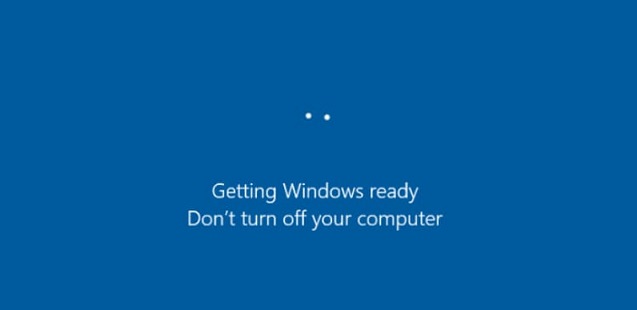
If you're experiencing the "get Windows ready don't turn off your computer" notification on your screen, Microsoft support technicians recommend waiting for about two to three hours for the system to complete its tasks, as it may take some time to resolve the issue. If the problem persists, you may need to try other methods to fix the issue.
Method #2: Force Power-Off Computer and Power Reset Computer
Forcing your PC to shut down and power resetting your computer can resolve issues related to file corruption, such as the 'Windows is getting ready don't turn off your computer' notification, by clearing the entire data in the disk, although it won't destroy the data itself. This method can be a helpful troubleshooting step for resolving various problems on your PC.
- Turn off the computer by pressing down the power button.
- Remove all external devices such as earphones, external hard drives, and USB drives, and unplug the adapter or power cable from your computer.
- If your computer is a laptop, you can detach the battery by opening the battery compartment. This will allow you to remove the battery from your laptop.
- To safely turn off your PC, press and hold the power button for 20-30 seconds. This allows the capacitors to drain their electrical charge, ensuring a smooth shutdown and preventing potential damage to your computer's components.
- If your laptop is not turning on, try reinserting the battery or reconnecting the power cable to the computer if it's a desktop PC. Do not reconnect any external devices at this step.
- Press down the power button to complete the PC booting, which should resolve the issue and prevent the 'getting Windows ready don't turn off your computer 2023' message from appearing.
Method #3: Restart Computer and Troubleshoot Problems
To fix the issue when Windows 10 says "getting Windows ready, don't turn off your computer," you can try restarting your computer to troubleshoot the problem, which may be caused by corrupt files. This can resolve the issue of Windows always trying to get ready for an update when you reboot.
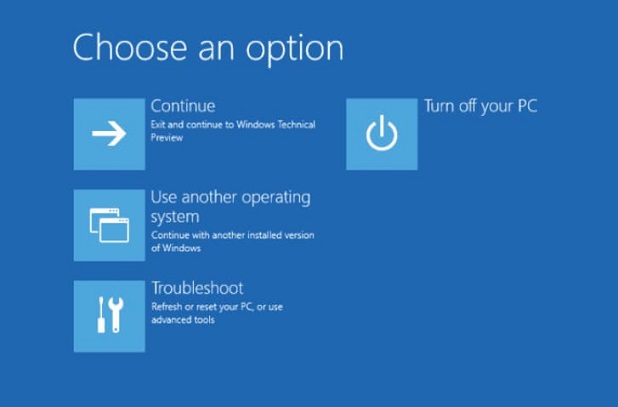
- Click the Windows tab and click on 'Restart'. This will bring up the Windows Boot Options window.
- Click the Windows Boot Options menu and select 'Troubleshoot'. Next, click on 'Advanced Options' and then 'Command Prompt'.
- Type 'C: cd Windows\System32\LogFiles\Srt.SetTrail.txt' in the command prompt and press Enter.
- If you see an error message about a corrupt file, such as 'Boot critical file c:\windows\system32\drivers\vsock.sys - is corrupt', try to locate the file's location using the Command Prompt. Once found, you can remove the file by entering the 'Del' command.
If the issue of 'Windows 11 getting Windows ready don't turn off your computer' is caused by corrupt files, the problem can be fixed by running System File Checker (SFC) and DISM commands in an elevated Command Prompt. These commands scan and replace corrupted system files with a cached copy, which can resolve the issue and allow Windows to boot normally.
Method #4: Perform System Restore or Reset Computer to Factory Settings
If you've tried other methods and the issue persists, you may need to perform a system reset or restore to factory settings. Before doing this, export your data and back them up using software like Qiling Disk Master to avoid losing important files. Then, you can proceed with the system reset or restore to factory settings.
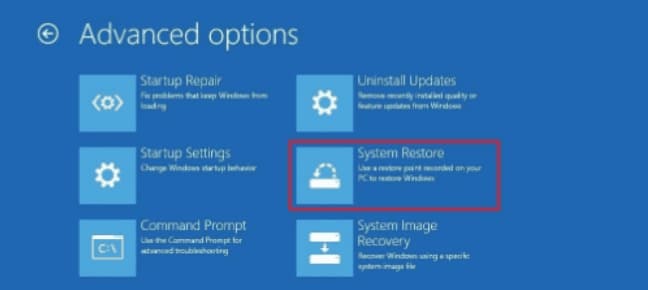
- To resolve the issue, open the Windows Boot Options menu, select 'Troubleshoot', then 'Advanced Options', and finally 'System Restore'.
- Follow the on-screen wizard instructions and select the relevant restore point.
- Once the last step is completed, click the 'Finish' button to restore the system.
This method should fix the issue permanently, but it comes with a high risk of losing data. If you haven't backed up your data, you can use Deep Data Recovery software to recover lost data.
What is Deep Data Recovery Software?
Deep Data Recovery is a user-friendly tool that helps recover deleted or lost files from PCs or external devices without requiring technical knowledge. Simply run the software, scan the drive, preview the lost files, and recover the specific files you need - it's as easy as that!
Your Effective File Recovery Software
- The software supports the recovery of deleted documents, emails, photos, videos, audios, archives, and other files and folders from Windows 8 and 10, allowing users to retrieve lost data.
- The software provides two recovery options: a quick scan and a deep scan, allowing users to recover lost files with success.
- It supports a wide variety of storage devices such as hard drives, memory cards, SSDs, USB drives, pen drives, digital cameras, and other external storage devices.
How to Recover Lost Files in Windows PC
Step One: Download and install Qiling data recovery software on your Windows 11 or 10 device, starting with the free trial version. Once downloaded, proceed with the installation and launch the software.
Step Two: Select the hard drive where files are lost and click "Scan" to let the software scan for lost files.

Step Three: To restore deleted files on your PC, select the files you want to recover and click the 'Recover' button to save them to your PC. If some files are not found, click the 'Deep Scan' button for a further search.

If you're experiencing the 'getting Windows ready don't turn off your computer' issue, there are four potential solutions to try: running the System File Checker, checking for malware, running the Windows Update Troubleshooter, and resetting the Windows Update components. If these methods don't work, you may need to reinstall Windows 8 or 10. Additionally, if you've performed a system restore or reset and lost data as a result, you may be able to recover it using a data recovery tool.
Related Articles
- How to Solve Hard Drive Won't Spin
- Excel Not Responding How to Save Your Work in Windows 10
- Fix 'You Don't Currently Have Permission to Access This Folder in Windows'
- [Solved] USB/External Hard Drive Folder Access Denied
- How to Fix 0x80240fff Windows 10 Update Error
- [Solved] Deleted File Not Showing in Recycle Bin
- [Answered] Where Do Deleted Files Go on PC/Mac/Android/iPhone
Learn the key steps, checks, and practical tips for this related guide.
Products
Articles & Tutorials
- Data Recovery
- Data Backup
- File Recovery
- File Backup
- File synchronize
- System Backup and Restore
- Disk and Partition Clone
- Technical articles
- Disk Master Help
- Windows Deleted File and Disk Recovery Tutorials
- Windows File and Data Recovery Tutorials
- More Windows Tutorials for Install, Security, Files, and PC Tips
- Windows Boot, Repair, and Recovery Environment Tutorials
- Windows Backup Tutorials
- Windows Restore Tutorials
- Windows Clone and Migration Tutorials
- Windows Server Backup, Recovery, and Management Tutorials
- Windows Disk, Partition, and Storage Management Tutorials