How to Recover Deleted Folder in Windows 7
If you've accidentally deleted a folder on your Windows 7 computer or laptop, you can easily recover it. This article guides you through four different methods to help you get back the deleted folder.
If the folder is not in Recycle Bin, this Windows 7 permanently deleted file recovery guide gives the next recovery options.
- Quick Navigation
- Part 1: How to Recover Permanently Deleted Folders in Windows 7
- Part 2: How to Restore Deleted Folders in Windows 7 by Restoring from Recycle Bin
- Part 3: How to Restore Deleted Folder by Using Previous Version Feature in Windows 7
- Part 4: How to Retrieve Deleted Folder by Restoring from Windows 7 Backup
Part 1: How to Recover Permanently Deleted Folders in Windows 7
If you've permanently deleted a folder in Windows 7, don't panic! You can recover it by using the "Shift + Delete" method or emptying the "Recycle Bin". To do this, go to the "Recycle Bin" and right-click on the folder you want to recover, then select "Restore." If the folder is not in the "Recycle Bin", you can try using a data recovery software like Deep Data Recovery Wizard to scan your computer for deleted files and recover the folder.
When you delete a file or folder, the space it occupied on your hard disk is freed up and can be used for new data. If you create new data, it will overwrite the space where the deleted file or folder was, making it impossible to recover the deleted item. Taking action quickly is crucial, as the sooner you act, the better chance you have of recovering the deleted files and folders.
The recommended software to recover deleted folders in Windows 7, even if they're not in the recycle bin, is Deep Data Recovery. This software is powerful and can retrieve lost folders in a few simple steps, using a robust algorithm that scans your computer deeply and lists all recoverable folders and files.
The Deep Data Recovery software gained immense popularity for its ease of recovering deleted content. Its unique feature is the ability to organize retrievable files by format, making it easy to select the preferred folder, choose specific files or the entire folder, and recover. This software stands out for its user-friendly interface and efficient recovery process.
Your Effective Windows 7 Recover Deleted Folder Tool
- This tool helps in recovering deleted files that were lost due to accidental deletion using the "Delete" key and also recovers folders/files that were removed from the "Recycle Bin".
- You can recover data from any storage media and formatted drives in Windows 7.
- You can recover content lost due to improper actions, such as removing media during writing data, restoring a device to the factory setting, or deleting or moving a folder.
How to Retrieve Deleted Folder in Windows 7 with Deep Data Recovery
To recover a deleted folder from Windows 7 using Deep Data Recovery, follow this guide. First, download and install the Deep Data Recovery software, then launch it and select the drive where the deleted folder was located.
1. To recover data, click the Download button to get the free trial version of data recovery software for Windows 7. Launch the software after downloading.
2. Qiling will ask you to choose the scan location, where you'll select the path from where the folder was lost, and then press the "Scan" button to start scanning.

3. Qiling will complete the scan depending on the file format selected and the number of files present in the folder. Upon completion, it will list all recoverable files, arranged by file format and folder.
Selecting a folder from the tree directory will open its files in the center pane, and you can further select the required files by viewing their content on the right side of the window.
Selecting a file will show its contents on the right side. This method is suitable for recovering a few files. You can also select the entire folder that was accidentally deleted and press "Recover" to get back all content. After that, create a new folder to save the deleted files.

Part 2: How to Restore Deleted Folders in Windows 7 by Restoring from Recycle Bin
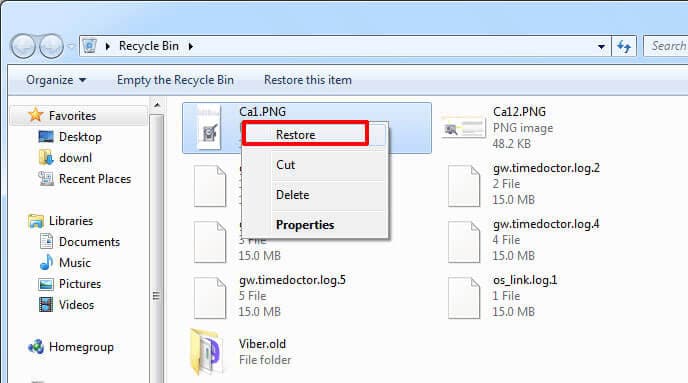
If you've deleted a folder in Windows 7 using the "Delete" key, but not the "Shift + Delete" key that permanently deletes files, you can try recovering the deleted folder without using software. Simply go to the "Recycle Bin", right-click on the folder you want to recover and select "Restore". This method is effective if you've deleted the folder using the "Delete" key, but keep in mind that it won't work if you used the "Shift + Delete" key.
1. To open the "Recycle Bin" on your Windows 7 computer or laptop, click on the "Start" button located at the bottom left corner of your screen, then click on "All Programs" and select "Accessories", followed by "System Tools" and finally "Recycle Bin". Alternatively, you can also type "recycle bin" in the search bar located at the bottom left corner of your screen and press enter.
2. Identify the folder you deleted and like to restore.
3. Right-click on the folder and press the "Restore" button to send the folder back to its original location.
Part 3: How to Restore Deleted Folder by Using Previous Version Feature in Windows 7
1. To access the deleted folder, click the Start button symbol and navigate to the partition containing the deleted folder.
2. Right-click on the folder containing the deleted folder, choose "Restore previous versions", and select the desired previous version to restore the deleted folder. Alternatively, if the deleted folder is at the top level of the drive, right-click the drive and choose "Restore previous versions".
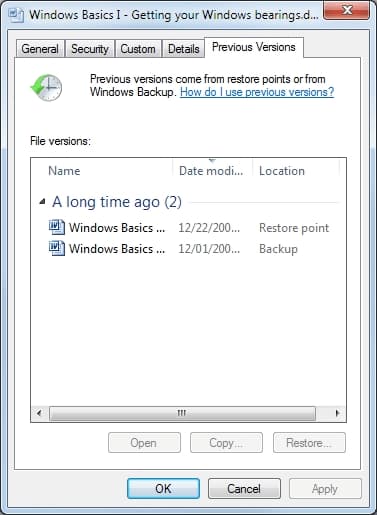
3. If you deleted a folder today, go back to yesterday's version, which will have all the data in the folder.
Part 4: How to Retrieve Deleted Folder by Restoring from Windows 7 Backup
If you have a backup of your computer, you can recover a deleted folder from the Recycle Bin in Windows 7. To do this, follow these steps: (insert steps here).
1. Click the Start button and navigate to the Control Panel.
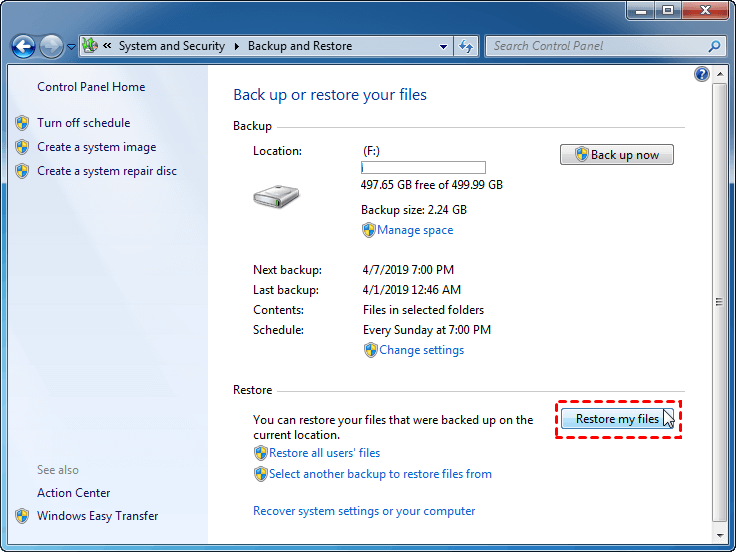
2. To access the System and Security feature, open the Control Panel and select it from the list of available options. Then, click on "Backup and Restore" to proceed with the backup process.
3. Click the "Restore my files" button under the "Restore" option.
4. Select the "Browse for folders" feature from the pop-up window to choose the location.
In Windows 7, you can retrieve a deleted folder using various methods depending on how it was lost. If the folder was simply moved to the Recycle Bin, you can restore it from there. Alternatively, you can use the "Previous Versions" feature or try to recover it from a backup. However, the most reliable approach is to use recovery software, which can help you recover permanently deleted content.
Deep Data Recovery is an excellent product that quickly scans for missing files and folders, allowing you to select the preferred file format and start scanning. It organizes files by format, facilitating quick recovery of deleted folders, and also offers a Deep Scan mode for additional files.
Related Articles
- Recover Uninstalled Programs in Windows 7
- Recover Hidden Folder in Windows 7
- Recover Deleted Partition in Windows 7
- Recover Deleted Folders in Windows 8.1/8
- How to Recover Deleted My Documents Folder in Windows 10/11
- Recover Permanently Deleted Files in Windows 7
- Recover Lost Files after System Restore in Windows 7
Products
Articles & Tutorials
- Data Recovery
- Data Backup
- File Recovery
- File Backup
- File synchronize
- System Backup and Restore
- Disk and Partition Clone
- Technical articles
- Disk Master Help
- Windows Deleted File and Disk Recovery Tutorials
- Windows File and Data Recovery Tutorials
- More Windows Tutorials for Install, Security, Files, and PC Tips
- Windows Boot, Repair, and Recovery Environment Tutorials
- Windows Backup Tutorials
- Windows Restore Tutorials
- Windows Clone and Migration Tutorials
- Windows Server Backup, Recovery, and Management Tutorials
- Windows Disk, Partition, and Storage Management Tutorials