Add Unallocated Space to Existing Partition on Windows Server
To extend the C partition on Windows Server 2008 R2 without deleting the D partition, you can use the built-in Disk Management tool to shrink the D drive and then extend the C drive using the unallocated space. This process allows you to utilize the free space on the D drive without deleting it. You can access Disk Management by right-clicking on the Start button, selecting Disk Management, and following the on-screen instructions to shrink the D drive and extend the C drive. This method is a non-destructive way to manage disk space and achieve your goal.
If you need to resize partitions on a standard Windows disk, this hard drive partitioning guide explains related partition operations.
The reason why "Disk management" doesn't work
Unfortunately, the built-in Disk Management has a flaw that prevents extending the system partition when there is no adjacent unallocated space. This is because it lacks the ability to move partitions. The only way to create the necessary space is to delete the D drive, which is a time-consuming and risky process. However, using Partition Magic software, such as Qiling Disk Master Server, is a more effective and safer alternative for resizing partitions.
The way to add unallocated space without deleting partition
Partition Magic, the earliest partition software, is no longer compatible with Windows 7/Vista and Windows server. In contrast, Qiling Disk Master Server is a more suitable option. To add unallocated space to the C partition without deleting or formatting it, one can follow the steps using Windows 2008 as an example. If no unallocated space exists, one can refer to how to allocate free space instead.
Step 1: Launch Qiling Disk Master Server, which displays all disk partitions and unallocated space.
Step 2: To relocate the C drive, right-click on it, select "Move/resize Partition", and this option is also available by right-clicking on the unallocated space.
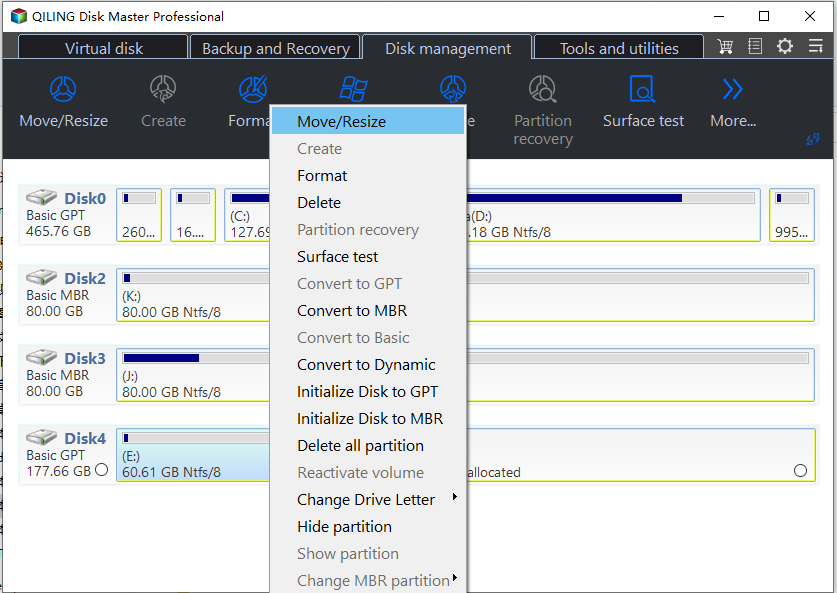
Step 3: In the next window, select the drive (such as C:) and the unallocated space that you want to add.
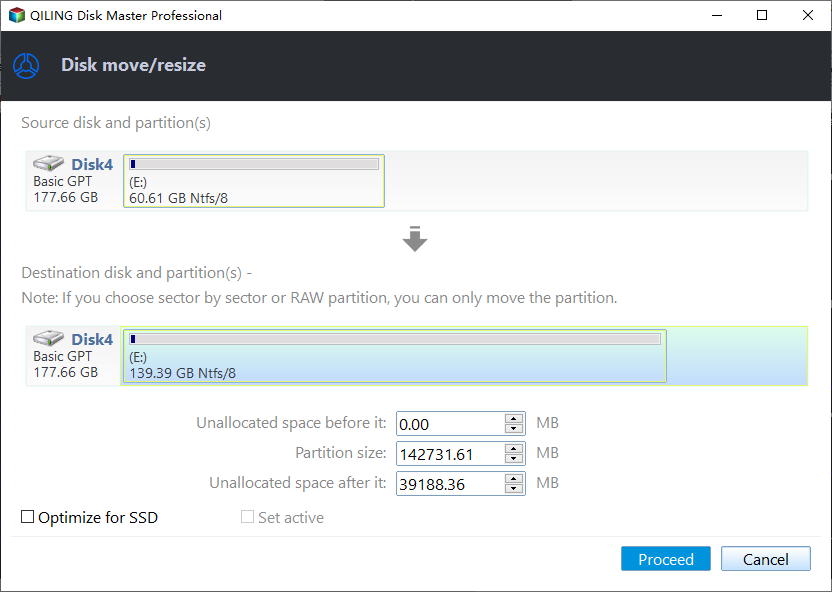
Step 4: To confirm the change, click "Proceed" on the toolbar. This will save the addition of unallocated space to the C drive.
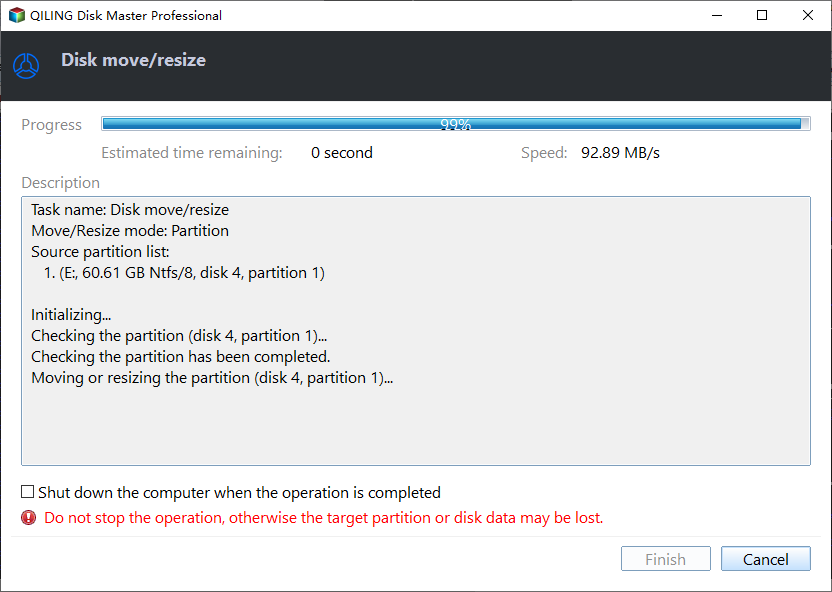
With Qiling Disk Master Server, you can easily add unallocated space to an existing partition without deleting or formatting. This software also allows you to resize/move partition, merge adjacent partitions, split partition, copy partition, and copy disk, among other features. Before purchasing the full version, you can download the Qiling Disk Master Server Trial Version to try it out.
Tips: For enterprise users, Unlimited Edition can be a cost-effective option, allowing multiple computer installations within the company, thereby maximizing work efficiency while minimizing management costs.
Related Articles
- Top 4 Ways to Restore Windows 11 Taskbar (Include 1 Tip)
Here, you will learn how to restore Windows 11 Taskbar with provided 4 fixes, and one best backup freeware is included. Read on to learn more detailed steps. - Settle Slow File Transfer in Windows 11 (7 Fixes and 1 Tip)
This article will show you 7 fixes to tackle slow file transfer in Windows 11, as well as a fast file transfer tool to increase your file transfer speed. - How to Fix TPM Not Detected in Windows 11/10
Fix TPM not detected error in Windows 11/10 with effective methods. This article provides quick solutions to resolve TPM device not detected error and protect your system. - Easiest | Transfer Files from External Drive to PC on Windows 11
Step-by-step guide to transfer files from an external hard drive to a PC on Windows 11. Two easy methods to move files between devices and access them on your PC. - How to Delete EFI System Partition in Windows 10,8,7?|Freeware
Deleting the EFI system partition can cause boot issues and system instability. Learn how to safely delete EFI partition in Windows 10, 8, and 7, and why it's generally recommended to leave it intact. - How to Delete Recovery Partition in Windows 10/8/7 Safely?
Learn how to safely delete recovery partition to reclaim disk space since Windows 7/8/10/11 has one or more recovery partitions on a disk, which takes much space.
Products
Articles & Tutorials
- Data Recovery
- Data Backup
- File Recovery
- File Backup
- File synchronize
- System Backup and Restore
- Disk and Partition Clone
- Technical articles
- Disk Master Help
- Windows Deleted File and Disk Recovery Tutorials
- Windows File and Data Recovery Tutorials
- More Windows Tutorials for Install, Security, Files, and PC Tips
- Windows Boot, Repair, and Recovery Environment Tutorials
- Windows Backup Tutorials
- Windows Restore Tutorials
- Windows Clone and Migration Tutorials
- Windows Server Backup, Recovery, and Management Tutorials
- Windows Disk, Partition, and Storage Management Tutorials