Top 4 Ways to Restore Windows 11 Taskbar (Include 1 Tip)
- Need to restore Windows 11 Taskbar
- Tip: Backup Windows 11 before changing system settings
- 4 fixes on how to restore Windows 11 Taskbar
- Method 1: Tweak the registry
- Method 2: Reset settings to default with a BAT file
- Method 3: Restore Taskbar with Explorer Patcher
- Method 4: Change Taskbar behaviors from settings
- Wrapping things up
Need to restore Windows 11 Taskbar
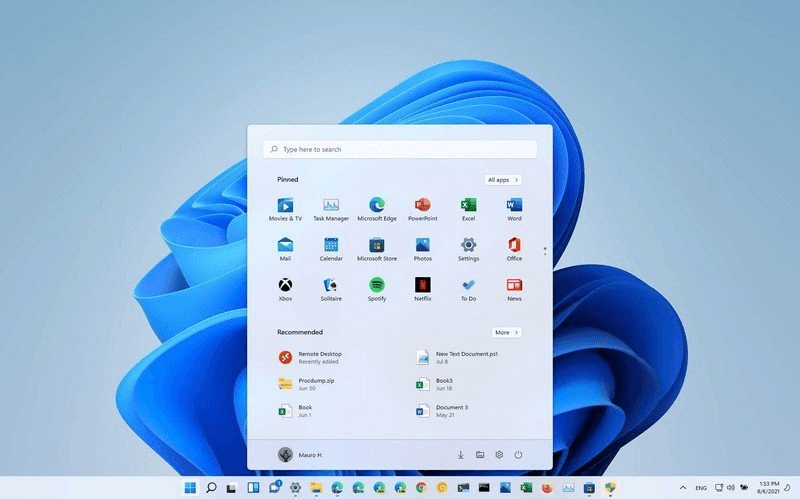
In Windows 11, Microsoft removed the drag and drop capability of the Taskbar to optimize it for tablets, making it difficult to reorder icons within the system tray flyout.
Windows 11's tablet-friendly Taskbar changes don't effectively work on desktop computers, with many restrictions and limitations.
✎ In Windows 11, the Taskbar is permanently located at the bottom of the screen and cannot be moved to a different position. This is a departure from earlier versions of Windows, where the Taskbar's position could be customized by users.
✎ The new Taskbar right-click menu lacks several classic options, including lock/unlock, opening Task Manager, showing the Desktop, and arranging program windows.
✎ In Windows 11, the Taskbar cannot be unlocked, which means users are unable to resize it, forcing them to use the larger sized Taskbar.
✎ The classic functionality to add custom toolbars such as address, links, desktop, etc. has been removed.
Many users are unhappy with the new Taskbar in Windows 11 and want to revert back to the old version, which they feel is more user-friendly and functional. They are asking Windows 11 to restore the old Taskbar.
Tip: Backup Windows 11 before changing system settings
Before attempting to reset the Taskbar, it's recommended to back up your computer to ensure you can restore it to an earlier date if anything goes wrong, as the process may cause unforeseen consequences.
Here, it is highly recommended to use Qiling Disk Master Standard, the best free Windows backup tool, to backup your files, system, disks or partitions easily, compatible with all Windows PC operating systems.
Before backing up your OS, download and install Qiling Disk Master Standard on your PC.
Here are the detailed steps about how to back up your operating system:
Step 1. On the main page, select Backup in the left tab, then click System Backup from the right side.

Step 2. The system will automatically select the system-related partitions for you, requiring you to only choose a destination path to store the system.

Step 3. To start the system backup task, click the "Proceed" button. This will initiate the backup process, and you should wait for it to complete before proceeding further.

Tip: Once you have a system error in the following operation, you can use this system image backup to restore your computer to the previous state.
To restore the Windows 11 taskbar, first back up important data and close unnecessary programs. Then try the following fixes one by one until the taskbar works normally again.
4 fixes on how to restore Windows 11 Taskbar
With a combination of registry tweaks and resetting settings to default, you can restore the Windows 10 Taskbar on Windows 11.
Moving on to try these 4 methods one by one to learn how to reset Taskbar to default Windows 10.
👉 Method 1: Tweak the registry
👉 Method 2: Reset settings to default with a BAT file
👉 Method 3: Restore Taskbar with Explorer Patcher
👉 Method 4: Change Taskbar behaviors from settings
Method 1: Tweak the registry
Fortunately, Windows 11 still contains the old Windows 10 Taskbar code and functionality for legacy purposes. By tweaking the registry, we can force Windows 11 to use the Windows 10 Taskbar instead of the redesigned one, which is the default. This allows us to use the classic Taskbar in Windows 11.
1. To open the Registry Editor, press the Windows key + R to open the Run box, type "regedit" and press Enter.
2. Next, navigate to the following location by copying and pasting into the text field at the top.
Computer\HKEY_LOCAL_MACHINE\SOFTWARE\Microsoft\Windows\CurrentVersion\Shell\Update\Packages
3. To disable undocking in the right panel, right-click anywhere, select "New" and choose either a 32-bit or 64-bit DWORD value, name it "UndockingDisabled", then double-click it and set the value data to 1.
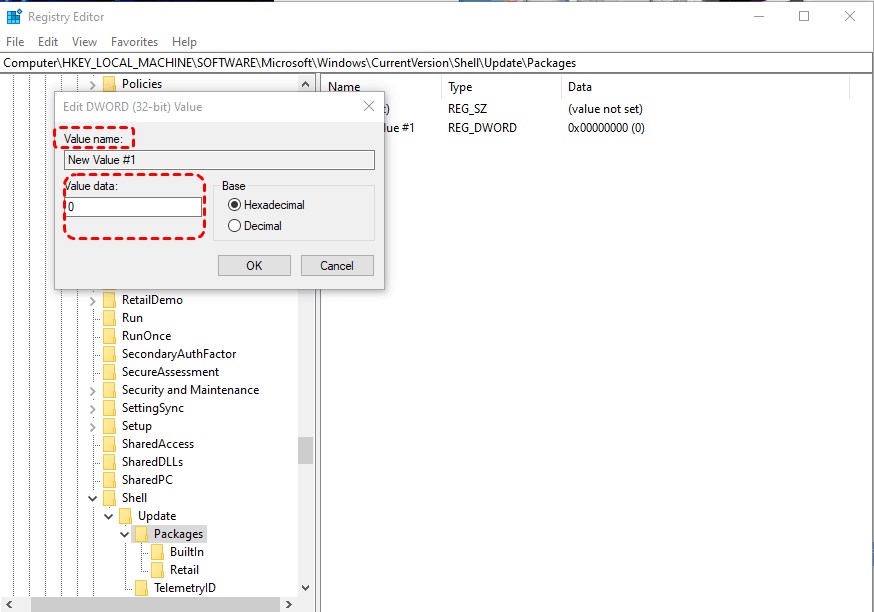
4. To restore the classic Taskbar in Windows 11, simply restart your computer. After the restart, the classic Taskbar will be back, and it may take a few seconds to load and display all icons and buttons.
Method 2: Reset settings to default with a BAT file
1. Type or copy and paste the following text into a Notepad file and save it as a BAT file.
REG DELETE HKCU\Software\Microsoft\Windows\CurrentVersion\Explorer\Streams\Desktop /F taskkill /f /im explorer.exe taskkill /f /im shellexperiencehost.exe del %localappdata%\Packages\Microsoft.Windows.ShellExperienceHost_cw5n1h2txyewy\TempState* /qstart explorer.exe
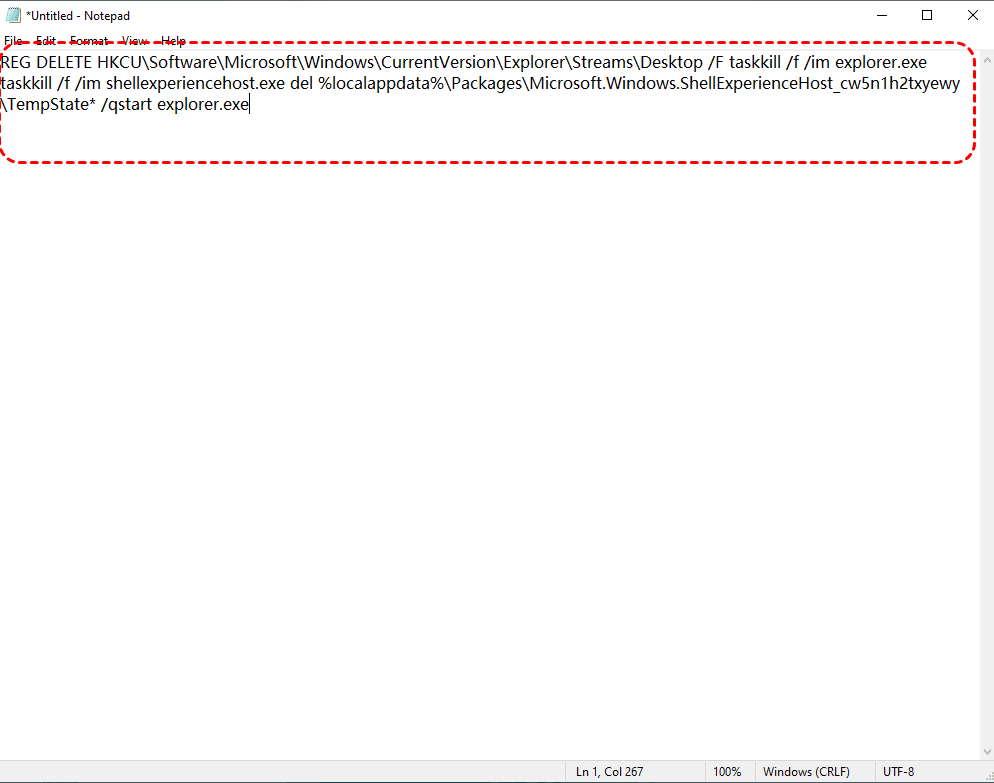
2. After saving the file, double-click it to run the program, which will automatically reset the Taskbar settings to their default values.
3. Then press Windows+I to open Settings to customize your Taskbar. Choose Personalisation from the left panel and select Taskbar from the right list.
Method 3: Restore Taskbar with Explorer Patcher
Explorer Patcher Stardock Fences is a free Windows UI customization software that allows users to personalize the look and feel of their Windows 10 and Windows 11 desktops. With Fences, users can customize the Taskbar, File Explorer, Start Menu, and other UI elements to suit their preferences, giving them more control over their Windows experience.
1. To enable full classic Taskbar in Windows 11, download and install Explorer Patcher on your PC.
2. To access the Taskbar properties, right-click on it and select the "Properties" option, which will open the ExplorerPatcher settings window.
3. In the Explorer Patcher properties, under the Taskbar tab, click on the Taskbar style option and select Windows 10 from the dropdown box.
4. To get the classic Taskbar on your Windows 11 device, click on the "Restart File Explorer" link at the bottom-left corner of the window. This will restart Explorer, and the classic Taskbar will appear on your device.
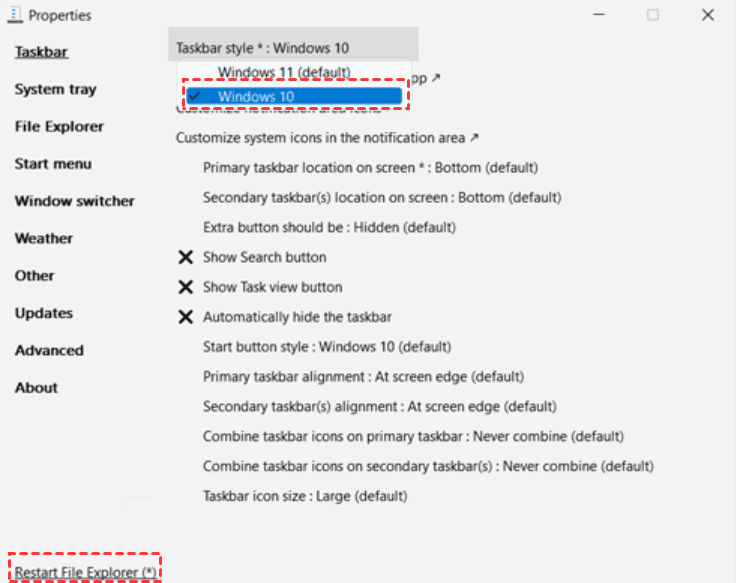
Other settings you can enable:
- To change the location of the Taskbar, click on the "Primary taskbar location on screen" option. This will give you four options to choose from: Bottom (which is the default), Top, Left, or Right.
- To combine taskbar icons on the primary taskbar, click on the "Combine taskbar icons on primary taskbar" option, which will give you the choice to always combine, combine when the taskbar is full, or never combine.
- To customize the Taskbar size, click on the "Taskbar icon size" option. This will give you two options to choose from: Small or Large, with Large being the default.
- ...
Tip: If you decide to switch back to the classic Taskbar in Windows 11, reset all the options in ExplorerPatcher Properties to their original values.
Method 4: Change Taskbar behaviors from settings
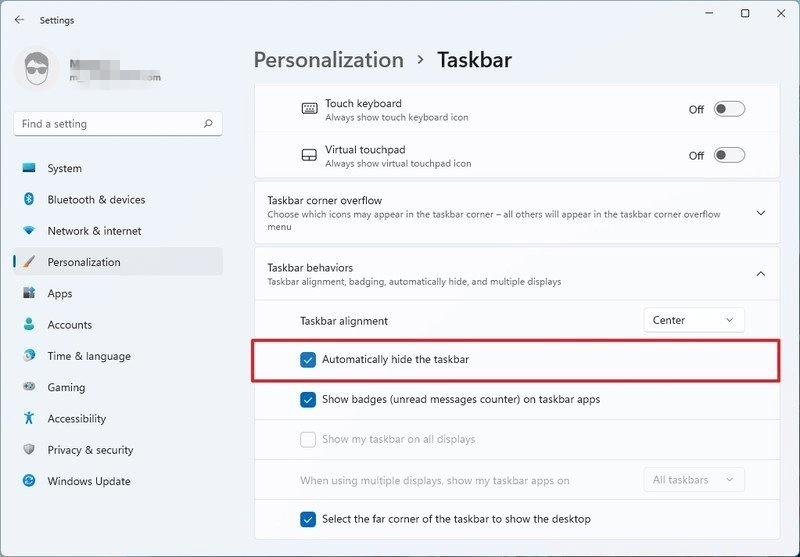
If the Windows 11 Taskbar is missing, you can try restarting the Windows Explorer app by locating it in Task Manager and ending and restarting it. If that doesn't work, you can also try changing taskbar behaviors from settings.
1. Open the Settings app on Windows 11, and select Personalization.
2. To change the Taskbar behavior, go to the Taskbar's drop-down menu and uncheck the option that says "Automatically hide the taskbar". This will allow you to keep the Taskbar visible at all times.
Wrapping things up
You can restore the Windows 11 Taskbar using two methods: tweaking the registry or resetting settings to default with a BAT file. Additionally, this article provides a tip on how to create a system image backup of your computer using the freeware Qiling Disk Master, allowing you to easily restore your computer to its previous state.
Qiling Disk Master offers additional features beyond backup, including cloning and syncing functions, allowing users to easily clone their Windows 11 to another hard drive or automatically sync their folders, among other capabilities.
Related Articles
- 5 Methods to Fix Windows 11 Taskbar Not Working After Update
If you encounter Windows 11 taskbar not working after update, this article can help you easily solve this problem. Remember to back up your computer in advance to prevent unexpected data loss when changing device settings. - How to Reset Windows 11 without Losing Data and Apps
Learn how to Reset Windows 11 without Losing Data and Apps with clear steps, key checks, and practical tips. - Add existing unallocated space,Windows Server 2008 R2
Add existing unallocated space,Windows Server 2008 R2: this guide summarizes the key steps, practical tips, and safer options so you can finish the task clearly and avoid common mistakes. - How to Add Unallocated Space to System Partition in Windows 7?
The best method to add unallocated space to system partition for Windows 7 is to use the best partition magic Windows 7 software. This software allows you to easily resize, move, and merge partitions, making it simple to add unallocated space to your system partition. - Windows 11 NVMe Not Detected? Top Ways to Fix It Now!
Resolve windows 11 NVMe Not Detected Top Ways to Fix It Now with focused Windows checks and practical repair options. - 6 Solutions to Windows 11 Reset Not Working Problem
You can learn how to fix Windows 11 reset not working problem on this page. An easier way to reset your computer is also provided in this article. - Windows 11 Start Menu Not Working
Fix Windows 11 Start menu not working by restarting Explorer, checking updates, profiles, system files, and backups.
Products
Articles & Tutorials
- Data Recovery
- Data Backup
- File Recovery
- File Backup
- File synchronize
- System Backup and Restore
- Disk and Partition Clone
- Technical articles
- Disk Master Help
- Windows Deleted File and Disk Recovery Tutorials
- Windows File and Data Recovery Tutorials
- More Windows Tutorials for Install, Security, Files, and PC Tips
- Windows Boot, Repair, and Recovery Environment Tutorials
- Windows Backup Tutorials
- Windows Restore Tutorials
- Windows Clone and Migration Tutorials
- Windows Server Backup, Recovery, and Management Tutorials
- Windows Disk, Partition, and Storage Management Tutorials