How to Deploy Windows 7 System Image to Different Computer
Quick Navigation:
- Case: Restore Windows 7 system image to another computer
- Can you deploy/restore system image to different hardware?
- How to restore Windows 7/8/10 system image to different computer?
- How to deploy Windows 7/8/10 system image to multiple computers simultaneously?
- Conclusion
Case: Restore Windows 7 system image to another computer
Deploying or restoring a Windows system image to different hardware is possible, allowing you to bring a faulty computer back to normal state or use it on another computer, but it requires careful consideration of hardware compatibility and potential issues.
◆ If your computer suddenly breaks down and you've never backed up the operating system, you can create a system image on a working PC and use it to recover the faulty one, essentially restoring Windows 7 to different hardware.
◆ You can deploy a Windows 7 system image to new hardware using a process called "refresh" or "reinstall" with the system image. This way, you can transfer all your settings and configurations to the new hardware without having to reinstall the OS from scratch. This process is often used in businesses and organizations where multiple computers need to be updated or replaced, but it can also be useful for individuals who want to upgrade their hardware without losing their customized settings. To do this, you'll need to create a system image of your current Windows 7 installation using a tool like Windows Backup and Restore, and then restore that image to the new hardware.
◆ As the administrator of a newly established cybercafe or company, you can deploy a Windows system image to multiple computers with different hardware, saving time and effort by not having to install each machine individually.
You can restore a Windows 7 system image to a different computer by using a tool like Windows Easy Transfer or a third-party imaging software like Qiling Disk Master. These tools allow you to create a system image of your Windows 7 installation and then transfer it to a new computer, including all installed software and settings. However, please note that hardware differences may require additional setup and configuration.
Can you deploy/restore system image to different hardware?
Windows 7 comes with a Backup and Restore utility that allows users to create a system image containing all required system drives, as well as additional drives if necessary. This feature has been carried over to Windows 8 and Windows 10, making it easy to back up and restore systems in these operating systems as well.
Q: Can you restore Windows 7 system image to different computer?
Transferring a system image to a new hard drive on the same computer is generally straightforward, and the license key can be transferred successfully. However, if the hardware is different, the transfer process may not work, and you may need to try it.
Using a Windows installation on a different computer's hardware can cause conflicts and errors, resulting in a prompt that says "Windows cannot restore a system image to a computer that has different firmware."
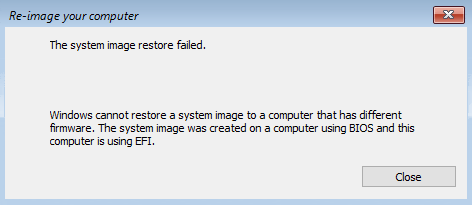
To avoid errors during disk cloning, ensure that the source and destination disks have the same partition style (either MBR or GPT) and boot mode (either UEFI or Legacy).
You can convert a GPT partition style to MBR or vice versa using Disk Management or the command line. Additionally, you can switch between UEFI and Legacy boot modes in the BIOS settings. For more detailed steps, refer to the article "Fix System Image Restore Fails due to EFI/BIOS".
If you're unable to restore Windows 7 to different hardware, you can try a system image backup and restore. However, if you still face issues, a system backup and restore program may be a better option. You can follow the step-by-step guide for Windows 7 system image backup and restore.
About Windows license A retail license for Windows can be transferred between hard drives and computers, but only once if upgrading from a previous retail version, whereas an OEM license is non-transferable between different computers.
Q: Can you deploy Windows 7 system image to multiple computers?
If you need to boot multiple computers without installation, creating a Windows 7 recovery media and a system image backup can be a solution. However, if you have many computers, using an image deploy tool can save you a lot of time and effort.
How to restore Windows 7/8/10/11 system image to different computer
To restore a Windows system image on a different computer, use a powerful backup and restore program that is highly compatible, such as Qiling Disk Master Professional. This can reduce the risk of failure and make the process easier.
This software allows you to back up and restore system images on Windows PCs, and also enables the deployment of Windows system images to computers with different hardware configurations using its "Universal Restore" feature.
If the target computer can't boot due to no operating system or boot issues, you can create a bootable media with Qiling Disk Master to boot the computer and perform dissimilar hardware recovery.
In addition to system deployment, the software offers file/partition/disk backup options, allowing for scheduled automatic backups for daily data protection.
Restoring a system image to different hardware requires a tailored approach based on your specific situation. For example, if you have a Windows 7 system image and want to restore it to a different computer, you'll need to follow a specific procedure that may involve reinstalling the operating system and drivers, or using a tool like the Windows 7 System Repair Disc to transfer the image to the new hardware. The process may also involve updating drivers and software to ensure compatibility with the new system.
Case 1. How to deploy Windows 7 system image to a brand new or unbootable computer
- Install Qiling Disk Master on the source computer.
- Backup Windows 7 to an external hard drive on the source computer.
- Create a bootable media on the source computer.
- Connect the external hard drive and the bootable media to the target computer, then boot the target computer.
- When Qiling Disk Master is launched in Windows PE, restore the previously created system image with the Universal Restore option selected.
Case 2. How to restore Windows 7 system image to a working computer with different hardware
- Download Qiling Disk Master on both computers
- Create a System Backup on source computer
- Use the system image to restore the target computer with the Universal Restore option selected.
Case 3. How to deploy Windows 7 system image to multiple computers simultaneously
- The image deploy tool integrated in Qiling Disk Master Technician can help you deploy the image, or you can download the stand-alone Qiling Image Deploy tool for more details, which can be found in the next part.
Deploy Windows 7 system image to new computer
Given the similarity of the first two cases, we'll take Case 1 as an example. Since the computer you want to restore the image to is working, you don't need to create a bootable USB and backup system to an external drive, unlike in Case 2. We'll walk through the detailed steps for Case 1.
To deploy a Windows 7 system image using Qiling Disk Master Professional, download the software and use it to deploy the image.
◆ Create a bootable media on source computer:
Step 1. Install and launch the software on the source computer, then go to the Tools tab and click Create Bootable Media.

Step 2. Choose a bootable media and click Proceed to Proceed it.

◆ Create a system backup on source computer:
Step 1. Switch to System tab and choose System Backup.

Step 2. To make the later recovery easier, you can store the Windows 7 system image in an external hard drive, NAS, or cloud drive. The system partitions will be auto-selected, so you only need to specify a destination for the system image.

Step 3. Confirm the operation and click Proceed.
◆ Deploy Windows 7 system image to different hardware:
Step 1. Insert the bootable media to start the target computer into Windows PE, then go to the Restore tab and click Select Image File.

Step 2. Locate the system image from where you stored it.

Step 3. Select Restore this system backup and click Next.
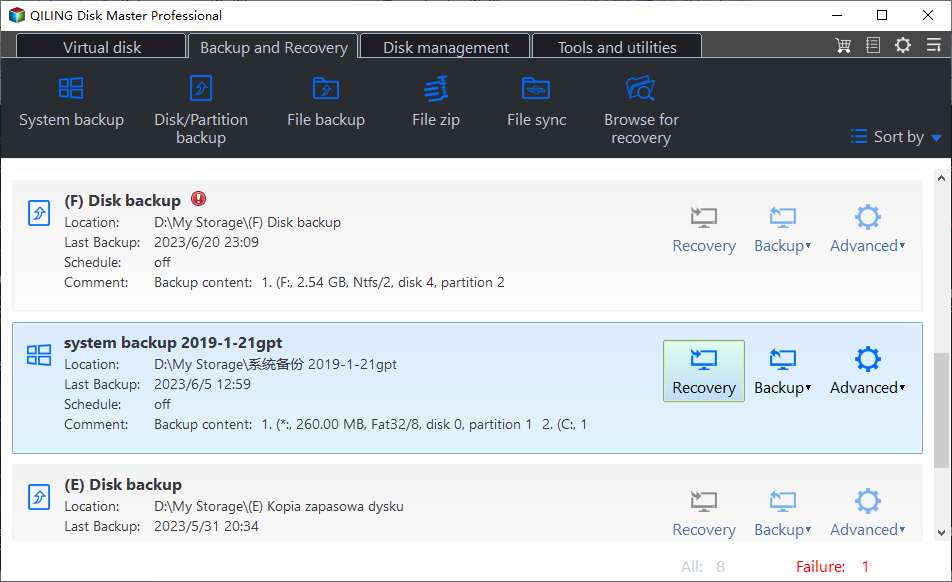
Step 4. Confirm the operation, tick Universal Restore and click Proceed.
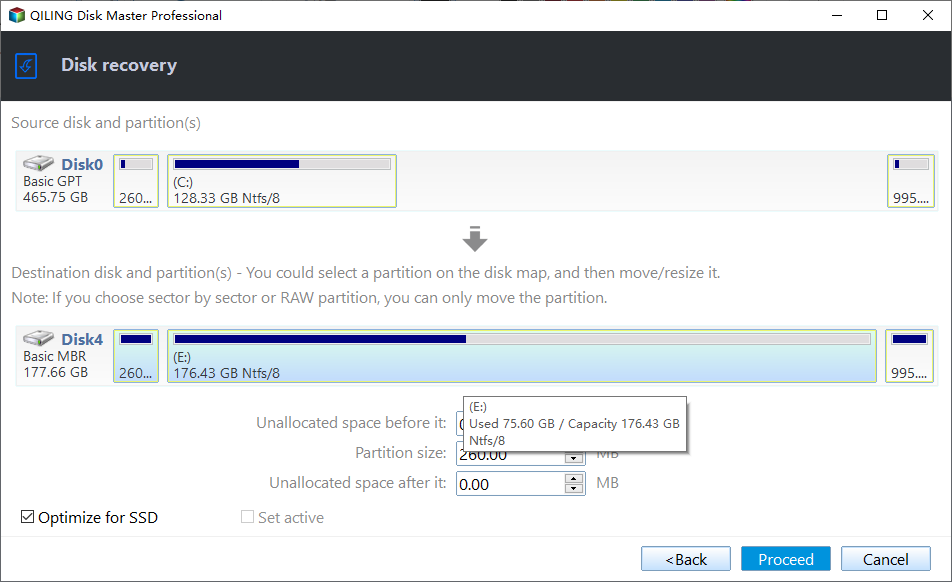
Note: The Universal Restore option is used to ensure a computer can start up after restoring from a system image created on different hardware, and it's recommended to check it.
Deploy Windows 7 system image to multiple computers simultaneously
The previous method is suitable for one or two computers, but for deploying a system image to multiple computers, you'll need the help of image deployment software like Qiling Image Deploy (AID). This tool is designed to restore a single system image to multiple computers within the same LAN, whether they have similar or dissimilar hardware. To use it, you'll need to save the backup image on the same network segment.
You can download the tool specially or use the integrated tool in Qiling Disk Master Technician or TechPlus edition. A comparison chart for them is available, allowing you to decide which one to use based on your needs.
| Qiling Image Deploy Free Edition | Qiling Image Deploy Technician Edition | Qiling Disk Master Technician or TechPlus edition | |
| Usage | image deployment software | image deployment software | all-in-one backup software integrated with deployment feature |
| Applicable operating systems | unlimited PCs and up to 20 servers | unlimited PCs and servers | unlimited PCs or unlimited PCs and servers |
| Boot mode | BIOS | BIOS | BIOS and or UEFI |
| Real-time process monitor | monitor IP address, restore status and progress, and final result. | monitor IP address, restore status and progress, and final result. | monitor IP address, restore status and progress, and final result. |
| Batch preset client computer name | Yes | Yes | Yes |
| Batch preset client computers IP address | No | Yes | Yes |
| Dissimilar hardware restore | No | Yes | Yes |
| Business use | No | Yes | Yes |
| Price | $0 | $199 | at least $599.2 |
Qiling Image Deploy Technician is a better choice as it supports unlimited PCs and servers, allowing batch preset IP addresses and dissimilar hardware restore, eliminating the need to set IP address for each computer and preventing boot failure due to different hardware.
To create a system image, it's recommended to use Qiling Disk Master Technician or TechPlus edition, which supports all features of Qiling Image Deployment Technician and can backup the system, disk, partition, and files, including both BIOS and UEFI boot modes. This is because the stand-alone version of Qiling Image Deployment still requires a free backup software to create a system image.
This software allows you to perform continuous data protection after deployment, and also enables you to create bootable media on a removable device, eliminating the need to re-install the software for any operation.
To avoid common mistakes when using a 3D printer, you need to pay attention to the following things: the filament type and temperature, the printer's calibration and leveling, the print bed adhesion, the print speed and quality, the cooling system, and the post-processing of the printed object. By considering these factors, you can ensure that your 3D prints turn out correctly and meet your expectations.
- To successfully create Windows PE, you need to use a Windows 7 or higher version as your server computer. If you're using an older version of Windows 7, you'll also need to have Windows AIK/ADK installed, as this is a requirement for creating Windows PE. This ensures a smooth and successful process.
- Ensure that the server and all client computers are on the same network segment and use the same disk number, which is typically disk 0 if the computer has only one disk.
- To prevent data loss due to incorrect disk selection, ensure that only the target disk is connected to the client computer. Remove all other disks from the client computer to avoid any potential issues or data loss.
- To verify if all client computers support network boot (PXE boot), you can use the following method: Boot each client computer to a network boot, and then verify that the PXE boot process is successful by checking the network boot logs or using a tool like Windows System Information. If any client computer fails to boot via PXE, investigate the issue by checking the network settings, PXE server configuration, and BIOS settings.
- The proposed deployment plan suggests deploying the image on 5 computers each time, with the goal of deploying it on all client computers, ranging from 1 to 33. This approach is suggested to be efficient and effective.
- When installing Windows, each computer is assigned a unique Security Identifier (SID). Using the same SID on multiple computers can cause conflicts, making it necessary to remove the SID and immediately boot into Windows PE, after which a system image can be created.
For detailed steps, please refer to Situation 2 in the deploy system image to different computer page.
Conclusion
Qiling Disk Master is a versatile tool for deploying system images, offering a range of solutions depending on the number of computers and hardware differences. For single or dual computers, users can utilize the backup and restore feature. However, for computers with different hardware, the "Universal Restore" feature is recommended. For larger deployments, standalone Qiling Image Deploy Technician or Qiling Disk Master Technician or TechPlus edition can be used.
Besides, you can still use it for continuous data protection after deploying image, transfer Windows 10 from HDD to SSD with the system cloning feature, or clone larger drive to smaller drive using the intelligent disk cloning, etc.
Related Articles
- Deploy/Restore System Image to Different Computer with Qiling Disk Master
- Restore Windows Backup to New Computer (Different Hardware Supported)
- Windows 10/8/7 System Image Restore to Different Computer
- 3 Ways to Transfer System Image to New Hard Drive
- Does Windows 11 Have Cloning Software?
Learn the key steps, checks, and practical tips for this related guide. - How to Downgrade Windows 10 to Windows 8
This guide explains how to downgrade Windows 10 to Windows 8 and protect your system with a backup before making major changes.
Products
Articles & Tutorials
- Data Recovery
- Data Backup
- File Recovery
- File Backup
- File synchronize
- System Backup and Restore
- Disk and Partition Clone
- Technical articles
- Disk Master Help
- Windows Deleted File and Disk Recovery Tutorials
- Windows File and Data Recovery Tutorials
- More Windows Tutorials for Install, Security, Files, and PC Tips
- Windows Boot, Repair, and Recovery Environment Tutorials
- Windows Backup Tutorials
- Windows Restore Tutorials
- Windows Clone and Migration Tutorials
- Windows Server Backup, Recovery, and Management Tutorials
- Windows Disk, Partition, and Storage Management Tutorials