Perform Disk Backup for Windows 10 FREE (Two Ways)
- How Can I Create a Disk Backup in Windows 10?
- How to Create Full Disk Backup in Windows 10 Disk Step by Step
- How to Backup Important Files Instead of Entire Disk
- Conclusion
How can I Create a Disk Backup in Windows 10?
You can create a system image backup of your Windows 10 computer to back up all data, including pictures and documents on the system hard drive. To do this, go to Settings > Update & Security > Backup, and follow the prompts to create a backup on an external hard drive or network location. Make sure to select the correct drive and options, and note that the backup process may take some time depending on the size of your data. Additionally, you may also want to consider backing up your files separately using the built-in File History feature or a third-party backup software, as this will give you more control over which files are backed up. Be sure to save the backup in a safe location, such as an external drive or cloud storage, to ensure it's protected in case of a system failure or other disaster.
If you just want to backup files or system, you can use Windows 10's built-in tools like File History or Windows Backup and Restore. However, if you want to backup the entire computer, also known as creating a disk backup, you have two options.
- Way 1: Manually select non-To create a system image backup using Backup and Restore (Windows 7), follow these steps: First, ensure that the Windows 7 installation is complete and all updates are installed. Next, connect an external hard drive with sufficient free space to store the system image.
- You can backup your disk directly and make it automatic with third-party backup software such as Qiling Disk Master Standard.
It's not surprising that easy and automatic way is the priority choices of users, thus, I'll introduce you how to directly backup disk with Qiling Disk Master Standard. If you insist on using built-in tools, you can learn the steps later.
How to Create Full Disk Backup in Windows 10 Disk Step by Step
You can create a full disk backup in Windows 10 either directly or through the traditional method. Alternatively, you can choose to backup specific files instead of the entire disk.
Easier way: create disk backup in Windows 10 directly
Qiling Disk Master Standard, the best free Windows 10 backup software, offers flexibility in backup options, allowing users to backup entire disks, system partitions, data partitions, or individual files based on their needs. This enables users to restore their Windows 10 backup image to a new hard drive, quickly getting their computer back up and running in case of a disaster.
- Create a disk backup automatically: Backing up a disk can be done on a daily, weekly, or monthly basis, allowing you to keep a record of all changes made to the disk.
- Backup only changed files: It uses Incremental Backup by default, which only backs up changed files, saving disk space.
- Diversified backup devices: In Windows 10, you can create a full disk backup and save it to an external hard drive, USB flash drive, NAS, network drive, or other storage device for safekeeping.
- Perform offline disk restore: The tool can create bootable rescue media using a USB or CD/DVD, allowing the computer to boot from it and restore a disk backup without needing to boot into Windows 10.
Download free backup software - Qiling Disk Master Standard - and install it on your computer, compatible with Windows 11/10/8/7/XP/Vista, and for server users, try Qiling Disk Master Server.
1. After installing Qiling Disk Master Standard, execute it and select "Backup" -> "Disk Backup" from the menu.

To create a complete system image in Windows 10, click on System Backup as instead.
2. To create a Windows 10 disk backup, click the + Add Disk button to choose the source disk you want to back up, and then select the destination disk where the backup image file will be stored.

3. Click Proceed to perform disk backup for Windows 10.

Now you have an exact copy of your disk. It only backs up items when you run this task, excluding changes made later.
To avoid losing data after this backup, you should set up a scheduled backup and save the disk on a daily, weekly, or monthly basis. Alternatively, you can try using an event trigger or backing up to a USB drive using Qiling Disk Master Professional.

This software creates a full backup and 6 incremental backups by default, which can lead to a full backup disk over time. To avoid this, it's recommended to enable the Backup Scheme feature, which allows you to automatically delete backup files based on quantity, time, or daily/weekly/monthly schedules. Upgrading now (with a 5% discount for one computer) is required to use this feature.
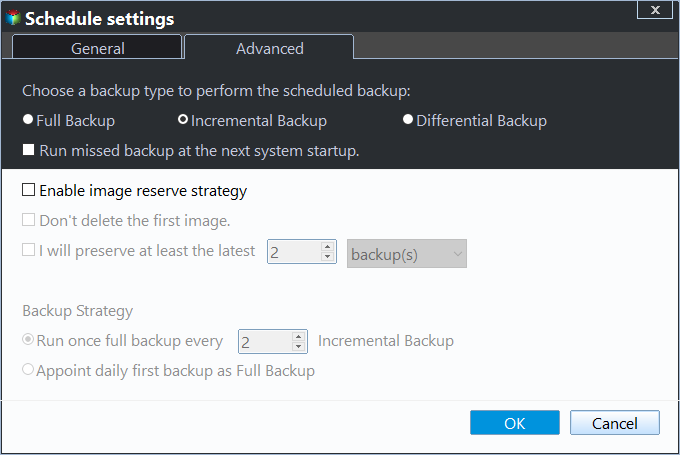
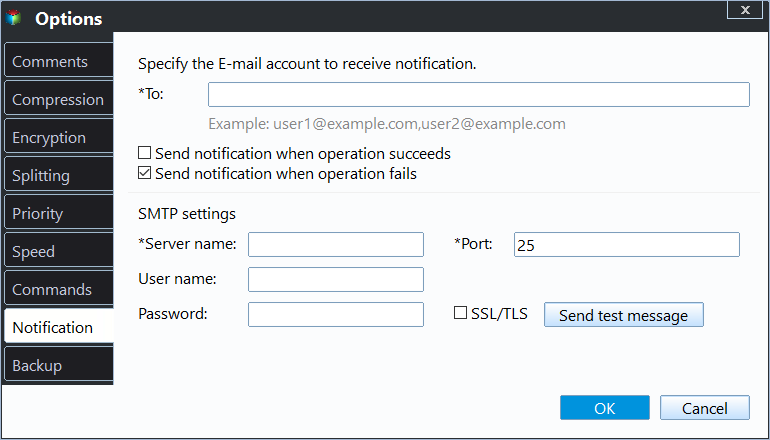
Besides, you can still enable email notification after the task is finished. You can also comment, split, compress the backup image, or select a backup mode, etc.
To restore a disk image, you can easily copy the backup image to a new hard drive or SSD, and then boot from it. Alternatively, you can create bootable media using a USB or CD/DVD, or create a recovery environment that allows you to boot from it without needing a storage device. This recovery environment can even add a boot menu to your current computer.

Traditional way: backup disk for Windows 10
To backup disk for Windows 10 using the built-in tool, select the system partition by default, but not include other partitions. This means if you want to create a disk backup, you need to manually select non-system partitions. To do this, follow the steps below and learn how to backup disk for Windows 10 with the built-in tool.
1. Right click the Windows 10 Start button, choose Control Panel, and select Backup and Restore (Windows 7) from the list.
2. To set up a backup, go to the "Back up or restore your files" section and click on "Tap Set up Backup".
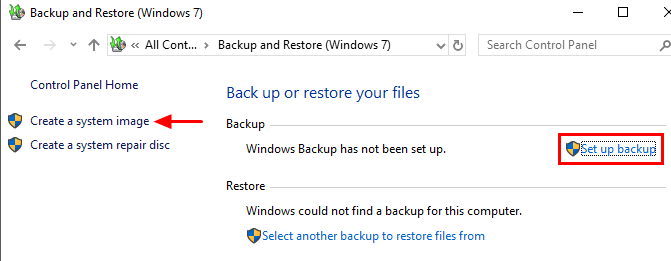
3. Select an external hard drive or network path to store your Windows 10 disk backup. This will be where the backup is saved, so choose a location that is easily accessible and has enough storage space to accommodate the backup file.
4. Tick "Let me choose" option and click Next.
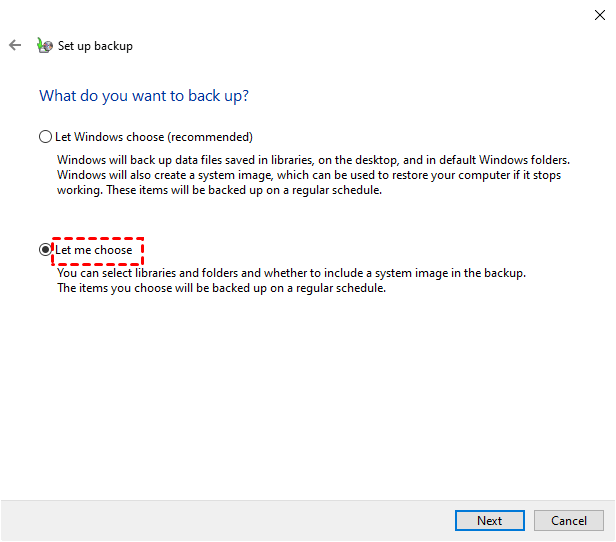
5. To backup your entire disk, check the partitions under the Computer tab and click Proceed. This will include all data files for users and system image backup by default.
Backup Issues you may encounter while using this software:
- You can directly use a USB drive as a backup destination, even if it's formatted with NTFS and has enough space. Alternatively, you can share the USB drive as a network location and then back up to it, or check the article "The drive is not a valid backup location" for more information.
- The error "Windows cannot find the disk or network location where your backups are being saved" may occur if a backup task created with the software is disconnected.
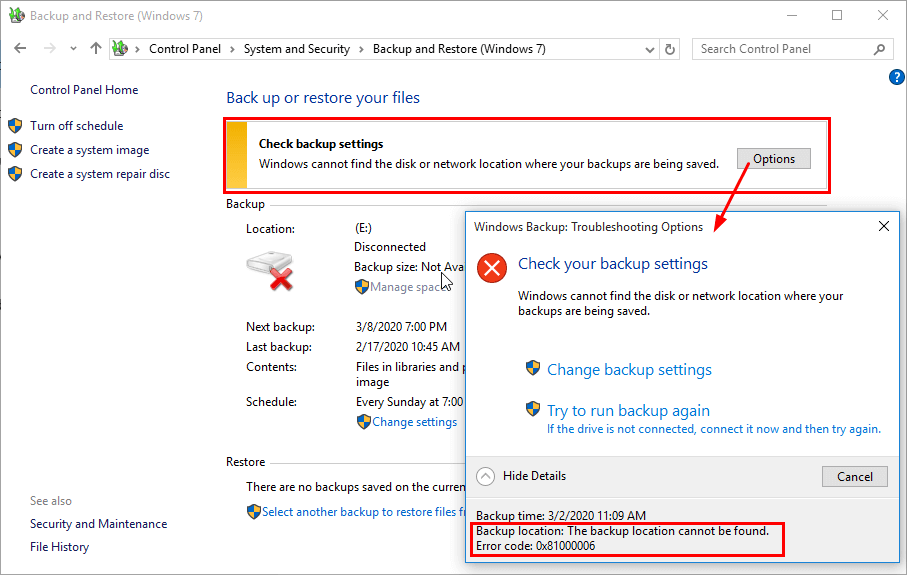
How to Backup Important Files Instead of Entire Disk
Searching "disk backup windows 10" online may yield results where users want to backup important files, not the entire disk, due to the high demand on disk space. In such cases, File History, a Windows 10 backup utility, can be used to backup data to an external hard drive or network share.
1. Input Settings in Windows Search box, and hit enter.
2. Go to Update & security, then Backup, and finally Add a drive + to choose an external hard drive or network share location to save the backup image.
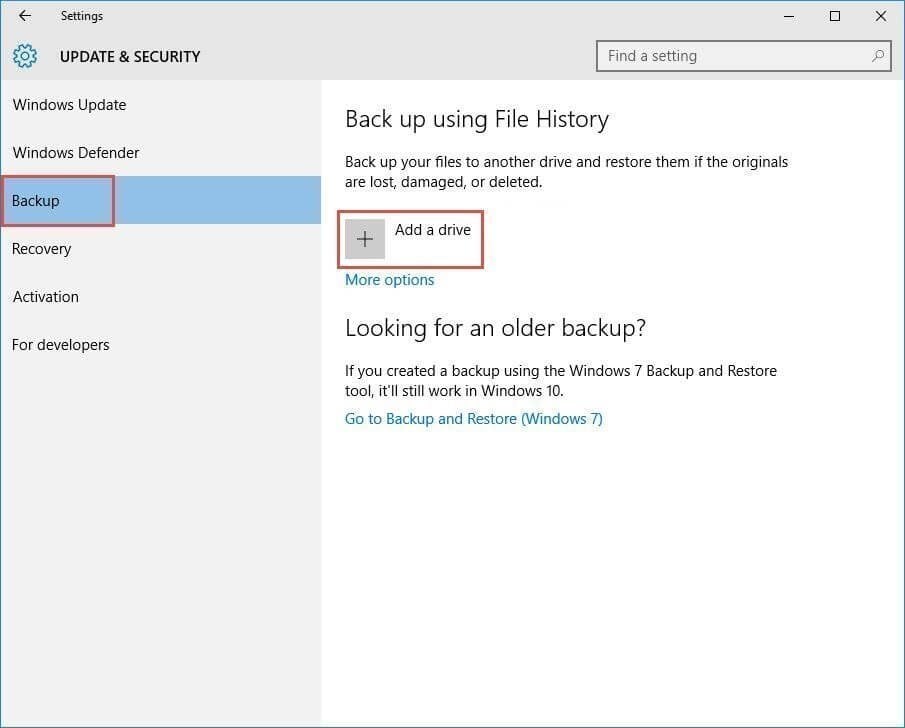
3. Click More Options, set additional backup settings, and then click Back up now to create a backup of your Windows 10 files.
- File History in Windows 10 automatically backs up all folders in the Users folder every hour, with the backup image being saved indefinitely.
- In Windows 10, you can customize the backup frequency to suit your needs, choosing from options such as every hour, every 10 minutes, every 15 minutes, every 20 minutes, every 30 minutes, every 3 hours, every 6 hours, or every 12 hours.
- Set up your backups to be kept Forever, Until space is needed, 1 month, 3 months, 6 months, 9 months, 1 year, or 2 years.
- To add or exclude folders for backup, click the "+" Add a folder button in the "Back up these folders" or "Exclude these folders" section respectively. This allows you to specify which folders to include or exclude from the backup process.
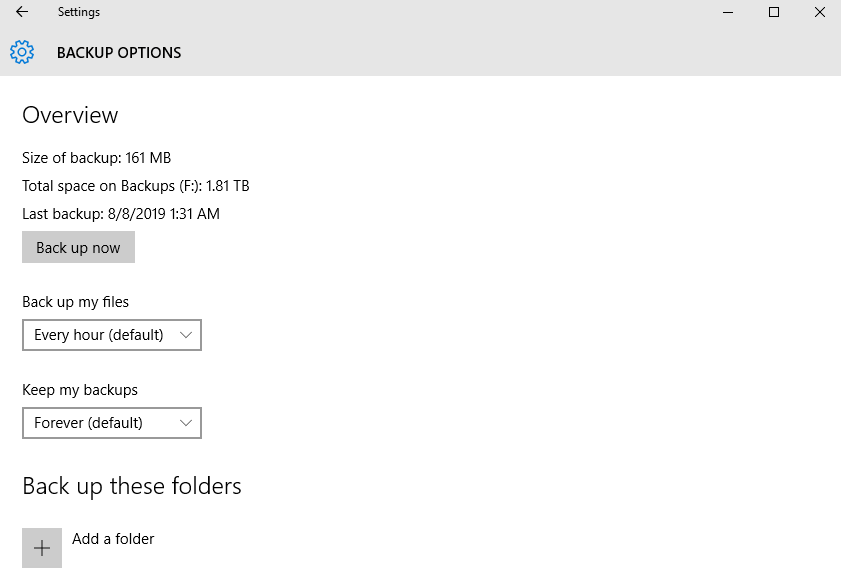
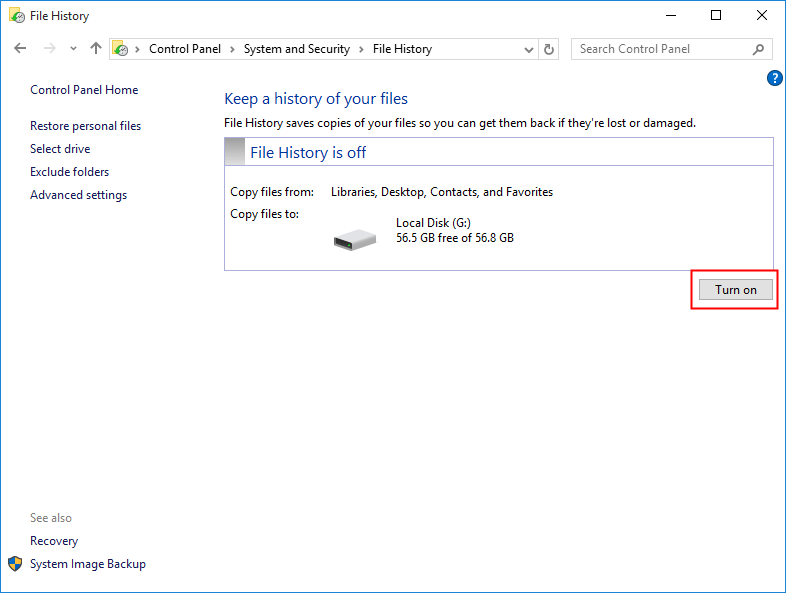
To enable File History, you can either type "Control Panel" in the search box, select it, and then tap "Save backup copies of your files with File History" in the "System and Security" section, or directly click "Turn on" under "Keep a history of your files" after searching for File History.
The software automatically backs up files with default settings, and users can customize the backup drive, settings, and exclude specific folders using the provided options.
The error 0x80040304 occurs when the destination disk is not connected, leading to the message "Sorry, but that didn't work. To find out more, look up error code 0x80040304." Reconnecting the destination device resolves the issue.
Conclusion
You can easily create a disk backup in Windows 10 using the free backup software Qiling Disk Master Standard, which allows for automatic backups with Schedule Backup, unlike Backup and Restore (Windows 7).
You can choose to backup only changed files with Incremental or Differential Backup to save disk space, or opt for a completely unattended backup using command line backup for professional or IT technicians.
A professional disk cloning software for Windows, it allows you to clone a hard drive to a solid state drive, replace a laptop hard drive with an SSD, and even clone a SATA drive to an NVMe drive, among other options.
Related Articles
- How to Run Automatic File Backup in Windows 10 (2 Ways)
- 2 Ways to Restore Windows 10 System Image to New Hard Drive
- How to Delete Backup Files in Windows 10 When Backup Disk Full
- How to Create Backup of Boot Disk in Windows 10
- How to Speed up Dell (Inspiron) Laptop on Windows 11/10/8/7?
Learn the key steps, checks, and practical tips for this related guide. - How to Transfer Files from PC to Hard Drive Faster in Windows 11/10/8/7
You can read this article to learn how to transfer files from PC to hard drive faster in Windows 11/10/8/7.
Products
Articles & Tutorials
- Data Recovery
- Data Backup
- File Recovery
- File Backup
- File synchronize
- System Backup and Restore
- Disk and Partition Clone
- Technical articles
- Disk Master Help
- Windows Deleted File and Disk Recovery Tutorials
- Windows File and Data Recovery Tutorials
- More Windows Tutorials for Install, Security, Files, and PC Tips
- Windows Boot, Repair, and Recovery Environment Tutorials
- Windows Backup Tutorials
- Windows Restore Tutorials
- Windows Clone and Migration Tutorials
- Windows Server Backup, Recovery, and Management Tutorials
- Windows Disk, Partition, and Storage Management Tutorials