Backup is Disabled in Windows 10? Solved!
Backup is disabled in Windows 10
Performing regular backups is a great way to avoid data loss caused by hardware failure, human error, and natural disaster, etc. Microsoft offers two backup programs for Windows users: Backup and Restore (Windows 7) and File History.
Many users experience issues with Windows backup tools, such as Windows Backup being disabled after updates, or File History displaying a blank box with no options.
This situation is likely referring to a situation where a user's data is not being backed up as expected, possibly due to a software or hardware issue. The solution would involve identifying the cause of the problem and taking corrective action, such as updating software, checking for hardware issues, or reconfiguring backup settings.
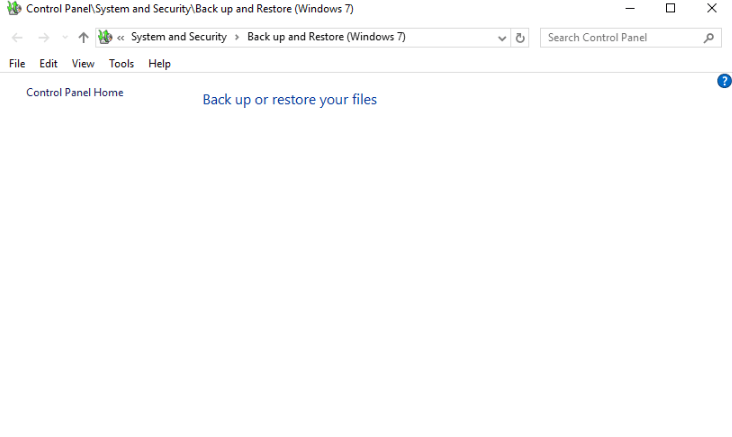
How to fix that Windows 10 backup is disabled?
Windows 10 backup may be disabled due to various reasons, including the presence of a third-party backup software that is interfering with the built-in backup feature, or the backup feature being turned off by a system administrator or a user. To resolve this issue, you can try disabling any third-party backup software, checking the backup settings in the Control Panel, or contacting a system administrator if you are using a business or enterprise version of Windows 10.
Fix 1. Turn on Windows Search
If you're a File History user, ensure Windows Search is turned on, as this is a prerequisite for the File History section to display all necessary options. To do this, follow the steps to enable Windows Search, and then you'll be able to access the File History section without any issues.
Step 1. Delete the existing File History folder on your device.
Tips: The folder to keep is users/username/AppData/Local/Microsoft/Windows/FileHistory, which can be backed up to an external hard drive.
Step 2. To access the Google Services app, type "Services" in the search bar located in the lower left corner of your computer, and then click on it to open the desktop app.
Step 3. Scroll down to Windows Search.

Step 4. Double click it and set Startup type to Automatic (Delayed Start). Then click OK.
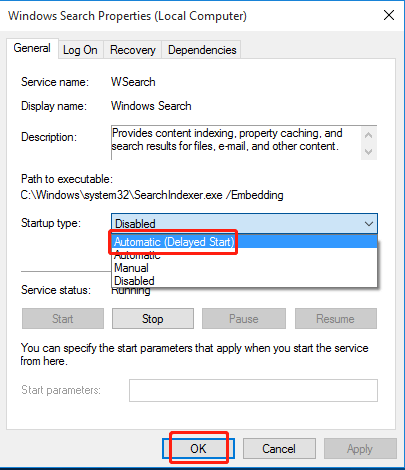
After completing the steps, return to File History to see if it works. If it still doesn't work, try the next method.
Fix 2. Run DISM to repair corrupted system files
If corruption occurs in your system files, you may find that backup is disabled in Windows 10. To resolve this issue, Windows users can utilize the DISM (Deployment Image Servicing and Management) tool to check and fix system files. This involves following specific steps.
Step 1. To open Command Prompt, type "cmd" in the search box, right click on "Command Prompt" and select "Run as administrator", and enter the administrator username and password if prompted.
Step 2. Type the following command to check if there are any corrupted system files and then press Enter:
DISM /Online /Cleanup-Image /ScanHealth
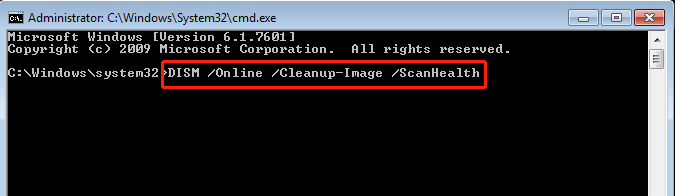
Step 3. Type the following command to see if any corruption has been detected and then press Enter:
DISM /Online /Cleanup-Image /CheckHealth
After running these commands, you will be informed whether the system files are healthy, repairable, or irreparable.
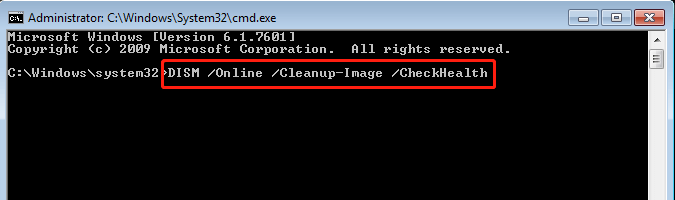
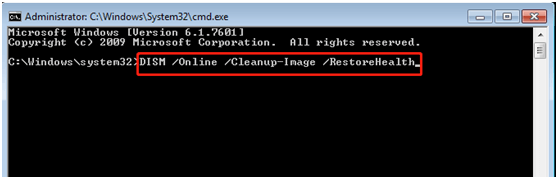
Step 4. If the system files are repairable, you can run the command below and then press Enter to fix them.
DISM /Online /Cleanup-Image /RestoreHealth
The repair will take approximately twenty minutes and should not be interrupted.
Tips:
- If your Windows 7 backup is disabled, you can use this quick guide to fix the issue. The guide provides step-by-step instructions to enable Windows 7 backup, which can also be used to troubleshoot and resolve the problem.
- If you want to explore other commands to repair system files, the sfc /scannow command is helpful.
The two methods, DISM and System File Checker, are effective in resolving the issue, but they are time-consuming and complex, and require careful execution to avoid data loss. However, even after successfully resolving the problem, users may still encounter issues with Windows 10 backup, such as File History not detecting their drive.
If you're looking for a hassle-free backup solution or a more reliable way to safeguard your data, then keep reading.
A reliable way to keep data safe
Qiling Disk Master Standard is a free backup utility that offers advanced options similar to Backup and Restore (Windows 7) and File History. It provides multiple flexible backup solutions, including system, disk, partition, and file backup, as well as file sync. Users can easily back up almost all types of data to an internal or external hard drive, cloud drive, NAS device, or network.
Using this feature allows you to schedule backup tasks to run automatically, saving time and effort. To further optimize disk space, you can enable incremental or differential copy, which only backs up changes, reducing storage space required. Additionally, optional compression and splitting settings can be used to further minimize disk storage needs.
This software has a user-friendly interface, making it simple to use. It can be downloaded and run on Windows 10, 8.1, 8, 7, Vista, and XP.

Verdict
If backup is disabled in Windows 10, you can resolve the issue by using the built-in backup tools or alternative software like Qiling Disk Master Standard, which offers easy operations and powerful functions.
After upgrading to its advanced version, you can enjoy more useful features, such as encrypting image files, deleting old image backups automatically and so on. However, if you are a Windows Server user, please consider using Qiling Disk Master Server instead.
Related Articles
- Top 3 Ways to Fix Windows Backup Keeps Failing
Fix Windows Backup keeps failing with three practical methods, and learn how Qiling Disk Master can create reliable system image backups when built-in backup tools fail. - Solved: Windows Backup Failed to Read from the Shadow Copy
Learn how to fix the error: Windows backup failed while trying to read from the Shadow Copy on one of the volumes being backed up when you backup using Windows tool. - How to Sync OneDrive to Computer in Windows 10/8/7 Flexibly?
To sync OneDrive files to computer in Windows 10/8/7, the desktop app of OneDrive may be the most direct way, but it has some limitations in functionality and application range, so you can also try a more flexible solution. - How to Easily Perform Continuous File Sync on Windows
This article tells you how to perform continuous file sync on your PC, including 2 possible ways. Choose the one that suits you best. - Windows 10 File Sharing Not Working - How to Resolve
This guide explains Windows 10 File Sharing Not Working - How to Resolve with clear steps, key checks, and practical tips. - Windows 10 Home Sync Center | Alternative & Guide
Follow this guide for Windows 10 Home Sync Center | Alternative & Guide, with practical steps for moving, sharing, or syncing files and photos safely.
Products
Articles & Tutorials
- Data Recovery
- Data Backup
- File Recovery
- File Backup
- File synchronize
- System Backup and Restore
- Disk and Partition Clone
- Technical articles
- Disk Master Help
- Windows Deleted File and Disk Recovery Tutorials
- Windows File and Data Recovery Tutorials
- More Windows Tutorials for Install, Security, Files, and PC Tips
- Windows Boot, Repair, and Recovery Environment Tutorials
- Windows Backup Tutorials
- Windows Restore Tutorials
- Windows Clone and Migration Tutorials
- Windows Server Backup, Recovery, and Management Tutorials
- Windows Disk, Partition, and Storage Management Tutorials