How to Make Hard Drive/USB Drive Bootable in Windows 10, 11
Full guide to make drive bootable in Windows 10 (2 cases)
This article provides solutions for two different questions: how to make another hard drive or SSD bootable and how to make a bootable USB drive. The first context involves making a cloned drive bootable or dealing with issues when a cloned drive won't boot. The second context focuses on creating a bootable USB drive. The article aims to address both scenarios with a clear and concise explanation.
◇ How to make a hard drive bootable: Cloning a drive is usually achieved through operating system and data cloning. However, if the cloned drive won't boot, it may be due to incorrect boot mode, boot order, incompatible partition style, or corrupted boot files. To minimize errors, it's recommended to use professional cloning software.
◇ How to make a bootable USB drive: Windows provides utilities to create bootable USBs, which serve the purpose of starting a computer in a recovery environment for repair or installation.
How to make a hard drive bootable in Windows 10 easily
Cloning is the easiest way to make a drive bootable in Windows 10/11, as it copies all the necessary boot files required by Windows to run. However, since Windows itself does not have cloning capabilities, you'll need to use third-party disk cloning software to accomplish this task.
Choose reliable bootable clone software
Choosing a reliable cloning tool can be a daunting task, given the numerous options available in the market. To make an informed decision, consider the following criteria:
- Professional and safe: The cloning software can make a cloned disk bootable on Windows 11/10/8/7/XP/Vista systems, and ensures the original and cloned disks are not mixed up.
- Easy to use: Cloning software with a clear interface and user-friendly design allows users to quickly understand and navigate the program, even for first-time users. This makes it easier to get started and achieve desired results.
- Strong compatibility: Good clone software should be able to work with various Windows versions, different drive sizes, and different partition styles (MBR and GPT) to ensure compatibility and a smooth cloning process.
- Customized options: A great clone software often includes features to customize and enhance the cloning process, such as sector-by-sector cloning, SSD alignment, and resizing partitions, allowing users to fine-tune their cloning results.
Based on the criteria, I recommend Qiling Disk Master Professional, which combines comprehensive and useful features in the simplest interface and process, allowing even non-tech-savvy users to complete cloning operations with a high success rate.
◾ The intelligent mode copies only used sectors, making it easy to clone larger disks to smaller ones.
◾ For users who want to clone a hard drive to a larger drive without leaving unallocated space, the software's Edit Partition feature is useful.
◾ Qiling Disk Master Pro supports all Windows PCs and allows cloning of both MBR and GPT system/data disks.
◾ The tool allows you to create bootable media, boot a problematic Windows computer, and perform tasks such as backup and restore within WinPE.
You can try out Qiling Disk Master Pro by downloading it. If you're running Windows Server, you can choose the Server edition.
How to make a drive bootable via cloning (step-by-step)
With Qiling Disk Master, you can choose to clone entire disk with Disk Clone or clone only OS with System Clone, depending on the size of the target disk and the items you want to move.
To make an internal or external hard drive bootable in Windows, follow these steps. These steps are applicable for both internal and external hard drives.
Preparations of making bootable drive
- Connect the target drive, which is the drive you want to make bootable, to a free slot on your computer. If you don't have a spare slot, consider using a USB to SATA adapter or an external enclosure to connect the drive. This will allow you to access the drive and make the necessary changes to make it bootable.
- Before cloning your target drive, please back up any important files to an external hard drive to avoid losing them. The cloning process will overwrite the original disk.
Step 1. Choose "System Clone" to get started
To clone a hard drive using Qiling Disk Master, ensure the hard drive is detected by Windows. Then, launch Qiling Disk Master and select the "System Clone" option under the "Clone" tab.

Step 2. Select the target drive that you want to make it bootable
The System Clone process will automatically select the boot-related partitions by default. To proceed, simply choose the prepared drive as the destination path and click "Next".
✎Note: The software will automatically check if the target disk space is large enough to hold all the files from the C drive being migrated. If it's not sufficient, the software will alert you to switch to a larger disk.

Step 3. Overview the operation and “Proceed”
To clone a system in Windows 10, tick the "SSD Alignment" option in the operation summary window if the target disk is an SSD disk, then confirm the operation and click "Proceed" to perform the system clone and make the disk bootable.
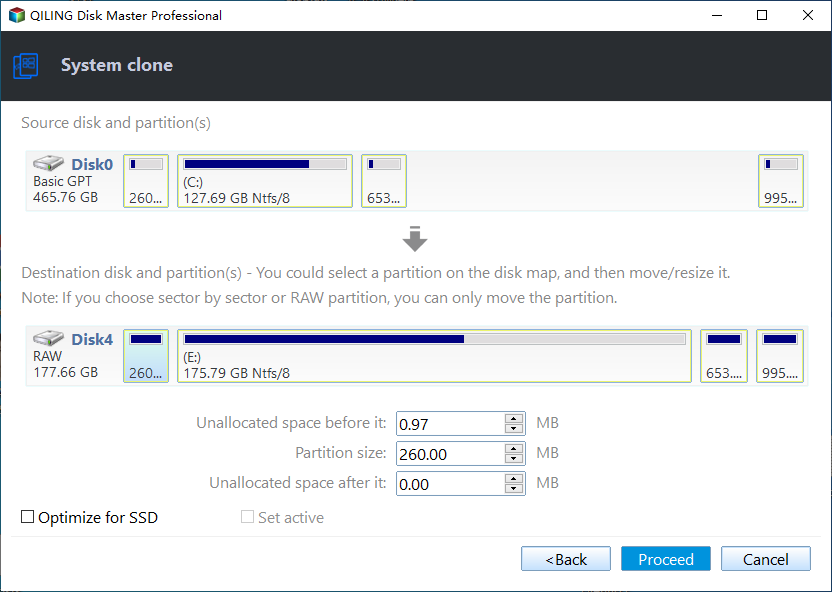
✍Tips:
- If your target hard drive is large enough to hold all the system required partitions, you can choose to copy every bit of data, even unused sectors, by ticking the "Sector By Sector Clone" option. This allows you to copy all data, including unused sectors, to the target drive.
- If you move your system to a larger drive, you'll have the option to "Make full use of disk space" which is checked by default to prevent unallocated space after cloning.
- You can also clone Windows 10 to a USB drive and boot from it as long as it has sufficient space.
Step 4. Boot from the cloned hard drive
When the cloning process is finished, you can boot from the cloned drive.
To confirm the cloning process, shut down the computer, replace the old hard drive with the new one, and restart the computer. If it boots up successfully from the cloned drive, it indicates that the cloning was successful.
If your computer has extra slots, you can connect the old hard drive again as a secondary storage drive, making sure the new drive is the first boot option in BIOS or UEFI settings.
Why cloned drive won’t boot and how to solve it
To make the cloned G drive bootable, you can try the following: 1) Check the BIOS settings to ensure the SSD (G drive) is set as the primary boot device. 2) Run the clone software again, this time selecting the correct boot mode (e.g., UEFI or Legacy BIOS). 3) Use the built-in Windows 10 feature, "Reset this PC" to reset the G drive to its original state and then clone again. 4) If the above steps don't work, try using a different cloning software or a tool like Qiling Disk Master to clone the C drive to the G drive. 5) If none of the above steps work, you may need to reinstall Windows 10 on the G drive.
If your HDD/SSD won't boot after cloning, there are several common reasons to consider. These include issues with the cloning process itself, such as incomplete or corrupted data transfer, or problems with the destination drive's configuration, like incorrect partitioning or boot sector settings.
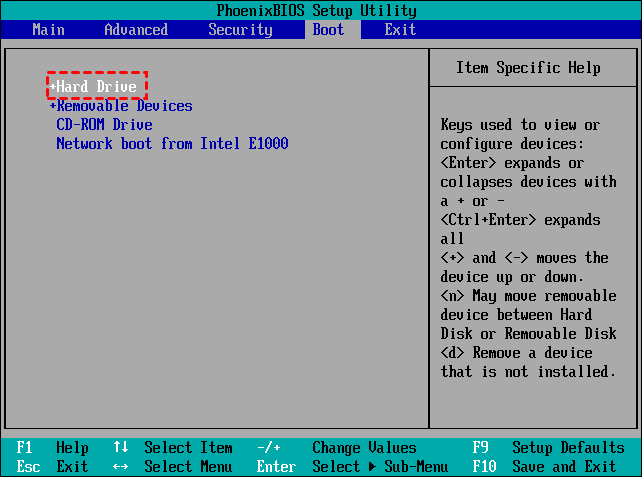
- Set the wrong drive to boot from. To fix the issue, you need to enter the BIOS or UEFI settings, change the boot order to prioritize the cloned SSD, save the changes, and then boot from the cloned SSD using the F10 key.
- GPT/MBR conflict. Note that a GPT disk works with UEFI boot mode, while a MBR disk works with Legacy BIOS. If cloning a GPT disk to MBR, you'll need to change the boot mode to Legacy, and vice versa.
- Lack of the "system reserved" partition. You need to choose a professional clone software that can completely clone all partitions, including the "system reserved" partition, and use a feature like "Sector By Sector Clone" for a reliable system reserved recovery partition.
- The boot configuration data got corrupted during migration. Professional cloning software normally does not cause this problem, but if you encounter it, try using bootrec.exe commands in Command Prompt to rebuild BCD, as detailed in how to make cloned drive bootable.
How to fix cloned disk not boot issue using CMD
Cloning a drive can sometimes result in a drive that won't boot, and it can be challenging to identify and resolve the issue. In such cases, using the bcdboot command can be helpful. This command allows you to copy critical boot files to the system partition and create a new system BCD store, which may resolve the bootloader issue on the cloned drive.
1. Type cmd in the search box and run as administrator.
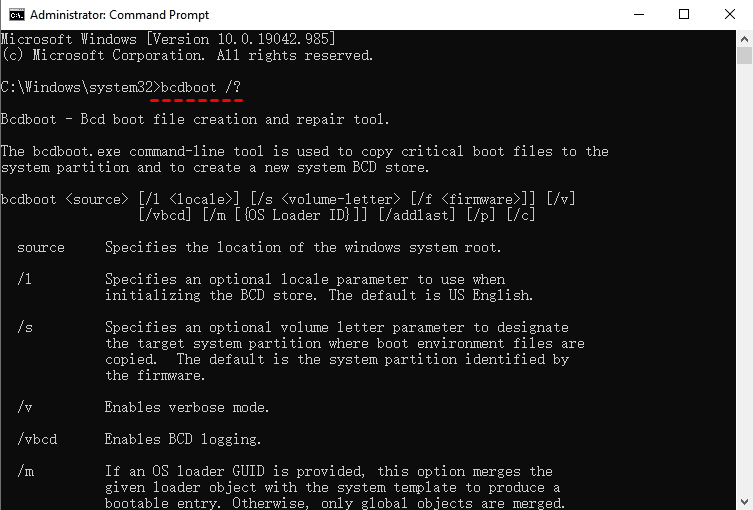
2. To get details about the `bcdboot` command, type `bcdboot /?` in the Command Prompt. This will display the available options and usage for the command.
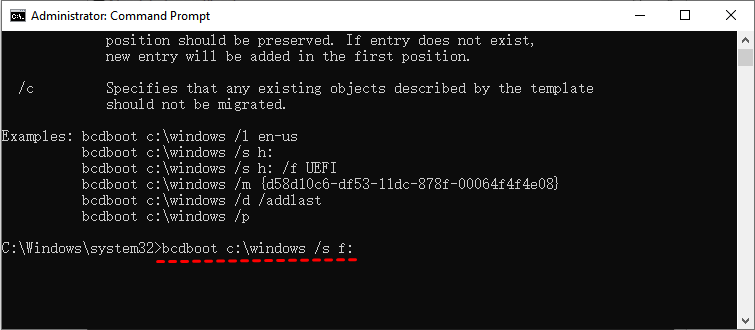
3. Then, type bcdboot c:/windows /s x: and hit Enter. It's able to re-gen BCD files to x: partition, which refers to the second drive you want to make it bootable.
How to make a bootable USB in Windows 10
To create a bootable USB in Windows 10, you can use the built-in tool "Media Creation Tool" or a third-party software like Rufus. The Media Creation Tool allows you to create a bootable USB drive with the latest version of Windows 10, while Rufus provides more flexibility and options for creating a bootable USB drive. You can also use a USB drive as a recovery drive to boot into Windows 10's recovery environment and troubleshoot issues.
Basically, there are 2 types of bootable USB:
Installation USB: Copying a Windows 10 ISO to a USB drive creates a bootable drive that can be used to install Windows 10 on a computer. This allows for a clean installation of Windows 10 from the USB drive on the same or another computer.
Recovery USB: The Windows 10 advanced recovery options include troubleshooting and reinstalling Windows 10, which can be done even if the computer won't boot. This can also be used to reinstall Windows 10 if system files are backed up to a USB drive, but this is typically not applicable to different computers.
How to create an installation USB
To create a Windows 10 installation on a USB, you need to download the MediaCreationTool, select "Create Windows 10 installation media" and click "Download tool now", then prepare a USB flash drive with at least 8 GB.
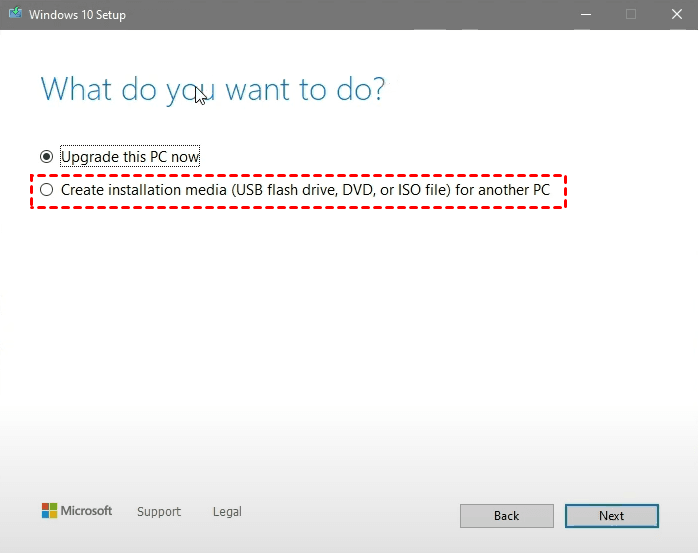
Open the MediaCreationTool, choose Create installation media for another PC, and click Next.
Select the configurations of the Windows 10 ISO you will download. If you want to use the USB on the same computer, you can let it use the recommended options for this PC, otherwise, choose your options based on your actual situation.
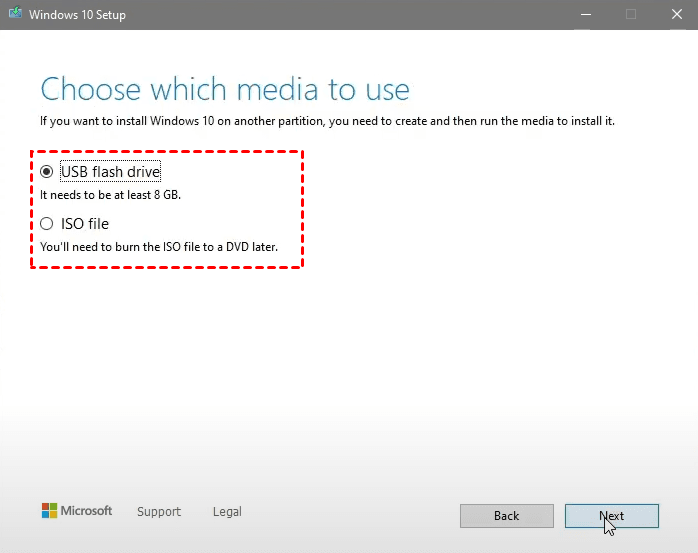
To create an installation USB, select USB flash drive and click Next. This will allow you to boot and install the operating system on the same or another computer using the USB drive.
How to create a recovery USB
You need a USB drive with at least 16 gigabytes space to create an USB recovery drive.
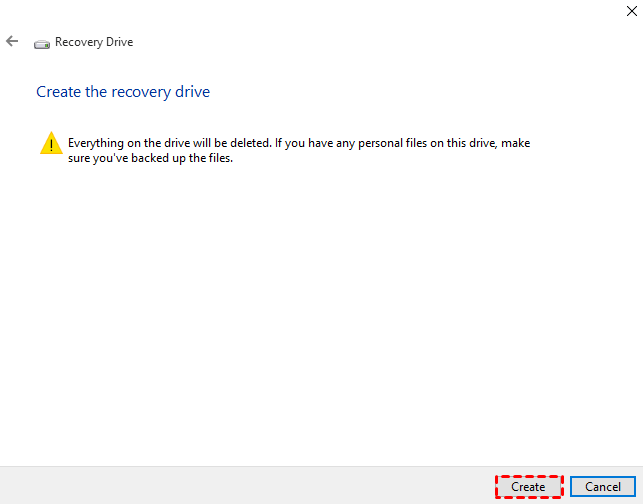
To create a Windows 10 recovery drive, search "recovery drive" on the taskbar, then select the tool to run it. Make sure to tick the option "Backup system files to the recovery drive" so the USB drive can be used to reinstall Windows 10.
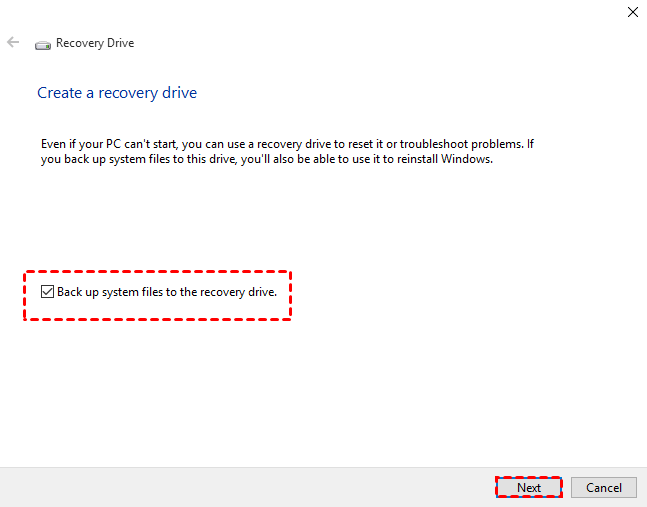
Connect a USB drive to your computer. Select the drive and click "Create" to start the process. Once it's done, safely eject the USB drive.
If the computer fails, simply connect a USB drive, start the PC, and press the required key to access the BIOS settings. From there, set the bootable USB as the first boot option and save the changes.
After selecting a keyboard layout, you can troubleshoot Windows 10 by choosing Troubleshoot > Advanced options or reinstall Windows by selecting Recover from a USB.
FAQ about making drive bootable
How do I make an ISO file bootable?
How do I know if a disk is bootable?
Does cloning a drive make it bootable?
Verdict
To make a drive bootable in Windows 10 or create a bootable USB, follow these steps: ensure the drive is formatted to FAT32, download a third-party tool like Rufus or PowerISO, and follow the software's instructions to create a bootable drive. Alternatively, use the built-in Windows 10 feature to create a bootable USB by going to Settings > Update & Security > Recovery > Add a drive.
To clone a system drive while ensuring secure boot, use a reliable clone software like Qiling Disk Master, which simplifies and effectively clones the drive, and offers advanced features such as cloning a larger drive to a smaller SSD with Intelligent Clone, and improving SSD disk writing and reading speed with SSD Alignment.
This software allows for creating bootable USB drives and supports restoring a Windows 10 image to a new hard drive, even if the computer fails to boot. It also enables manual creation of a boot partition using the DiskPart command line tool.
Related Articles
- Create Windows 10 Bootable Clone for Free (with Video)
- How to Clone Boot Drive to Smaller SSD in Windows 10/7 Efficiently?
- 3 Methods to Copy Windows 10 to USB Drive (Bootable)
- Fix Windows 10 Bootable USB Not Working vs. Easier Way
- Clone Hard Drive from Bootable USB with Easy & Free Way
- Merge Full and Incremental Backups Easily with Qiling Disk Master
Qiling Disk Master can help you consolidate multiple incremental backups with initial full backup to build a new full merged backup.
Products
Articles & Tutorials
- Data Recovery
- Data Backup
- File Recovery
- File Backup
- File synchronize
- System Backup and Restore
- Disk and Partition Clone
- Technical articles
- Disk Master Help
- Windows Deleted File and Disk Recovery Tutorials
- Windows File and Data Recovery Tutorials
- More Windows Tutorials for Install, Security, Files, and PC Tips
- Windows Boot, Repair, and Recovery Environment Tutorials
- Windows Backup Tutorials
- Windows Restore Tutorials
- Windows Clone and Migration Tutorials
- Windows Server Backup, Recovery, and Management Tutorials
- Windows Disk, Partition, and Storage Management Tutorials