Top 8 Ways to Fix 100% Disk Usage in Windows 11
- User case
- What is 100% disk usage?
- How to fix 100 disk usage
- Method 1. Stop (SysMain) SuperFetch service
- Method 2. Update your device drivers
- Method 3. Reset virtual memory
- Method 4. Change power options to high performance
- Method 5. Disable antivirus software temporarily
- Method 6. Disable scheduled defragmentation
- Method 7. Run a viruses or malware scan
- Method 8. Run SFC and DISM scans
- Back up your disk to prevent data loss
- Further tip: how to avoid 100% disk usage
- # 1. Update your drivers
- # 2. Install antivirus software
- # 3. Disable start-up programs
- # 4. Make sure there are no hard disk errors
- Wrapping things up
User case
100% disk usage on Windows 11 after updating
Hello, recently Windows offered free update from Windows 10 to Windows 11. Since completing this update, I have been having the issue whereby task manager shows that 100% disk being used on a constant basis. Laptop runs at a snail's pace now and it's only 3 months old. Could you please assist?
- Question from Microsoft Community
High disk usage can cause a computer to run slowly or even become unresponsive. When the disk usage reaches 100%, it can be challenging to identify the root cause of the issue. However, to resolve the problem, it's essential to investigate and address the underlying reasons, such as malware, disk errors, or resource-intensive programs, to ensure a smooth computer experience.
What is 100% disk usage?
In Windows 11, 100% disk usage indicates that your hard drive is working at maximum capacity and can't handle any more tasks or data, causing your system to become slow and potentially even crash.
100% Disk usage V.S. CPU usage
Reaching 100% disk usage and running out of memory are two distinct issues that can cause system performance degradation, with different root causes and solutions. While a full disk can lead to slow system performance due to the inability to write new data, running out of memory can cause the system to become unresponsive and crash due to the inability to allocate resources.
- Reaching 100% disk usage High disk usage usually means that the disk is reading or writing data at its maximum speed, potentially slowing down the system due to background processes, malware, hardware issues, or driver problems.
- Insufficient memory The computer's RAM is insufficient to support the programs and operations running, causing it to use virtual memory on the disk, leading to slow system performance due to the lower disk speed compared to RAM speed.
Why is my disk at 100 all the time on Windows 11?
Here are the common reasons why disk usage shows 100%:
❖ Too many programs launch at startup
❖ Outdated device drivers
❖ Incorrect Windows services
❖ Corrupt or lost system files
❖ Disk drive errors
❖ Conflict with anti-virus software
❖ Windows version is outdated
❖ Too many temporary files
❖ Virus or malware attack
❖ Incorrect virtual memory
How to fix 100 disk usage
Here are 8 ways to fix Windows 11 disk 100% usage issue. You can try each method to resolve the problem, and if you already know the cause, refer to the specific solution from the content menu. These methods include checking for malware, disabling unnecessary startup programs, running a disk cleanup, disabling the search index, running a disk check, disabling the Windows Search service, checking for disk errors, and running a System File Checker scan.
✍✍Before troubleshooting the 100 disk usage Windows 11 issue, it's recommended to protect your disk data by backing up your files, in case any of the methods cause unintended consequences.
👉Back up your disk to prevent data loss
Method 1. Stop (SysMain) SuperFetch service
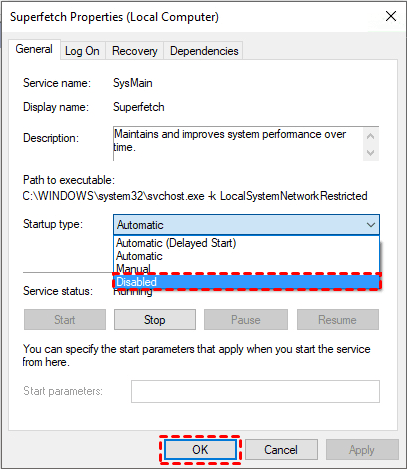
In Windows 11, SuperFetch (also known as SysMain) preloads applications into memory before booting, reducing boot time and improving performance, but can cause high disk usage, so stopping the service may be necessary to resolve system 100% disk usage problems.
1. To open the Services window, press Windows+R, type services.msc, and press Enter, then double-click SuperFetch.
2. In the SuperFetch Properties window, click the dropdown menu next to Startup type and set it to Disabled and click on Stop to terminate the service. Then tap OK.
Method 2. Update your device drivers
If the steps above did not resolve the issue, updating your device drivers may also help resolve the Windows 11 disk usage 100% problem.
1. To open the Device Manager, press the Windows key + X on your keyboard, which will open a dialog box. From this box, select the "Device Manager" option.
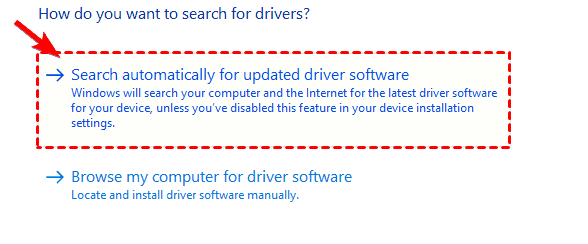
2. Find the device with a yellow triangle icon, right-click on it and select "Update Driver" from the context menu.
3. Tap Search automatically for drivers to let Windows install the necessary updates.
Method 3. Reset virtual memory
Virtual memory, an extension of physical memory, combines RAM and a portion of the hard disk. When RAM is full, Windows stores files in virtual memory, but this can sometimes consume a significant amount of disk space. To prevent this, resetting virtual memory can help.
1. To open the System Properties window, press Windows+R, then type "sysdm.cpl" and press Enter. This will open the System Properties window.
2. Click on the "Settings" option under the "Performance" section in the "Advanced" tab.
3. Under the "Performance Options" window, move to the "Advanced" tab and click on "Change".
4. To change the size of the paging file, untick the "Automatically manage paging file size for all drivers" checkbox, select "Custom size", and enter the desired "Initial size" and "Maximum size" in megabytes, then click "OK".
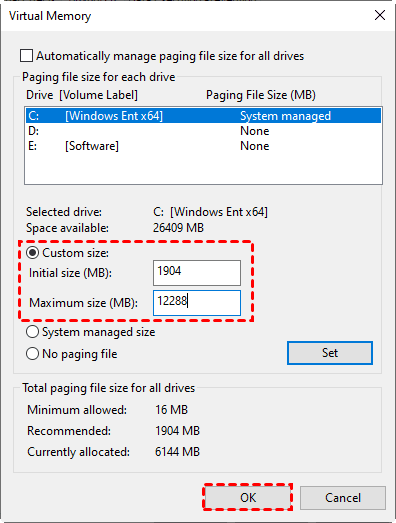
Now, restart your PC, and the disk usage should be significantly reduced.
Method 4. Change power options to high performance
In Windows 11, changing the power option to High Performance may help resolve the issue of 100% disk usage by allowing the system to prioritize CPU and memory resources over power efficiency. This can be done by going to Settings > System > Power & sleep > Power mode, and selecting the High Performance option.
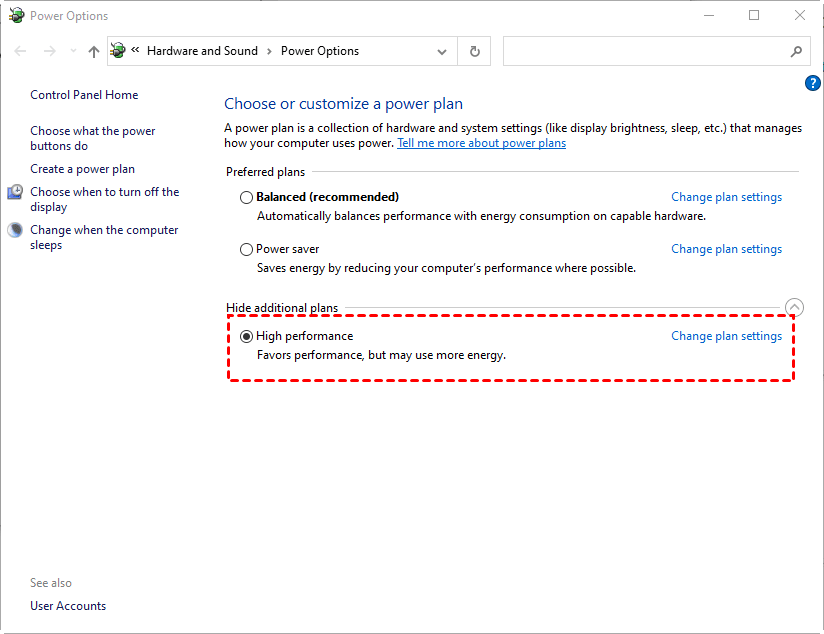
1. To access the power options, right-click on the Start button and select Power Options, then navigate to Power & sleep and finally Additional power settings.
2. In the "Choose or customize a power plan" window, select "High performance".
Method 5. Disable antivirus software temporarily
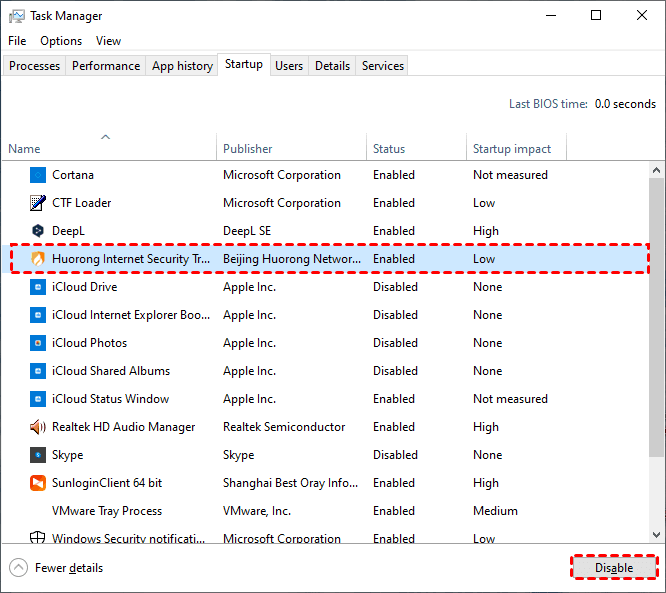
Usually, Windows 11 built-In Windows 11, you don't need to install additional third-party antivirus software as Windows Defender is sufficient for anti-virus needs. Temporarily disabling third-party antivirus software can resolve Windows 11 system high disk usage issues caused by conflicts with the system.
Under the Task Manager, switch to Startup, find the third-party anti-virus software, select it and click the Disable button below.
Method 6. Disable scheduled defragmentation
Windows 11 periodically defragments the hard disk to improve performance, but this process can cause the system to become sluggish and unresponsive due to high disk usage, so it's recommended to disable scheduled defragmentation.
1. To defragment your hard drive, tap Start and search for Defragment, then open Defragment and Optimize Drives.
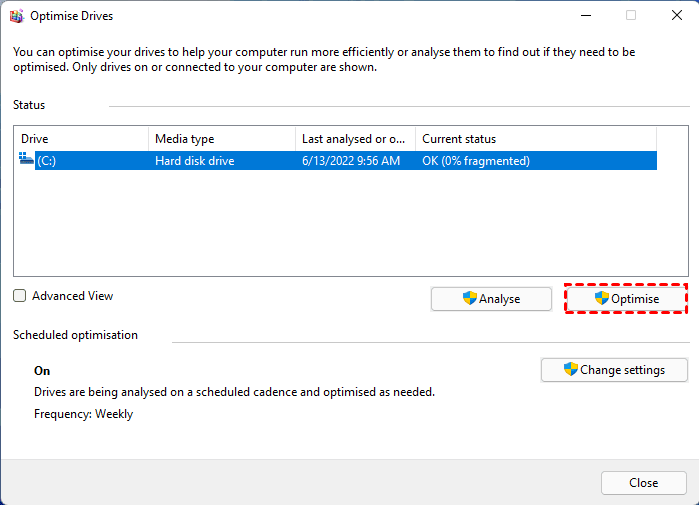
2. To change the disk cleanup settings, click on "Change settings" and untick the "Run on a schedule (recommended)" checkbox, then click on "OK".
Method 7. Run a viruses or malware scan
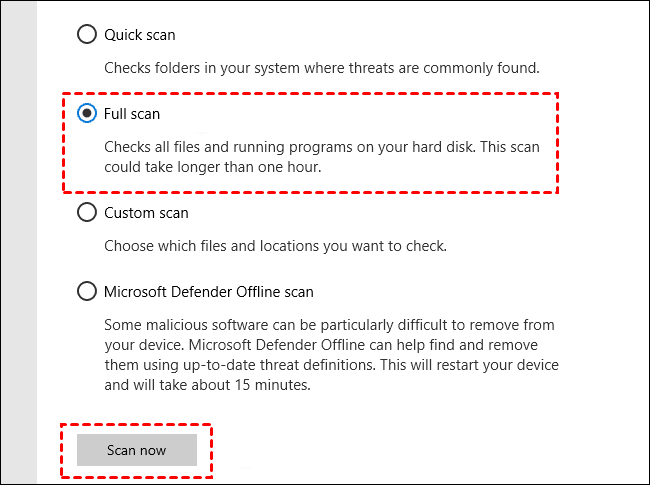
1. To open the Windows Security settings, click on the Start menu, type "Windows Security" into the search field, and press Enter.
2. Click on the Virus & threat protection option.
3. To start a full scan, select the option for a full scan, and then click on the "Scan now" button to initiate the process. If any malicious software is detected, it's recommended to remove it immediately.
Method 8. Run SFC and DISM scans
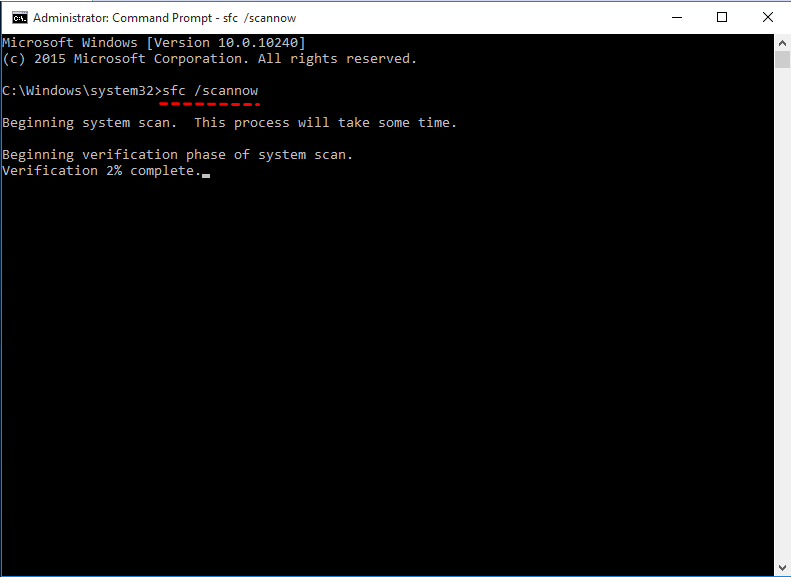
1. Press Start and open the search box, type "cmd", and select Run as administrator.
2. In the Command Prompt window, type sfc /scannow and press Enter. This command will scan and replace the corrupted system files with a healthy copy from the installation media.
3. Type the following three commands one at a time and hit Enter after each:
◈ Dism /Online /Cleanup-Image /ScanHealth
◈ Dism /Online /Cleanup-Image /CheckHealth
◈ Dism /Online /Cleanup-Image /RestoreHealth
Tip: Wait for the scan to complete, which may take some time. It may report that Windows Resource Protection found no integrity violations, or that it found corrupted files, but was unable to repair some of them. If there are no errors, you can now close the console.
Back up your disk to prevent data loss
If your Windows 11 computer is experiencing 100% disk usage, you can try the 8 methods provided to improve its performance and prevent slow running. However, it's worth noting that these issues can pose a risk to your data security if left unchecked, as disk failure can occur.
√ To avoid data loss risks, it's recommended to regularly backup your disk data, allowing for easy and secure restoration in case of accidental loss. Qiling Disk Master Standard is a full-featured disk backup software that can help with this.
√ With this free and professional disk backup software, you can easily backup your disk to various locations, such as USB drives, NAS devices, external hard drives, etc., and also backup files, system, or disk/partition.
To backup your disk with Qiling Disk Master, download and install the software on your computer first.
Then, launch Qiling Disk Master Standard, select Backup in the left menu, and then tap Disk Backup > Disks > choose a destination path > Proceed.

Further tip: how to avoid 100% disk usage
To prevent your computer's hard drive from reaching 100% usage, consider running fewer programs simultaneously, updating your operating system and software to the latest versions, and regularly cleaning up temporary files and system logs. Additionally, consider upgrading your hard drive to a faster one, such as an SSD (solid-state drive), or using a cloud storage service to offload some of your data. Regularly scanning your system for malware and viruses can also help prevent issues caused by malicious software.
# 1. Update your drivers
If your laptop or PC's drivers are outdated, it can cause performance issues, such as programs not working properly and the entire system running slowly.
# 2. Install antivirus software
Regularly scanning your computer for viruses, Trojans, and other malware can help prevent disk usage from maxing out. This is because malware can consume a lot of disk space, causing your disk usage to skyrocket. By keeping your system clean and free from malicious software, you can help maintain a healthy disk usage level.
# 3. Disable start-up programs
When starting your computer, many programs launch automatically, consuming disk space unnecessarily. To alleviate this issue, consider disabling programs you don't need right away, thereby reducing disk usage and making your computer more efficient.
To disable startup programs on a Windows computer, press Ctrl, Alt, and Del at the same time, then open Task Manager. Go to the Startup apps tab, and right-click on the programs you don't need, selecting "Disable" from the menu.
# 4. Make sure there are no hard disk errors
If your hard disk is malfunctioning, it can cause 100% disk usage. To check, press the Windows and R keys together, then type in "chkdsk C: /f /r" in the box that pops up. This will run a disk check on your C drive.
If you're using Avira System Speedup Pro, you can use the Disk Doctor feature to check for hard disk errors, which may be causing high disk usage.
Wrapping things up
To fix 100% disk usage in Windows 11, try the top 8 solutions: disable unnecessary startup programs, run the Disk Cleanup tool, check for disk errors, disable Windows Search, stop the Windows Search service, disable the Windows Update service, check for malware, and update your drivers. Additionally, consider using a free disk backup software to safeguard your important data and prevent loss in case of a system failure.
Qiling Disk Master has a user-friendly interface that makes it easy to perform tasks with just a few clicks. It can also help with more complex issues like cloning Windows 11 to another hard drive, cloning an SSD, or resolving blue screen issues on Windows 11, making it a comprehensive tool for computer operations.
Related Articles
- 2 Effective Ways to Backup Outlook PST Files Automatically
2 Effective Ways to Backup Outlook PST Files Automatically: this guide summarizes the key steps, practical tips, and safer options so you can finish the task clearly and avoid common mistakes. - How to Backup Windows 10 Mail to External Hard Drive (3 Ways)
To backup Windows 10 Mail, you can follow three methods to save your emails to an external hard drive, and choose the one that suits your needs best. - Top 4 Ways to Backup Yahoo Mail to Computer
This tutorial provides 4 ways to backup Yahoo Mail to your computer, whether you want to save individual emails or an entire folder. - Complete Guide: Backup Yahoo Mail to Hard Drive (4 Ways)
This guide explains Complete Guide: Backup Yahoo Mail to Hard Drive (4 Ways) with clear steps, key checks, and practical tips. - How to Use Sysprep in Windows 10 | Step by Step
To deploy OS to different computers, you can run Sysprep in Windows 10 to prepare a system image. This article provides a detailed tutorial and also an easier alternative. - How to Clone System in Windows 10/11 without Reinstalling
System clone in Windows 10 allows you to make an exact copy of operating system, so you can easily upgrade or replace disk without reinstalling.
Products
Articles & Tutorials
- Data Recovery
- Data Backup
- File Recovery
- File Backup
- File synchronize
- System Backup and Restore
- Disk and Partition Clone
- Technical articles
- Disk Master Help
- Windows Deleted File and Disk Recovery Tutorials
- Windows File and Data Recovery Tutorials
- More Windows Tutorials for Install, Security, Files, and PC Tips
- Windows Boot, Repair, and Recovery Environment Tutorials
- Windows Backup Tutorials
- Windows Restore Tutorials
- Windows Clone and Migration Tutorials
- Windows Server Backup, Recovery, and Management Tutorials
- Windows Disk, Partition, and Storage Management Tutorials