How to Delete Backup Files in Windows 8 Automatically
Why Delete Backup Files in Windows 8?
To ensure data safety, people often backup their PC data regularly, using features like System Restore (Windows 7/8/10/11) and File History (Windows 8/10/11). However, as time passes, these backup files can accumulate and take up a significant amount of disk space, leaving no room for new backups.
To free up space for new backups, delete old restore points, clean File History versions, or use backup software with automatic cleanup rules. Avoid deleting backup files blindly from File Explorer unless you are sure they are no longer needed.
How to Delete Backup Files in Windows 8 Effortlessly
You can use System Restore and File History to protect your system and data, and also delete backup files in Windows 8 if your backup disk is full.
System Restore allows you to create a system restore point, backing up your computer's status, including system files, settings, and local user profiles. This enables you to restore your computer to a previous state when issues arise.
File History backs up files from common user folders, including Documents, Music, Pictures, Videos, and Desktop, as well as offline OneDrive files. It lets you restore previous versions when needed.
Solution 1. Delete System Restore Points
System Restore automatically creates restore points before Windows updates, software installations, and other system changes, which can occupy a significant amount of disk space over time. To prevent errors and maintain computer performance, it's necessary to delete these backup files periodically.
Step 1. Press Windows key and R key to open Run box > Type control panel and click OK.
Step 2. On Control Panel window: enter restore point in the search bar > choose Create a restore point.
Step 3. On System Properties window: click System Protection > select hard drive that has system protection turned on and click Configure.
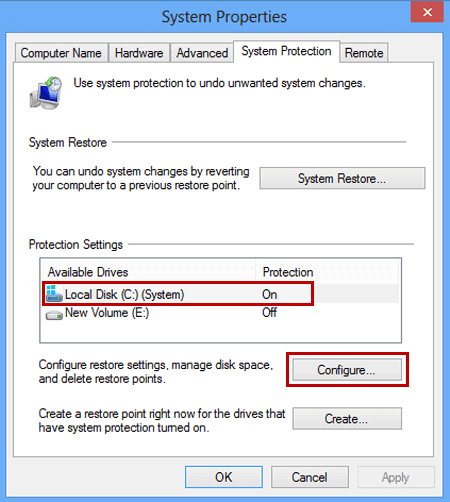
Step 4. Click Delete and Continue on the pop-up window, then it will start deleting all the restore points on the chosen drive.
When the restore points have been deleted, a pop-up window will appear to confirm that the process is complete and the restore points have been successfully removed.
Solution 2. Delete File History Backup Versions
To delete Windows 8 File History backup versions, use the File History Cleanup feature. It removes old versions based on the retention period you choose.
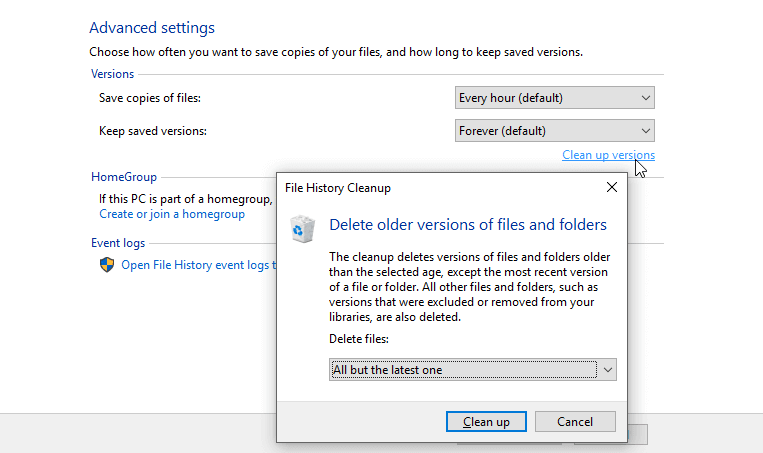
Step 1. Open File History from Control Panel > Click Advanced settings.
Step 2. To clean up files and folders, select the option to delete files and folders older than a specified time, and then click "Clean up" to confirm the action.
Other ways to manage File History disk space:
#1: Change backup frequency. In the Advanced settings, change the backup frequency to a longer interval, such as every 12 hours or daily.
#2: Change saved versions. In the Advanced settings, select a shorter backup retention period, such as keeping backup versions for just 1 month, to automatically delete backup files.
Flexible Way to Manage Backup Disk Space in Windows 8
To manage disk space and delete Windows 8 backup files, consider using third-party backup software with features to alleviate backup disk full issues. One such option is Qiling Disk Master Professional, which can help you backup and remove files in a flexible way, allowing you to manage your disk space effectively.
- Default level: It compresses backup images and, for system or disk backups, saves only used sectors by default.
- Modern level: Scheduled backups can save only changed files with incremental or differential backup. You can also use compression and splitting to control backup size.
- High level: The app provides 3 automatic cleanup methods: by quantity, by time, and by daily/weekly/monthly. These rules help delete backup images automatically and prevent the backup disk from filling up.
To manage your backup files in a flexible way, download the free trial of Qiling Disk Master Professional and follow the steps, or for server users, try Qiling Disk Master Server.
Set Backup Task and Schedule Settings for Data Protection
Step 1. Open Qiling Disk Master Professional. Then click Backup and File Backup.

Step 2. Choose the folders or files you want to backup and select the destination path to save the backup image.

Step 3. To schedule a backup, click the "Schedule Backup" button at the bottom and enable it. You can then choose a specific time to run the backup, selecting from options like Daily, Weekly, or Monthly, or use Event triggers and USB plug in. Additionally, you can select to backup only changed files with Incremental Backup, unless you choose to use Differential Backup instead.

Note: Either Incremental Backup or Differential Backup will help save the disk space.
- A full backup will save all the data on the selected folders, including all files and subfolders.
- Incremental Backup only saves the files that have changed since the last related backup, requiring a full backup and all linked backups.
- Differential Backup saves changed and added files since the last full backup, requiring one full backup and the latest differential backup to restore.
Set Backup Scheme to manage disk space
Step 1. After setting a backup task, click Backup Scheme in the task window and enable it.
Step 2. Choose one backup scheme in the following window. You have 3 options.
By quantity: You can specify how many backup sets you want to keep, and the script will automatically delete old backups once the specified number is exceeded. By default, each backup set consists of one full backup and 6 incremental or differential backups, but this can be customized.
By time: You can set the number of backups based on daily, weekly or monthly intervals, and when that number is exceeded, all previous backups will be deleted.
By daily/weekly/monthly: You can keep daily backups for a short period, then switch to full backups if a certain number of days have passed, and finally, when a certain number of weeks have passed, all backups will be deleted except for one full backup per month.
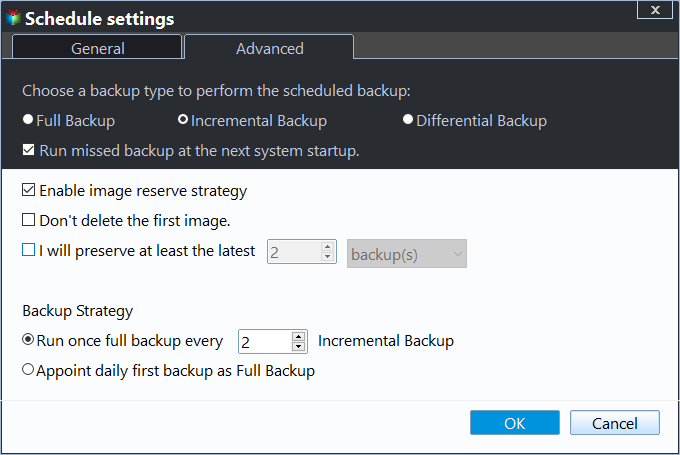
Step 3. Confirm the backup scheme and click OK and Proceed to backup and remove Windows 8 backup files.
Qiling Disk Master Pro will automatically backup files according to the set schedule, delete old backup images to free up disk space, and ensure backup images are recoverable.
Conclusion
To delete backup files in Windows 8, you can use the built-in tools to manage your backup files, or try Qiling Disk Master Professional to backup and delete backup images in a more flexible way.
Qiling Disk Master provides various backup options, including automatic compression and splitting of large backups, intelligent sector backup, incremental or differential backup, and automatic cleanup. It also allows backing up to a USB flash drive, saving disk space.
Related Articles
- How to Delete Backup Files in Windows 10 When Backup Disk Full?
Learn how to Delete Backup Files in Windows 10 When Backup Disk Full with clear steps, key checks, and practical tips. - How to Delete System Restore Points in Windows 7, 8,10, 11
You may want to delete system restore points to free up disk space on your drive. Here you will find a more powerful way to automatically do this work for you. - How to Automatically Delete Backups Older than X Days
Learn how to Automatically Delete Backups Older than X Days with clear steps, key checks, and practical tips. - Create Windows Server 2003 System Restore Point with Alternative Ways
Learn how to Create Windows Server 2003 System Restore Point with Alternative Ways with clear steps, key checks, and practical tips. - Easily Clone Raspberry Pi SD Card to Larger Card in Windows 10
This guide explains Easily Clone Raspberry Pi SD Card to Larger Card in Windows 10 with clear steps, key checks, and practical tips. - Safely Clone Hidden Recovery Partition to SSD in 5 Steps
This guide explains Safely Clone Hidden Recovery Partition to SSD in 5 Steps with clear steps, key checks, and practical tips.
Products
Articles & Tutorials
- Data Recovery
- Data Backup
- File Recovery
- File Backup
- File synchronize
- System Backup and Restore
- Disk and Partition Clone
- Technical articles
- Disk Master Help
- Windows Deleted File and Disk Recovery Tutorials
- Windows File and Data Recovery Tutorials
- More Windows Tutorials for Install, Security, Files, and PC Tips
- Windows Boot, Repair, and Recovery Environment Tutorials
- Windows Backup Tutorials
- Windows Restore Tutorials
- Windows Clone and Migration Tutorials
- Windows Server Backup, Recovery, and Management Tutorials
- Windows Disk, Partition, and Storage Management Tutorials