How to Delete System Restore Points in Windows 7, 8,10, 11
Why delete system restore points?
System Restore is a powerful feature in Windows that allows you to roll back your system to a previous state in case of an emergency. However, you may need to delete system restore points in Windows 7, 8, 8.1, or 10, especially when you want to free up disk space or remove unnecessary restore points.
You used System Restore to recover from a bad Windows Update and it was successful, having saved you from potential issues in the past.
To free up space on your Windows 7 computer, you can delete all but your most recent system restore points. To do this, go to the Start menu, type "system restore" in the search bar, and select "Create a restore point" from the results. Then, click on the "Configure" button, and select the number of days you want to keep restore points for. You can also choose to delete all restore points older than a certain number of days. This will automatically delete all but your most recent restore points, freeing up space on your computer.
To save disk space, you need to delete old restore points from your backup disk when the available space becomes limited, ensuring that your backup remains functional and doesn't run out of space due to accumulated restore points.
Manually delete system restore points in Windows
There are two options: delete all restore points or delete all but the most recent ones.
Delete all restore points
1. To restore the Windows system, type "system restore" in the search box and select "Create a restore point" to open the System Properties window.
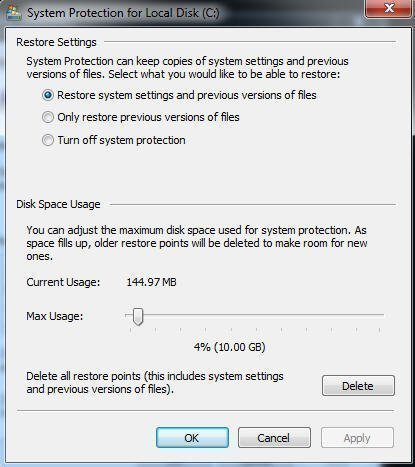
2. Click the Configure button in the System Properties window.
3. To delete all System Restore points, click the "Delete" button in the System Protection window, and then confirm the operation by clicking "Continue".
Delete all but the most recent restore point
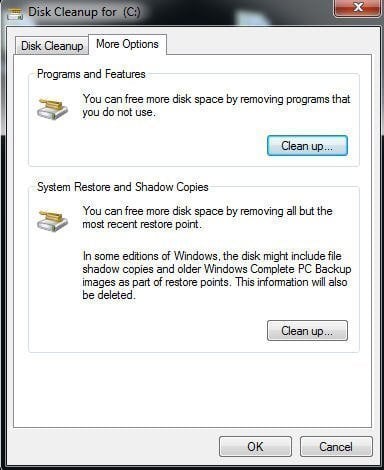
1. To clean up all but the most recent restore point on your computer, click Start, then All Programs, followed by Accessories, then System Tools, and finally Disc Cleanup. Select the drive where you want to clean up the restore points, and then switch to the "More Options" tab.
2. To clean up System Restore and Shadow Copies, click "Clean up" under the "System Restore and Shadow Copies" tab. A confirmation message will appear asking if you're sure you want to delete all but the most recent restore point. Click "Delete" and then "OK". Another confirmation message will appear asking if you're sure you want to perform these actions. Click "Yes" to proceed.
System protection is always on, creating numerous restore points, which can be cumbersome to manage, and may cause issues if not properly maintained, such as not having a restore point when needed.
To avoid running out of disk space, you can use a professional backup software to protect your system, which can help you recover your computer in case of a failure, such as a failed boot, without relying solely on system restore points. This way, you can ensure your system is backed up without taking up too much disk space.
More powerful way to protect your computer and manage disk space
Qiling Disk Master Professional is a powerful backup software for Windows that helps protect the system by automatically backing up and deleting data, freeing up disk space, and allowing for easy recovery in case of system failure.
The Schedule Backup feature creates multiple backups, while the Backup Scheme feature allows you to specify a backup deletion policy, deleting backups within a specific time frame and keeping others.
To automatically delete restore points in Windows 7/8/8.1/10/11 via Qiling Disk Master, you can set the deletion mechanism either during or after creating a system backup, such as a system image backup, which is a full backup of the operating system, programs, and data. This allows for efficient use of disk space by removing unnecessary restore points.
Method 1: During the process of creating a scheduled backup task
1. Download and install the software on your computer. Then, go to the Backup tab, select System Backup, and it will automatically choose the system partitions and other necessary partitions to start Windows.

2. Choose a destination path to store the backup image, such as a USB flash drive, external hard drive, network drive, or NAS.

3. To enable automatic backup cleanup in Scheme, go to the bottom, click on Scheme, and then select Enable Automatic Backup Cleanup. You will have three options: By quantity, By time, or By daily/weekly/monthly. Choose the retention policy you prefer and click Proceed to finalize the configuration.
- Options: you can set email notification, backup compression and encryption, etc.
- You can set backup settings to occur at various intervals, including daily, weekly, and monthly, as well as trigger backups based on specific events. Additionally, you can also set up backups to run when a USB device is plugged in.
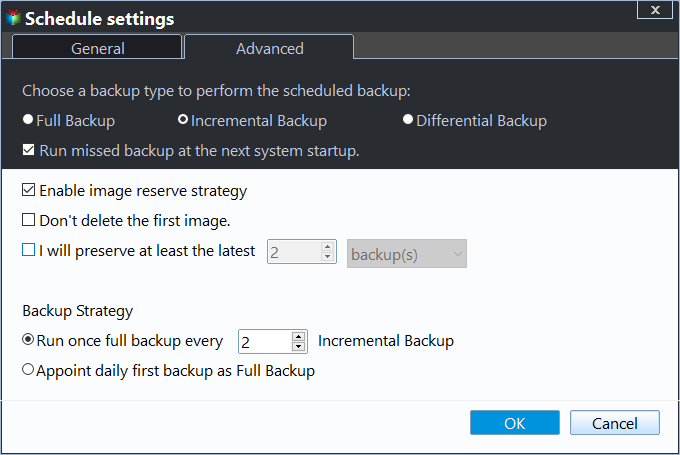
- Full/Incremental/Differential BackupYou have the flexibility to choose how to backup your system, except for the cleanup method, which is a given. This means you can opt for a full backup of your entire system or instead focus on backing up only the files that have changed since the last backup.
Method 2: After creating a backup task
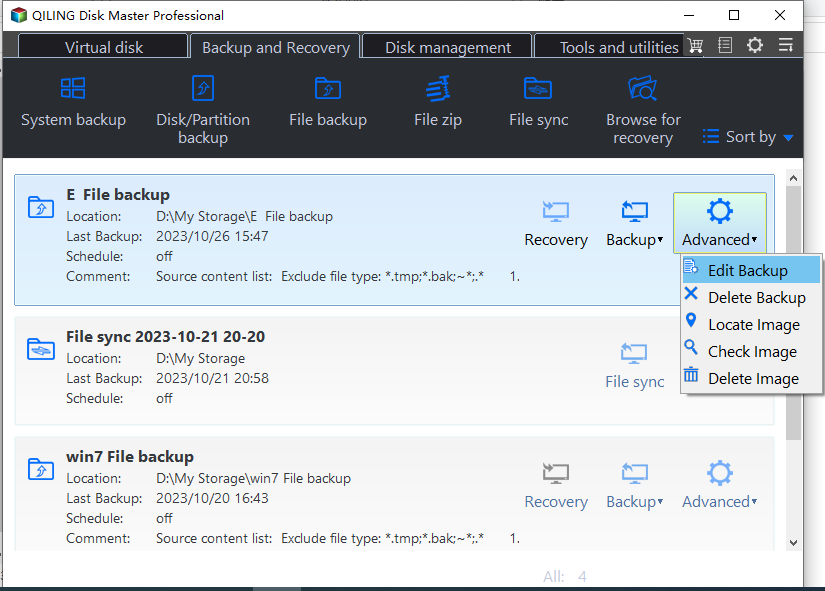
All backups created by Qiling Disk Master are listed under the "Backup and recovery" tab. To set a backup retention policy, select a previously created system backup, click the three-line button, and select "Advanced". In the pop-up window, click "Edit Backup" and set a policy to delete old backup files for reuse.
Summary
System restore points can be a lifesaver in emergency situations, but they can also consume disk space. When you need to free up space, you have two options, but both require manual intervention each time.
If you don't want to manually save your computer every time or need a guaranteed way to save your computer, whether it's a problem related to Windows updates, drivers, software, or something more serious that even makes your computer unbootable, you can create a system image backup instead of just saving the current state of your computer.
You can restore a system image to a new hard drive, and even to a computer with different hardware, using the "Universal Restore" feature, which can be useful for IT technicians who use Qiling Disk Master Technician.
Related Articles
- Does System Restore Remove/Delete Files? Answered!
Learn what System Restore changes in Windows and which personal files, apps, and settings are affected. - How to Solve System Restore Points Gone in Windows 10
You will learn how to fix Windows 10 system restore points gone error with 5 given solutions in this article. For better protect, it's wise to backup system to external hard drive. - How to Delete Backup Files in Windows 10 When Backup Disk Full
Learn how to Delete Backup Files in Windows 10 When Backup Disk Full with clear steps, key checks, and practical tips. - How to Create and Use Windows 10 Recovery Image Backup?
It's necessary to create system image windows 10 on USB or other locations, because Windows 10 recovery image backup help you restore your computer in the event of system crash or other unexpected issues. - How to Fix Windows Server Backup Incorrect Function
You will learn 5 quick solutions to Windows Server 2012 backup incorrect function. Also, if it does not work, you can try an easy alternative to backup files, system, partition, or disk as you like. - Windows Server 2019/2016/2012 Hyper-V Backup Guide
You will learn how to create Windows Server incremental backup in Hyper -V virtual machines with WSB or a third-party tool, and then there will be no more data loss.
Products
Articles & Tutorials
- Data Recovery
- Data Backup
- File Recovery
- File Backup
- File synchronize
- System Backup and Restore
- Disk and Partition Clone
- Technical articles
- Disk Master Help
- Windows Deleted File and Disk Recovery Tutorials
- Windows File and Data Recovery Tutorials
- More Windows Tutorials for Install, Security, Files, and PC Tips
- Windows Boot, Repair, and Recovery Environment Tutorials
- Windows Backup Tutorials
- Windows Restore Tutorials
- Windows Clone and Migration Tutorials
- Windows Server Backup, Recovery, and Management Tutorials
- Windows Disk, Partition, and Storage Management Tutorials