[Fixed] Server 2012 Keeps Booting to the Blue Choose an Option Screen
User case
Windows Server 2012 choose an option screen keeps booting
Your Windows Server 2012 Essentials is stuck in a boot loop, constantly rebooting after the "Choose an Option" screen. To troubleshoot this, try booting in Safe Mode by pressing F8 repeatedly during boot. If it boots in Safe Mode, it may indicate a driver issue. You can also try booting with the Windows installation media and selecting the "Repair Your Computer" option. If that doesn't work, you can try running a System File Checker (SFC) scan or a System Restore to a previous point when the system was working. If none of these steps resolve the issue, you may need to consider reinstalling Windows.
- Question from Spiceworks
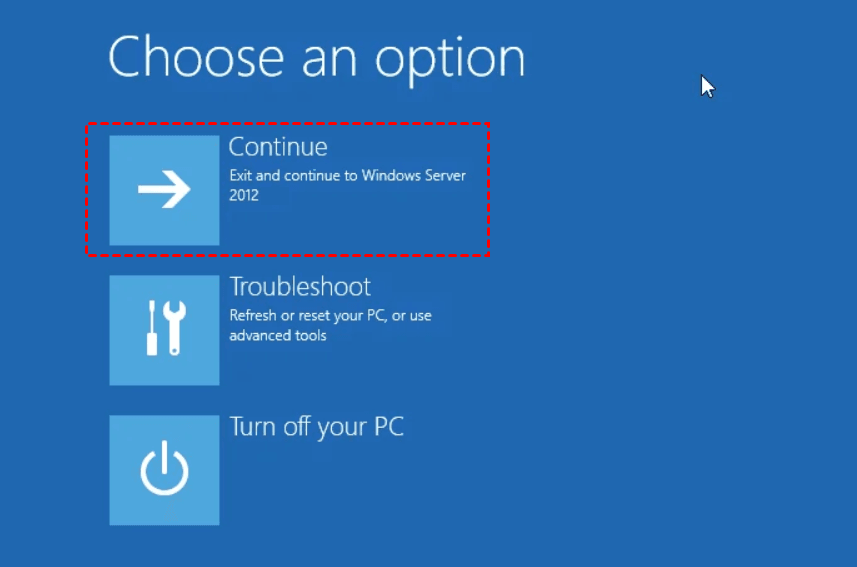
As we know, Windows Server 2012 end of life is approaching, some users may try to upgrade their OS to newer versions. But after that, when you try to boot up your Windows Server 2012 or 2012 r2 computers, you may encounter the reboot issue, which keeps showing the "choose an option" page just like the user case above. In a panic, you may be anxious to know how to get out of this mess. Don't worry, from here, I'll show you how to settle this error easily. Just keep reading the following content carefully.
Why keep showing choose an option on Windows Server 2012?
If you encounter a Windows Server 2012 reboot loop issue, I'll share some workaround for you. But before that, you need to figure out what are the main causes of it.
- A failed update has triggered a reboot loop on your Windows Server 2012, causing it to continuously restart without completing the update process. This issue can be frustrating and disrupt server operations.
- Disk corruption or misconfiguration that's forcing the system into repair.
- Bad RAM sticks cause this issue.
- Outdated drivers.
- Bad Registry entries.
How to enable Windows Server 2012 boot repair with 3 ways
Here are the 3 easy ways to fix the Windows Server 2012 "choose an option" screen keeps booting error. If you have Windows Server 2012 installation media, you can use Command Prompt to run commands such as bootrec /fixmbr, bootrec /fixboot, and bootrec /scanos to repair the boot issue. Alternatively, you can try running the built-in System Restore tool to restore the system to a previous point when it was working properly. If the issue persists, you can also try booting in Safe Mode and then running the System File Checker (SFC) tool to scan and replace any corrupted system files.
1. To begin the Windows Server 2012 installation process, prepare a Windows Server 2012 installation media, such as a USB drive or CD/DVD, and insert it into your PC. Next, enter your PC's BIOS settings and set the installation media as the first boot option.
2. When prompted with Press any key to boot from CD or DVD, press a key. This will allow the installation process to proceed.
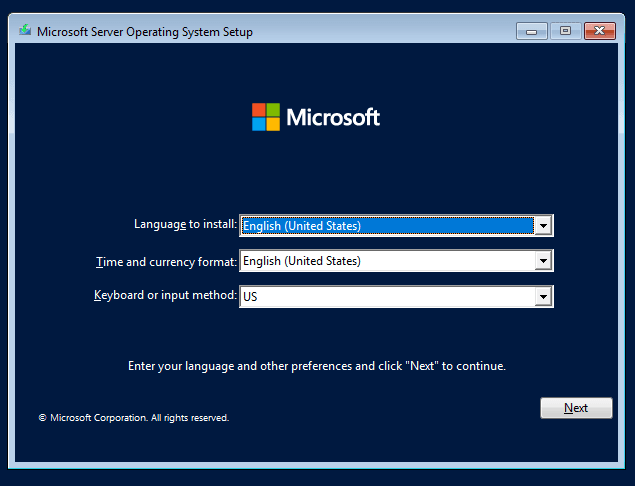
3. Choose the language, time and currency format, keyboard or input method you want to install, then click Next.
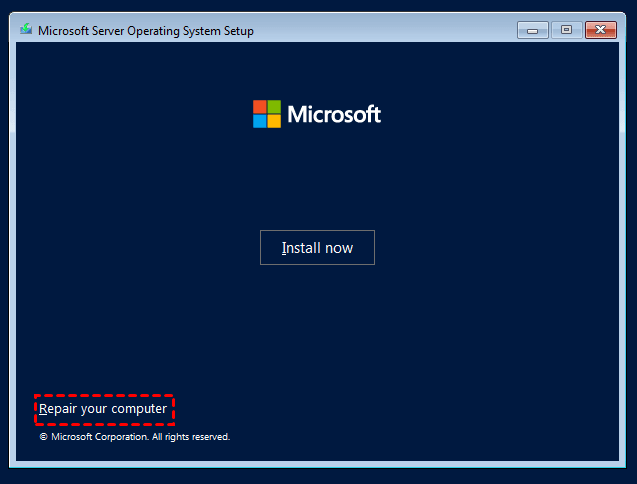
4. Select the "Repair your computer" option in Windows Server 2012, followed by clicking "Next".
5. SelectCommand Promptin the Advanced options window.
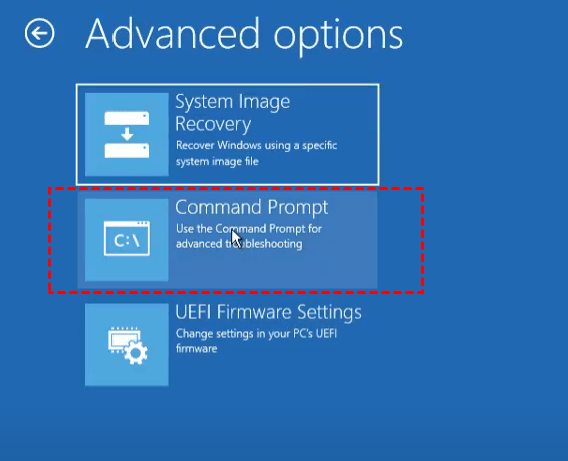
6. To resolve the Windows Server 2012 boot error, start by opening the Command Prompt from the Advanced Options screen. In the Advanced options window, select Command Prompt to launch the command console.
#1. Restore system registry files
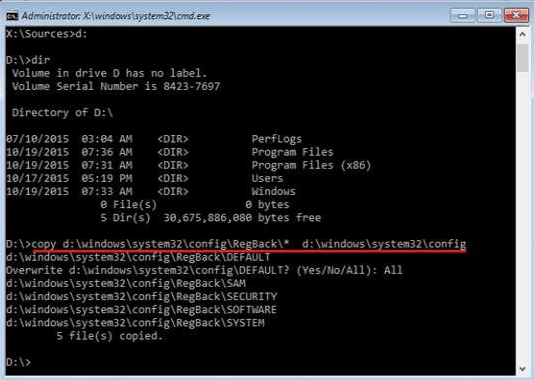
If Windows Server 2012 boot issue is related with missing or corrupted system registry files, follow steps below to restore system registry files from backup.
Once open the command prompt window,and use the following commands:
1. Confirm your system drive by running the command dir c: to see if it contains folders like Program Files, Users, etc. if C is your system drive.
2. Copy the registry files from the RegBack folder to the main config folder using the following command. This will restore the registry to a previous state, potentially reverting any changes made since the RegBack folder was created.
#2. Run bootrec.exe to repair MBR
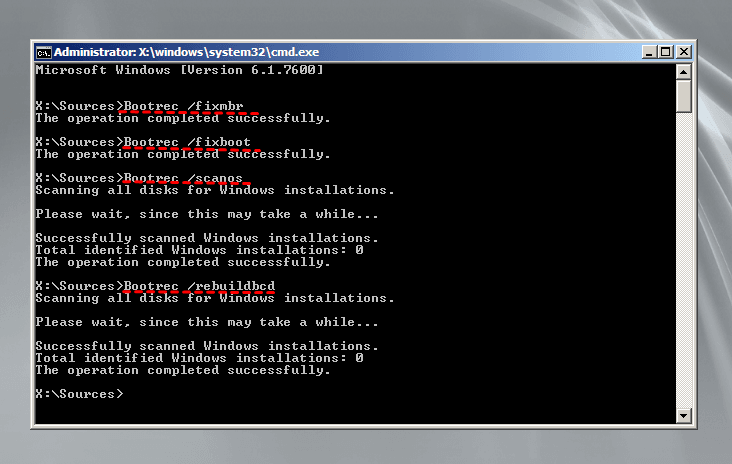
1. Execute the following commands to scan and repair MBR.
▪ bootrec.exe /fixmbr(This command fixes MBR by writing a new Windows-compatible MBR but will not overwrite the existing partition table )
▪ bootrec.exe /fixboot(It writes a new boot sector on the hard disk if Windows detect damage)
▪ bootrec.exe /scanos(It scans your operating system)
▪ bootrec.exe /rebuildbcdThis command rebuilds the BCD (Boot Configuration Data) which contains boot information and partition parameters.
2. To check and repair hard drive file system corruption, you can run the `chkdsk` command with the partition drive letter. For example, if your corrupted drive is the C: drive, you would type `chkdsk C:` in the command prompt. This will check the drive for errors and prompt you to schedule a disk check at the next reboot.
chkdsk/r c:
3. Restart your Server, it should load fine now.
#3. Run System File Checker
You can try running System File Checker, which might find and repair any corrupted system files. To do this, simply type `sfc /scannow` and press Enter.

Extra tip: Backup Windows Server 2012 to prevent disasters
Before attempting to fix the error, it's recommended to back up the current OS to prevent any potential issues. A reliable third-party backup and restore software for Windows Server is Qiling Disk Master Server, which offers several outstanding features.
❂ Various backup types and locations: This software enables users to create scheduled backups of their system, disks, files, and partitions, saving them to various destinations including local disks, external hard drives, network shares, and cloud storage locations.
❂ 3 backup methods: It allows full, incremental, and differential backups to improve efficiency.
❂ Schedule Backup: This tool enables you to automate your backup tasks on various schedules, including daily, weekly, monthly, and event-based triggers, as well as when a USB device is plugged in.
❂ Bootable rescue media/recovery environment: You can create a recovery environment or a bootable device to recover a crashed system, allowing you to troubleshoot and fix issues on your Server.
You can download a 30-day free trial of Qiling Disk Master Server by clicking the button below to try it out.
Step 1. Run Qiling Disk Master. Click Backup > System Backup.

Step 2. The system data is selected by default and thenchoose a destination pathto store the backup image.

Step 3. Confirm the operations and clickProceedto backup Windows Server 2012.

In the end
If your Windows Server 2012 keeps booting to the blue "choose an option" screen, you can try the methods mentioned earlier to troubleshoot and potentially recover your PC. However, it's essential to note that you may not always be able to recover your PC, so it's recommended to back up your Windows Server disk in advance using Qiling Disk Master to prevent data loss.
Qiling Disk Master is the fastest file transfer and sharing software that can help you cope with Windows Server 2019 slow file sharing issue and speed up file transfer speed.
Related Articles
- Restart to Repair Drive Error in Windows 10 | 5 Fixes
"Restart to repair drive errors" always showing up is an anoying problem for many computer users, this article can help you fix it easily with 5 solutions. - How to Force Delete Corrupted Folder Windows 10?
If you fail to delete a corrupted folder or file in Windows 11, 10, 8, 7, you can read this post to figure out why the corrupted folders or files cannot be deleted and how to force delete it in a secure way. - The Best Solution to Ghost Hard Drive in Windows 10
You will learn how to ghost hard drive in Windows 10 for data protection and remove ghost drive easily to get rid of its bad effect. - Why Your Hard Drive Missing in Windows 10 or 11 and How to Fix It?
If you meet new hard drive disappeared in Windows 10 or hard drive missing Windows 10 after installing, learn how to fix this issue with several practical ways from this post. - How to Format External Hard Drive to NTFS without Data Loss?
Learn how to Format External Hard Drive to NTFS without Data Loss with clear steps, key checks, and practical tips. - Quick Fixes: Format Micro SD Card from RAW to FAT32 in Windows 10/8/7
If you want to format Micro SD card from RAW to FAT32, here we list two methods to help you successfully format Micro SD card from RAW to FAT32 in Windows 10/8/7. - Fix Windows Server 2012 R2 Boot Loop
Fix a Windows Server 2012 R2 boot loop by checking hardware, undoing recent updates, repairing boot files, and preparing recovery media.
Products
Articles & Tutorials
- Data Recovery
- Data Backup
- File Recovery
- File Backup
- File synchronize
- System Backup and Restore
- Disk and Partition Clone
- Technical articles
- Disk Master Help
- Windows Deleted File and Disk Recovery Tutorials
- Windows File and Data Recovery Tutorials
- More Windows Tutorials for Install, Security, Files, and PC Tips
- Windows Boot, Repair, and Recovery Environment Tutorials
- Windows Backup Tutorials
- Windows Restore Tutorials
- Windows Clone and Migration Tutorials
- Windows Server Backup, Recovery, and Management Tutorials
- Windows Disk, Partition, and Storage Management Tutorials