Backup System with Shadow Copy Cloner in Windows 11, 10, 8, 7
Quick navigation:
- What is Shadow Copy Cloner for?
- How to backup system drive with Shadow Copy Cloner
- Safer way to backup system drive in Windows 10
- Conclusion
What is Shadow Copy Cloner for?
Shadow Copy Cloner allows you to create a bootable backup of your system volume, enabling quick recovery of your programs, documents, pictures, and Windows registry. Additionally, you can access and copy files and directories from one NTFS partition to another without needing to restore them.
This software uses the Windows Volume Shadow Copy Service to create a backup of your partition or system drive, generating a point-in-time 'frozen image' of the source drive. It allows for subsequent updates after an exact copy is made, and only backs up changed files since the last backup, minimizing the time required for each backup.
How to backup system drive with Shadow Copy Cloner
Step 1. Download Shadow Copy Cloner, install and launch it. Then, click Use Trial if you do not pay for it.
Step 2. Select the source drive and then the target Drive from the pull-down list subsequently.
Notes:
◒ To successfully backup your source drive, ensure your target drive has the same capacity as your source drive, at a minimum.
◒ You can customize the task by selecting any of the settings listed below.
◒ To exclude certain files or directories from the backup, click on "Add" and select the data you don't want to backup.
That's all for how to use Shadow Copy Cloner to make an exact copy of hard drive, but there are limitations you need to know:
- The initial backup process is quite lengthy, taking around 1 hour to copy 8.19GB of data.
- It only backup partition with NTFS file system.
- The software only allows backing up to internal hard drives and external hard drives.
- The software does not support backing up multiple partitions on a single hard drive, requiring users to back up each partition separately.
- The system does not pack all the items on the system partition to an image file, which poses a significant data security risk.
If you're looking for a safer or more flexible way to backup your system, consider using the free backup software Qiling Disk Master Standard. You can learn more about it and find a step-by-step guide in the next part.
Safer way to backup system drive in Windows 10
Qiling Disk Master Standard offers comprehensive backup solutions, allowing users to back up files, systems, disks, partitions, and any other desired items. This flexibility is not limited to the NTFS file system, as it also supports FAT32, EXT2, and other file systems. The software provides a range of backup options, making it a versatile and reliable tool for protecting valuable data.
- Backup system continuously: It supports daily, weekly, and monthly schedule backups, ensuring you never miss a backup and minimizing the risk of data loss due to forgotten backups.
- Backup only changed files on the system partition: The tool uses Incremental Backup as its default backup method, which only backs up changes, saving time and disk space during scheduled tasks.
- Support multiple backup destinations: The device is compatible with a variety of storage devices, including internal hard drives, external disks, USB drives, and network drives, among others.
To create a system image backup for Windows 10, you can download Qiling Disk Master Standard, an alternative to Shadow Copy Cloner, which is also applicable to Windows 11/8.1/8/7/XP/Vista. For server users, Qiling Disk Master Server is recommended.
Before backing up your system, please prepare an external disk or other storage devices that can be detected by Windows to save the system image. Once you have made these preparations, you can proceed with the backup steps.
Step 1. Launch Qiling Disk Master Standard, which displays a deep-blue interface. Click on "Backup" and then "System Backup" to automatically select the operating system and boot-related partitions required to start Windows.

To make an exact copy of a hard drive, consider using a disk backup method, which will include the entire contents of the disk, including the operating system, installed programs, and personal data.
Step 2. After clicking on the "Backup" button, select the prepared drive as the destination for the backup. This can be an external hard drive, network drive, or cloud storage service like OneDrive.

Step 3. Click Schedule Backup, select daily/weekly/monthly backup, click OK, and then Proceed to create a system image backup in Windows 10.

The software allows for the use of a USB plug-in and event trigger in the professional version.
The software will create a complete system backup, followed by 6 incremental backups, and then repeat this process until the backup disk is full.
To resolve the issue, enable Backup Scheme and set it to automatically delete backup files, choosing from options such as by quantity, time, daily, weekly, or monthly. Upgrading now, with a 5% discount for one computer, is required to use this feature.

The main difference between incremental and differential backups is the requirement for recovery. Incremental backups have a high requirement for recovery, while differential backups are much easier. This is because incremental backups need to restore all previous backups to recover the data, whereas differential backups only need to restore the last full backup and the differential backup.
During the backup process, you can still enable email notifications, and also have options such as commenting, splitting, compressing the backup image, and selecting a backup mode.
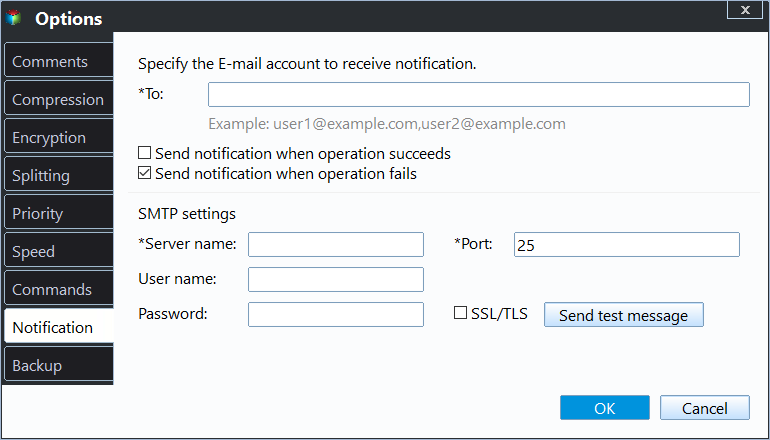
It's recommended to create a bootable media in advance, allowing you to boot your computer when it's unresponsive, and then restore the system image in case of a disaster.
Conclusion
Shadow Copy Cloner creates a bootable backup of the system that can be accessed at any time, but this poses a security risk, so it's recommended to use real backup software that creates a system image, allowing for flexible access without the need for restoration.
You could consider using Qiling Disk Master Standard, which is more compatible and supports different storage devices and file systems, and its schedule backup feature makes the task simple and efficient.
Qiling Disk Master can also be used as a disk clone software, allowing you to easily and quickly migrate your operating system to an SSD, clone a hard drive to a larger drive, or clone a large HDD to a smaller SSD. The cloned drive can be used to boot your computer directly without restoring the system or disk image first. This feature makes it a convenient tool for upgrading your computer's storage.
Related Articles
- Create Windows 10 System Image Backup with 2 Free Ways
You will learn how to create system image backup for Windows 10 and use it step by step. Choose one among 4 methods below! - Top 3 Ways to Backup Windows 10 to Network Drive/NAS
You will learn 4 effective methods to backup Windows 10 backup to network drive or NAS easily, even run automatically with the best free auto backup software. - Best Dell Data Migration Tool for Windows 10/8/7
Dell Data Assist and Qiling Disk Master are both good Dell data migration tools that allow you to migrate files and settings to a new computer quickly, even for the operating system. - 2 Free Ways to Schedule Hourly Backup in Windows 10/8/7
For particularly important data, you can schedule hourly backup to protect it tightly. Here's how you can set up it in Windows 10, 8, 7, and the related info you need to know. - Quick Fixes for Windows 10 Backup Failed Error
You will learn how to fix Windows 10 backup failed easily, either directly fixing it or using other powerful backup software. - How to Make Windows 10 Manage Backups Automatically?
Learn how to Make Windows 10 Manage Backups Automatically with clear steps, key checks, and practical tips.
Products
Articles & Tutorials
- Data Recovery
- Data Backup
- File Recovery
- File Backup
- File synchronize
- System Backup and Restore
- Disk and Partition Clone
- Technical articles
- Disk Master Help
- Windows Deleted File and Disk Recovery Tutorials
- Windows File and Data Recovery Tutorials
- More Windows Tutorials for Install, Security, Files, and PC Tips
- Windows Boot, Repair, and Recovery Environment Tutorials
- Windows Backup Tutorials
- Windows Restore Tutorials
- Windows Clone and Migration Tutorials
- Windows Server Backup, Recovery, and Management Tutorials
- Windows Disk, Partition, and Storage Management Tutorials