Burn Windows 11 ISO to USB with Top 3 Media Creators
- User case: Need Windows 11 burn ISO to USB
- What is the best way to burn ISO to USB on Windows 11?
- How to burn Windows 11 ISO to USB in 3 ways
- #1. Make Windows 11 burn ISO to USB with Qiling Disk Master Standard
- #2. Let Windows 11 ISO write to USB with Rufus
- #3. Burn ISO to USB on Windows 11 via Media Creation Tool
- How to install Windows ISO file from USB
- Conclusion
User case: Need Windows 11 burn ISO to USB
To create a Windows 11 installation USB drive, download the Windows 11 ISO file, and use a tool like Rufus to create a bootable USB drive with the ISO file. Select the USB drive as the target device, choose the ISO file, and make sure the 'Create a bootable disk' option is selected.
Can someone post a link to the best tutorial for this? How long will this process take? I want to have this USB flash drive with me in case I have to do a clean reinstall of Windows 11 Pro. Any idea would be appreciated.
Burning a Windows 11 ISO to a USB drive is a useful step in upgrading or performing a clean install of your operating system. This process can be completed using free ISO burners available for Windows 11, and I will guide you through the simple steps to create a bootable USB drive in a detailed illustration.
What is the best way to burn ISO to USB on Windows 11?
Windows doesn't have a built-in tool to burn ISO files to USB, making it a complex process that requires technical knowledge, and can be risky for novice users.
Among the Windows 11 media creation tools, Windows Media Creation Tool, Rufus, and Qiling Disk Master Standard are outstanding representatives. They are all free and easy to use. In the following, I will give you details on how to use these 3 simple tools to burn Windows 11 ISO to USB in a few steps.
How to burn Windows 11 ISO to USB in 3 ways
You will learn the specific steps here to make Windows 11 ISO write to USB with Qiling Disk Master Standard, Rufus, and Windows Media Creation Tool. Please make sure that your USB flash drive is at least 8 GB or larger in size.
👉 To burn a Windows 11 ISO to a USB drive using Qiling Disk Master Standard, follow these steps: Download and install Qiling Disk Master Standard, insert a USB drive, select the correct drive, choose the ISO file, and specify the USB drive as the target. Then, click "Burn" to start the process. The software will create a bootable USB drive with the Windows 11 installation media.
👉 #2. Let Windows 11 ISO write to USB with Rufus🔥
👉 To burn an ISO file to a USB drive on Windows 11 using the Media Creation Tool, follow these steps: Download the Media Creation Tool from Microsoft's official website. Run the tool and select the USB drive as the installation media. Click "Next" to proceed.
👉 How to install Windows ISO file from USB
#1. Make Windows 11 burn ISO to USB with Qiling Disk Master Standard
Qiling Disk Master Standard is a top-notch free media creation tool for Windows 11 that allows burning ISO to USB, boasting an intuitive interface that requires no technical expertise. This user-friendly software is a go-to option for those seeking a hassle-free experience.
💿 It supports 2 boot modes, UEFI/GPT and Legacy BIOS/MBR, and requires formatting the USB flash drive as FAT32 if the computer supports UEFI.
💿 You don't need to prepare an ISO file in advance, as the software will handle the creation of bootable media.
💿 It helps you create an image backup of your system, disk, partition, or file, allowing you to restore your PC to a previous working state in case of a problem, and recover important data quickly.
💿 This freeware is compatible with all Windows systems, including Windows 11/10/8/7/XP/Vista, and also works with Windows Server 2022, 2019, 2016, 2012 (R2), 2008 (R2), and 2003.
To create a Windows 11 bootable USB using Qiling Disk Master Standard, follow these steps: download and install the software on your PC, then use it to create a bootable USB drive with Windows 11.
Tip: You should be aware of that the process will completely overwrite the data on the USB. So backup your USB if there are important files on it.
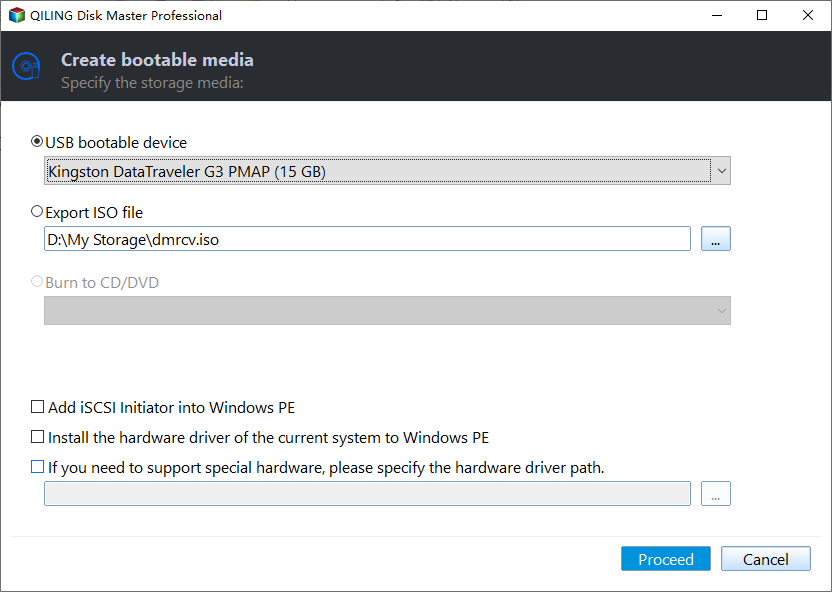
1. Launch this freeware, click Tools then select Create Bootable Media.

2. To create a bootable USB drive, select "USB Boot Device" and click "Proceed" to initiate the process. Wait for the process to complete, then click "Finish" to finalize the creation of the bootable USB drive.
Notes:
🔍 If you want to restore a system to different hardware, you can upgrade to the Professional edition to use the Universal Restore feature.
🔍 You can create a Windows recovery environment that can be accessed from the Windows boot menu, eliminating the need for a bootable device to boot a failed system, but this is a paid feature.
#2. Let Windows 11 ISO write to USB with Rufus
To burn the Windows 11 ISO to a USB drive, you can use Rufus. Follow these steps:
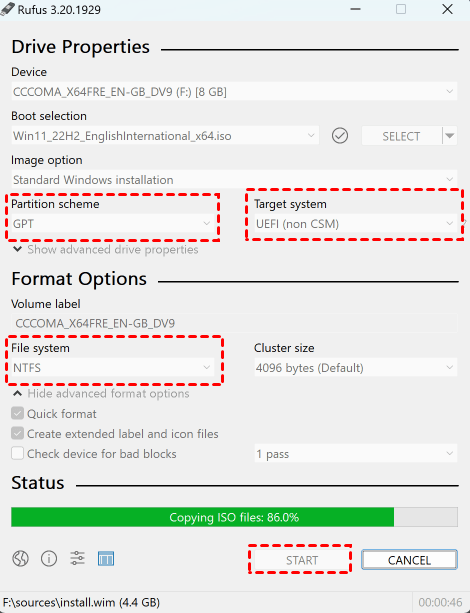
1. To download Windows 11, go to Microsoft's official website and download the Windows 11 ISO file. Next, download and launch the Rufus app on your PC.
2. Go to Device Properties, select your USB flash drive, click Select to choose the Windows 11 ISO file, set Image Option to Standard Windows Installation, and set Partition Scheme to MBR/BIOS or GPT/UEFI based on your disk style.
3. In the Format Options section, set the Volume Label to a desired name for the drive, while keeping the other settings unchanged from their original values.
4. When the warning appears that all data on the flash drive will be erased, click the OK button.
5. To begin, confirm your settings, click the "Start" button, and wait for the USB to create. A progress bar will appear under the "Status" section as it's being made.
#3. Burn ISO to USB on Windows 11 via Media Creation Tool
You can create a Windows 11 bootable USB using the Microsoft official Media Creation Tool, which is a popular option. To do this, download the Media Creation Tool from the Microsoft website, run it, and select the language and architecture for your Windows 11 installation. Then, choose the option to create a bootable USB drive, select the USB drive you want to use, and let the tool do the rest.
1. After downloading this tool, open it. You'll need to be an administrator to run this tool. If you agree to the license terms, select Accept.
2. On the What do you want to do? page, select Create installation media for another PC and then select Next.
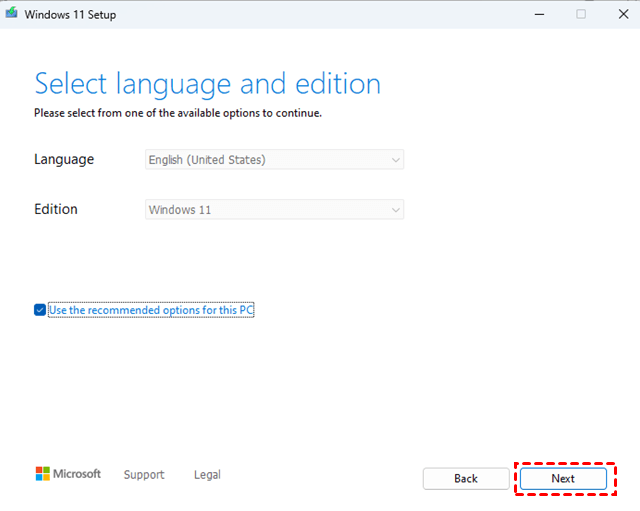
3. Select the language and edition for Windows 11.
4. To store data, click on USB flash drive.
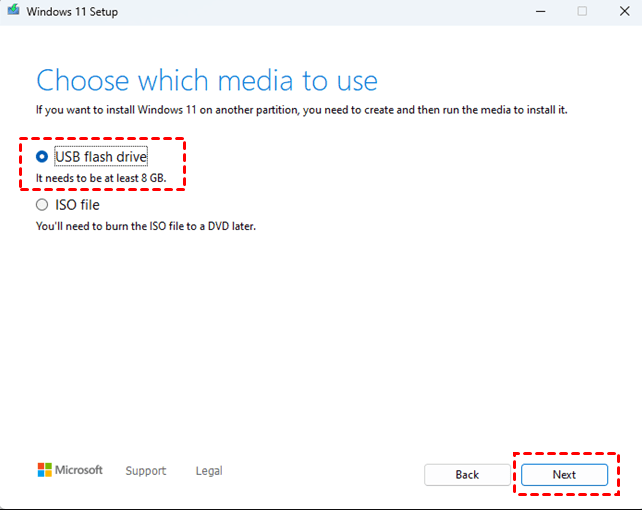
5. Select the connected blank USB drive from the list, and click "Format" to format the drive.Next.
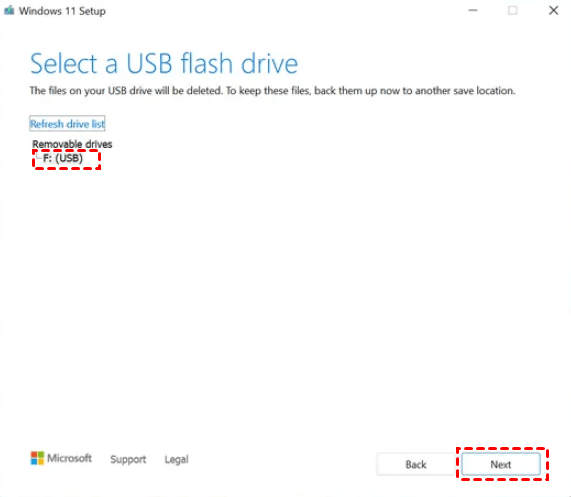
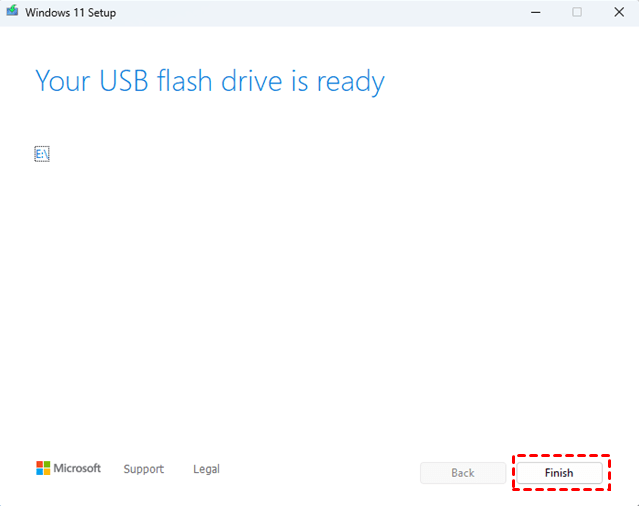
6. Create a bootable Windows USB drive by downloading the Windows USB/DVD Download Tool, selecting the Windows ISO file, choosing the USB drive, and following the on-screen instructions. Once the process is complete, the USB drive will be bootable and ready to install Windows.
How to install Windows ISO file from USB
Once you have a Windows 11 bootable USB in hand, you can perform clean install Windows 11 on the same or another PC, or you can reinstall OS in case of major unforeseen system problems, like Windows 11 not booting up. Here are the steps on how to do it.
1. Connect the USB flash drive you have created before to a new PC. The PC should automatically recognize the drive and prompt you to format it.
2. Turn on the PC, press the key that opens the boot-device selection menu (usually Esc/F10/F12), and select the option to boot from the USB flash drive.
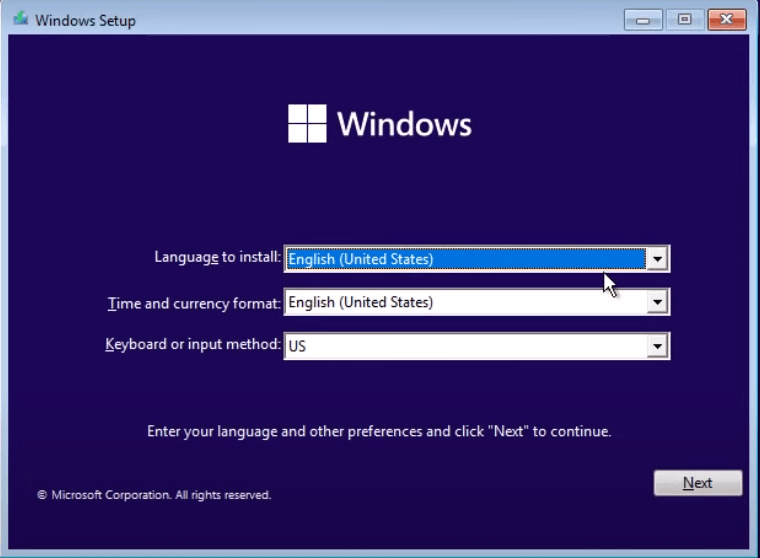
3. When the Windows Setup appears, follow the instructions to install Windows ISO files from USB.
4. Once your Windows boots up correctly, remove the USB flash drive.
Conclusion
To create a portable installation USB for Windows 11, you can use tools like Rufus, PowerISO, or the official Media Creation Tool from Microsoft. These tools allow you to burn the Windows 11 ISO to a USB drive, making it possible to install the OS on the same or another PC, or to reinstall the OS in case of any system problems. This process can be completed in a few steps, and the choice of tool ultimately depends on your personal preference and the specific needs of your system.
I highly recommend giving Qiling Disk Master Standard a try, as it allows you to create a bootable USB with no file system limitations and offers various outstanding features, including file and folder syncing to external devices, clouds, or NAS devices, making it a great alternative to SyncToy on Windows 10.
Related Articles
- How to Copy Windows 11 to USB and Make It Bootable (3 Cases)
Learn how to Copy Windows 11 to USB and Make It Bootable (3 Cases) with clear steps, key checks, and practical tips. - Backup Windows 11 to External USB Drive (Best Freeware)
Learn how to Backup Windows 11 to External USB Drive (Best Freeware) with clear steps, key checks, and practical tips. - 3 Free Ways to Create Windows 10, 11 Recovery Disk or USB
This guide explains 3 Free Ways to Create Windows 10, 11 Recovery Disk or USB with clear steps, key checks, and practical tips. - Full Guide to Export Outlook 2016/2013/2010 Emails to PST
If you are in need of exporting Outlook emails to a PST file, read this article to get a stepwise guide. To backup your Outlook folders more easily, you may pick the best Outlook backup software. - Resolved: Windows Boot Manager Boot Failed in Windows 10
The error "message Windows boot manager boot failed" will appear if the Master Boot Record is corrupted. But and this post shows how to repair this problem easily. - [Solved] Windows Easy Transfer Is not Available in Windows 10
This guide explains Windows Easy Transfer Is not Available in Windows 10 with clear steps, key checks, and practical tips.
Products
Articles & Tutorials
- Data Recovery
- Data Backup
- File Recovery
- File Backup
- File synchronize
- System Backup and Restore
- Disk and Partition Clone
- Technical articles
- Disk Master Help
- Windows Deleted File and Disk Recovery Tutorials
- Windows File and Data Recovery Tutorials
- More Windows Tutorials for Install, Security, Files, and PC Tips
- Windows Boot, Repair, and Recovery Environment Tutorials
- Windows Backup Tutorials
- Windows Restore Tutorials
- Windows Clone and Migration Tutorials
- Windows Server Backup, Recovery, and Management Tutorials
- Windows Disk, Partition, and Storage Management Tutorials