2 Free Methods to Change Partition Size without Losing Data in Windows
- "Can I change partition size without losing data?"
- When need to change partition size in Windows 10/8/7?
- How to change partition size without losing data in Windows PC?
- ▌Method 1. Change partition size with Disk Management (Restricted)
- ▌Method 2. Adjust partition size with free partition manager (Flexibly)
- Final words
"Can I change partition size without losing data?"
You can't directly move space from one drive to another in Windows, but you can add a new partition to the same drive as your system drive, then extend the system drive to use that new partition. This will effectively give you more space on your system drive without deleting anything from your other drives. To do this, you'll need to delete the "D" and "E" partitions, then create a new partition where they used to be, and finally extend your system drive to use that new partition. This process can be a bit tricky, so be sure to back up your data first. Alternatively, you could also consider upgrading to a larger system drive or using a solid-state drive (SSD) to free up space.
When need to change partition size in Windows 10/8/7?
Resizing partitions involves changing the size of a partition to either extend it to make it bigger or shrink it to make it smaller, often necessary for various reasons such as needing more space or consolidating free space.
▶Partition is running out of space: As time passes, data accumulation can rapidly consume storage space. To address this issue, consider deleting unnecessary data to free up disk space, or alternatively, resize the partition to increase its capacity.
▶Partition size is not reasonable: The disk has too many partitions, but they vary greatly in size, with some being too large and others too small. This may require resizing the partitions to make them more reasonable in size.
▶Create a new partition: When creating a new partition, you first need to free up unallocated space by resizing an existing partition. This allows you to create a new partition in the newly freed space.
▶Add unallocated partition: After cloning a disk to a larger one or converting a 2TB MBR disk to GPT, you'll have unallocated space at the end of the disk. This unallocated space can be added to an existing partition by adjusting the partition.
How to change partition size without losing data in Windows PC?
To free adjust partition on Windows 10/8/7 without data loss, you have two options: using Windows' built-in tool or a third-party disk partition manager. These tools allow you to shrink or enlarge partition size without losing any data, making it easy to adjust your partition space as needed.
- Method 1. Change partition size with Disk Management (Restricted)
- Method 2. Adjust partition size with free partition manager (Flexibly)
▌Method 1. Change partition size with Disk Management (Restricted)
Windows Disk Management offers "Shrink Volume" and "Extend Volume" functions, allowing you to change partition size without losing data in Windows 10/8/7. To access these features, open Disk Management by right-clicking "This PC/My Computer", selecting "Manage", and then "Disk Management" under "Storage", where you can view information on all your disk partitions.
▌Method 2. Adjust partition size with free partition manager (Flexibly)
Windows Disk Management may not be the best tool to change partition size without losing data due to its limitations. A more suitable option is Qiling Disk Master Standard, a free partition manager that is more powerful and versatile, supporting Windows 10/8/7/XP/Vista (32 & 64 bit). Compared to Disk Management, Qiling Disk Master has several advantages when adjusting partition size.
★You can move a partition while resizing it, so unallocated space can be created on either side of the partition after shrinking. This gives you more flexibility when adjusting partition size.
★Both NTFS and FAT32 partitions are supported, so you can shrink or extend partitions as needed.
★To optimize SSD performance, you can align SSD partitions when necessary.
★Nonadjacent unallocated space can be easily merged or combined into other partitions on the same disk.
★Support resizing BitLocker partition in the computer.
Download the freeware, install and launch it on your Windows PC, then it will show all connected storage devices with their overall partition layout.
1. Right-click the partition needing to be shrunk, select "Resize/Move Partition" to proceed with the resizing process.
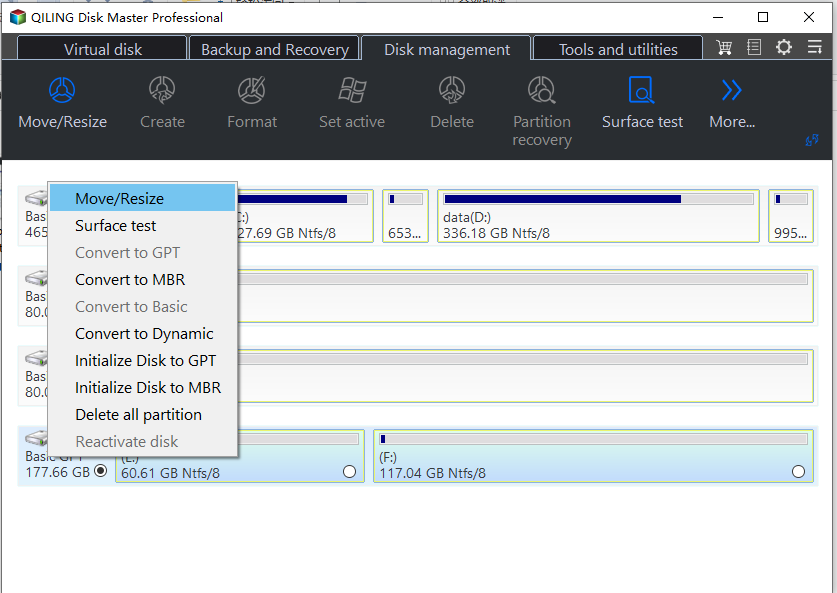
2. In this window, you can shrink the slider bar on both sides to make the window smaller, or you can move the partition location by dragging it to the right when the mouse turns into a cross crux.
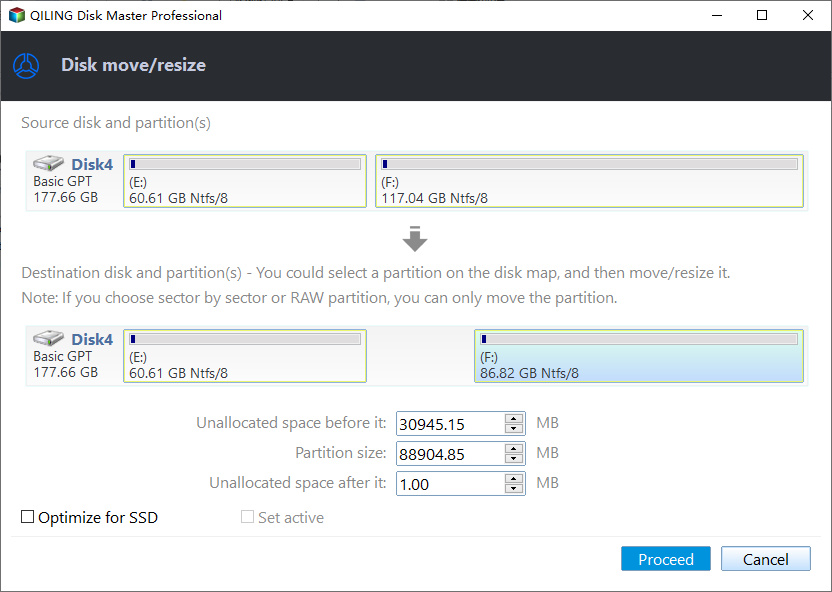
3. In the main interface, click "Proceed" to execute the pending operation.
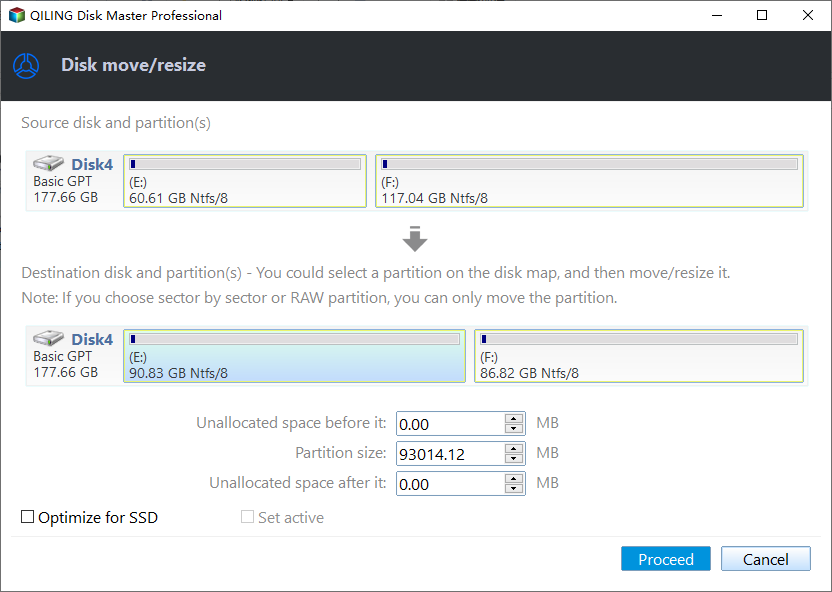
Besides merging unallocated space into one partition on the same disk, Qiling Disk Master also supports merging two adjacent partitions into one, excluding system partitions from being merged into data partitions. Upgrading to the Professional version unlocks additional features to adjust partition size more flexibly.
● Allocate free space: this can directly assign free space from one partition to another one within 3 steps.
● Split partition: this function can divide a large partition into two smaller partitions quickly without damaging the data.
● Extend partition wizard: it is able to extend your system boot partition and other partitions without loss of data/formatting partition and restarting computer.
Final words
While methods exist to change partition size without losing data, it's still essential to back up necessary data first due to potential risks like sudden power outages. Qiling Disk Master Standard not only facilitates partition size changes but also offers a range of other features, including data copying, partition checking and hiding, MBR to GPT conversion without deleting partitions, upgrading small disks to larger ones, and even transferring an OS to an SSD.
Related Articles
- Top 5 C Drive Full Windows 7 Solutions
This guide explains Top 5 C Drive Full Windows 7 Solutions with clear steps, key checks, and practical tips. - 3 Ways to Shrink Volume in Windows 8 or 8.1 to Extend Another Volume
If you need to shrink a volume in Windows 8 or 8.1 to extend another volume, there are three methods you can try to shrink a basic volume. - Windows Server 2019 Legacy Boot: Install & Change Boot Mode
This article provides a guide on how to enable Windows Server 2019 legacy boot and switch from Legacy to UEFI mode, as well as a simple method to create a bootable Server 2019 media. - Backup Windows Server 2022 to USB Drive in 3 Steps
To protect your Windows Server 2022, it's essential to back it up to a USB drive, and this article will guide you through the process step by step. - Hard Disk Partition Management with Windows PE Bootable Rescue CD/USB
Creating a bootable CD/USB based on Windows PE might be the best way to manage your disk and partition when your OS failed to boot. - Backup Cleanup in Qiling Disk Master
In this article, we will introduce a very import feature Backup Cleanup in Qiling Disk Master. Backup Clean helps you automatically clear history backup versions based on rule to save storage space.
Products
Articles & Tutorials
- Data Recovery
- Data Backup
- File Recovery
- File Backup
- File synchronize
- System Backup and Restore
- Disk and Partition Clone
- Technical articles
- Disk Master Help
- Windows Deleted File and Disk Recovery Tutorials
- Windows File and Data Recovery Tutorials
- More Windows Tutorials for Install, Security, Files, and PC Tips
- Windows Boot, Repair, and Recovery Environment Tutorials
- Windows Backup Tutorials
- Windows Restore Tutorials
- Windows Clone and Migration Tutorials
- Windows Server Backup, Recovery, and Management Tutorials
- Windows Disk, Partition, and Storage Management Tutorials