Create NAS to NAS Backup Between Synology or QNAP Easily
What is Network Attached Storage (NAS)?
Network Attached Storage (NAS) is a file-level data storage server that allows you to store a large amount of data and access shared files among multiple computers connected to the same network.
✔ As networked appliances, NAS systems typically contain one or more hard drives, often used in logical, redundant storage containers or RAID, and can also serve files from other servers on the network using protocols like NFS, SMB/CIFS, or AFP.
✔ For specific devices, You can use various NAS devices like Synology DiskStation, QNAP TS-251A, WD My Cloud, Buffalo LinkStation, etc. to create a backup system, and even back up data from one NAS to another for added protection.
Why Create NAS to NAS Backup like QNAP or Synology?
NAS (Network-Attached Storage) has become the go-to backup strategy for many, particularly in small businesses and home environments. This is due to its numerous benefits, including ease of use, scalability, and affordability. With NAS, users can easily store and manage their data, making it an ideal solution for those who need a reliable and efficient way to back up their files.
- NAS (Network-Attached Storage) devices are designed to provide a high-capacity, high-performance, and highly reliable storage solution for data security, similar to a disk array.
- Lower cost For NAS devices, the benefits of using a USB 3.0 or Thunderbolt 3 external drive are more pronounced than for regular USB or external hard disks, especially when dealing with large amounts of data.
- NAS allows you to add more hard disk storage space without shutting down for maintenance and upgrades.
- NAS devices allow multiple computers to share the same storage space.
After understanding the advantages of NAS devices, you may want to create a NAS to NAS backup immediately. Please keep reading below to learn more details.
Create Automatic NAS to NAS Backup with Manufacturer's Appliances
If you need to transfer a large amount of data from one NAS device to another, you can follow a tutorial to backup your Synology NAS to another NAS. Alternatively, you can create a backup from your Synology NAS to a QNAP NAS by following the official QNAP NAS to NAS backup guide.
1. To back up your data on Synology NAS, you need to log in to the NAS and run the Backup and Restore application. This will allow you to create and manage backups of your data.
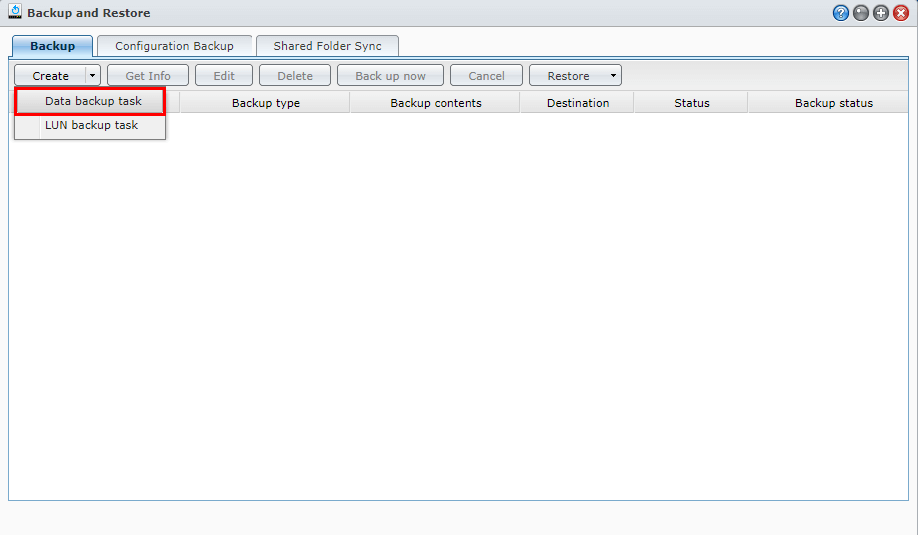
2. Select the "Backup" tab, and then click on "Create" and then select "Data backup task".
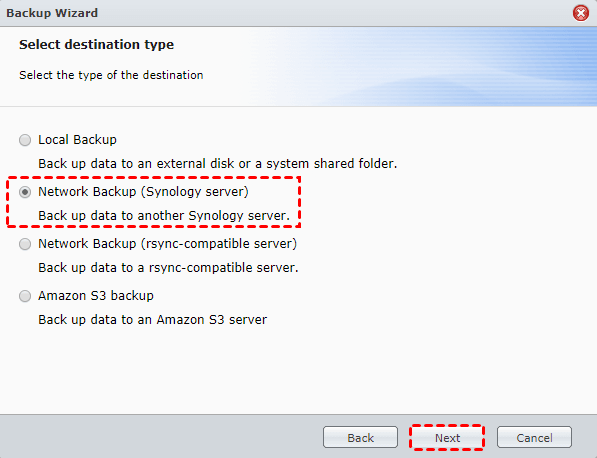
3. Select Network Backup (Synology server) as the destination type and click Next.
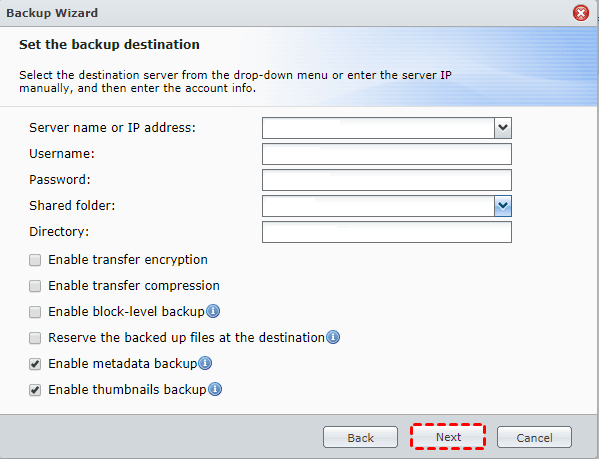
4. Input the credentials and choose a destination path, then click Next.
5. Then choose your files or folders to backup. Click Next.
6. To enable automatic backups at a specific time, check the box next to "Enable backup Schedule" and proceed to the next step.
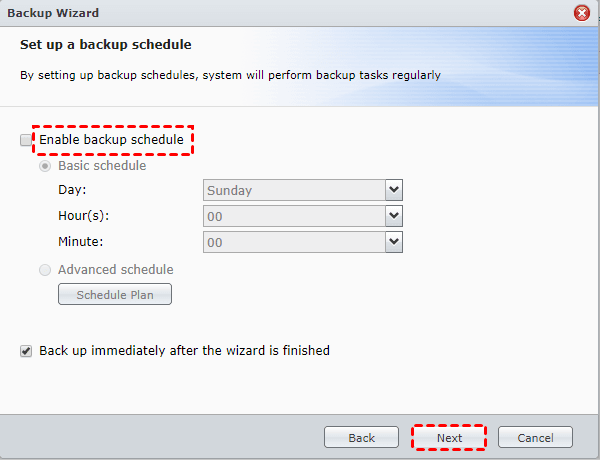
7. To transfer files from one Synology NAS to another, confirm the settings on the source NAS, including the network settings and the shared folder you want to transfer. Ensure the destination NAS is also set up correctly, with the same network settings and shared folder structure.
You could use Backup & Replication or Synology Hyper Backup to achieve this goal.
Best Way to Backup NAS to NAS Automatically
If you want to create a NAS to NAS backup between QNAP or different NAS devices, the backup software provided by the manufacturer only works with their own devices. To backup different NAS devices, it's recommended to use the free NAS backup software Qiling Disk Master Standard instead.
- It offers system backup, disk backup, partition backup, file backup, and cloud backup to meet various data protection needs. System backup and disk backup focus on system protection, while file backup and partition backup are ideal for safeguarding personal data against loss or corruption.
- The software allows automatic backup of Synology or QNAP NAS to another NAS, with the option to schedule backups. It also supports Asustor and Buffalo NAS brands.
- The software can minimize backup image size by using techniques such as compression and incremental backups, often without requiring manual configuration.
With Qiling Disk Master Standard, you can efficiently backup data and it's easy to use, saving time and energy. Try it out by downloading and giving it a go. Server users may want to consider Qiling Disk Master Server instead.
To perform a NAS to NAS backup between Synology or QNAP devices, simply refer to the following guide.
1. After installing the software, select the "Backup" option, followed by "File Backup" to initiate the NAS to NAS backup process.

2. Click Folders or Files or Share/NAS device.

3. To connect a Synology or NAS device, click "Add Share or NAS Devices", enter the IP address, username and password, and click OK. This will allow you to access and select the shared folders you want to backup.
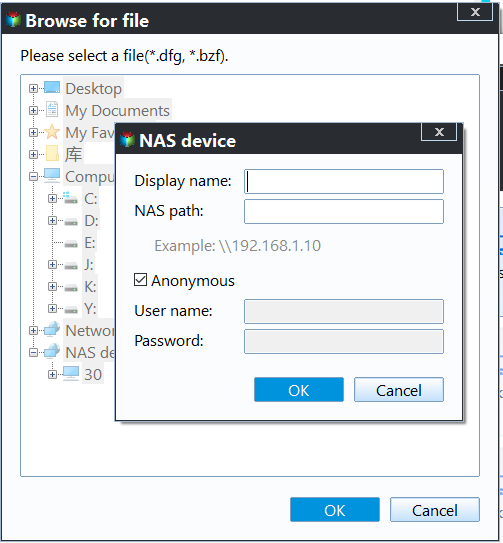
★ Tip: You can turn on the Anonymous option to avoid inputting the username and password of your NAS if required.
4. To add another Synology or QNAP NAS as a backup destination, go to the drop-down menu and click on "Add Share or NAS Devices". Then, enter the network path of the other NAS and add a shared folder as the backup destination.

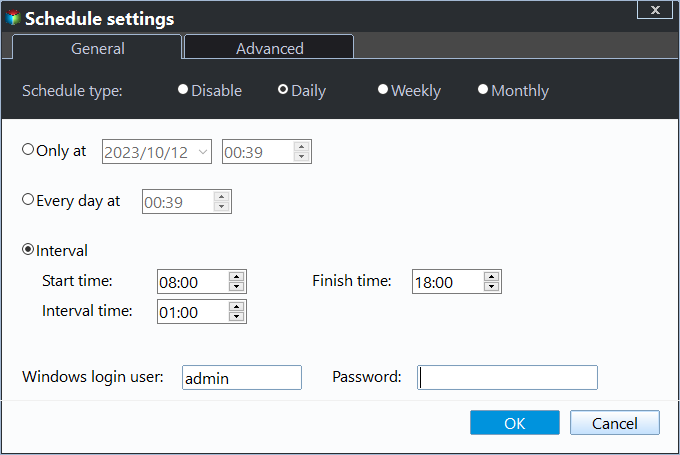
5. Click Schedule Backup and enable it, then select Daily, Weekly, Monthly, Event triggers, USB plug in. After setting up the scheduled task, click Proceed>> to create NAS to NAS backup automatically.
★ Tips:
✿ Schedule Backup: To use the advanced features of the Event triggers and USB plug in, you need to upgrade to a professional version or higher.
✿ Options: You can customize the backup image by compressing, splitting, or adding comments. Additionally, you can enable email notifications to receive alerts.
✿ Backup Scheme: It can back up only changed files, not a full copy, and automatically delete old backup images to save space.
💜 More flexible way to backup NAS to another NAS:
Qiling Disk Master Standard, the best free NAS backup software, also allows for syncing files between NAS devices using its Sync feature. Unlike the Backup feature, which compresses data into an image file, Sync doesn't compress data, making it easier to modify, delete, or use files at any time.
All scheduled settings are supported, including real-time sync, which updates changes as soon as they occur, and mirror sync, which prevents unwanted changes in the destination folder.

In the End
You can easily create a NAS to NAS backup using reliable backup software provided by NAS manufacturers, such as Synology's Backup and Restore, or third-party software like Qiling Disk Master Standard, both of which are free and can provide continuous protection for your files. If you lose data on one NAS, you can restore it from another Synology or QNAP NAS with ease.
The second method is more flexible as it not only reduces disk usage but also provides alternative backup methods. It allows for backing up NAS to cloud drives like Google Drive, OneDrive, or Dropbox, and also enables backing up a computer to NAS, giving users more flexibility and options.
Related Articles
- How to Backup Windows 10 to NAS like Synology Easily
- Workaround to Lenovo Product Recovery Stuck in Recovery Mode
Learn how to Backup Windows 10 to NAS like Synology Easily Workaround to Lenovo Product Recovery Stuck in Recovery Mode with clear steps, key checks, and practical tips. - How to Recover Deleted Files from Recycle Bin after Empty
This guide will tell you how to recover deleted files from recycle bin after empty in Windows 7/8/10. Four solutions are provided with detailed steps. - How to Recover Unsaved Excel Files in Windows 10 (4 Ways)
If you are experiencing scenarios where you need to find and recover unsaved excel files, click on this article, and here are 4 useful ways for you. - WD My Cloud Dropbox Sync | Two Ways
Here are two ways to perform WD My Cloud Dropbox Sync, one is manually and the other is automatic. Check out the following and find out. - Windows 10 Backup vs SyncToy | How to Use It Correctly
This guide explains Windows 10 Backup vs SyncToy | How to Use It Correctly with clear steps, key checks, and practical tips.
Products
Articles & Tutorials
- Data Recovery
- Data Backup
- File Recovery
- File Backup
- File synchronize
- System Backup and Restore
- Disk and Partition Clone
- Technical articles
- Disk Master Help
- Windows Deleted File and Disk Recovery Tutorials
- Windows File and Data Recovery Tutorials
- More Windows Tutorials for Install, Security, Files, and PC Tips
- Windows Boot, Repair, and Recovery Environment Tutorials
- Windows Backup Tutorials
- Windows Restore Tutorials
- Windows Clone and Migration Tutorials
- Windows Server Backup, Recovery, and Management Tutorials
- Windows Disk, Partition, and Storage Management Tutorials