Best Windows Server 2012 R2 Backup Software & Practices
- The Need to Backup Server 2012 R2
- What's the best way to backup Windows Server 2012?
- Best 2 Windows Server 2012 R2 Backup Software
- Best Practices to Backup Windows Server 2012 R2 to External Hard Drive
- Way 1: Backup Windows Server 2012 R2 with Qiling Disk Master Sever
- Way 2: Backup Windows Server 2012 R2 with Qiling Backup
- Written in the End
The Need to Backup Server 2012 R2
Windows Server is a popular choice among small and medium businesses, particularly Windows Server 2012 R2, which enables businesses to manage their entire IT infrastructure from a single server, ideal for SMBs without an in-house IT department or data center, allowing them to maximize their investment in hardware.
- Server 2012 introduces new features like Work Folders, which enables users to access and share corporate data more easily.
- Compared to SMB3.0, the SMB protocol in Server 2012 R2 has been enhanced.
- You can uninstall SMB 1.0 as long as you don't have any legacy systems that rely on it. This can improve security.
This server computer is not immune to system crashes, hard disk failures, virus attacks, etc, ultimately resulting in heavy data loss, including personal data and working documents like customer info and business profiles.
Microsoft has discontinued support for Windows Server 2012 R2, making it vulnerable to security updates, and it's essential to use a Windows Server 2012 R2 backup software to create a server image backup to protect the program and data on it.
What's the best way to backup Windows Server 2012?
"I currently have a server running Windows Server 2012. I'm backing up the data to an external drive. But now I want to use the server's backup feature. I want to do a state back and data since they are on the same drive. There is a 1TB of data on the drive.
For a typical home user, doing a full backup every night might be overkill, but it depends on your specific needs. If you have a lot of data that changes frequently, like documents or photos, doing full backups every night might be a good idea. However, if you have a relatively static setup, like a desktop with a few programs installed, doing a full backup once a week or even once a month might be sufficient. You can also consider doing a full backup once a week and then incrementals in between, which is a good compromise between the two approaches.
To avoid running out of space on your backup drive and ensure successful backups, consider setting incremental backups in addition to full backups. This way, you can save time and space while still maintaining a comprehensive backup strategy.
However, you may be disappointed by Windows Server Backup limitations. Kindly check the content before making the decision.
- Windows Server Backup does not perform incremental backups in certain situations, such as when the backup job is run with the "Verify only" option or when the backup is run to a network share. In these cases, the backup will be a full backup, not an incremental one.
- Windows Server Backup only supports backing up the entire system, not individual files and folders.
- The network share backups is not supported as well.
- The scheduled backup is limited to either once a day or more than once a day.
- The automatic disk space management feature not deleting old backups for more space.
Then, what is the best Windows Server 2012 R2 backup software?
Best 2 Windows Server 2012 R2 Backup Software
Option 1: Qiling Disk Master Sever
Qiling Disk Master Server is a reliable backup software for Windows Server, offering robust protection for computers, even after extended support has ended, with its comprehensive backup features.

With Qiling Disk Master, you can schedule backups for system, disk, partition, files, email data, and Outlook App data, with options ranging from daily to monthly. The shortest interval is hourly backup, which saves backup time and disk space by only backing up changed files after the first full backup, using the default incremental backup method.
Windows Server Image Backup Software for All Systems.
Option 2: Qiling Backup
Qiling Backup provides a convenient and reliable solution for centralized backup management of all Windows operating systems, allowing for automatic backup of system, disk, partition, VMware ESXi, Hyper-V, and Microsoft SQL for multiple Windows Servers and PCs, all managed from a central console.
Centralized Server Backup and Recovery Solution.
Best Practices to Backup Windows Server 2012 R2 to External Hard Drive
Here are the best practices to backup Windows Server 2012 R2 to an external hard drive using Qiling Disk Master Server and Qiling Backup: Qiling Disk Master Server is recommended for individuals, and users can create a backup of their system, files, and applications using Qiling Backup, which can be stored on an external hard drive. This ensures that important data is safely backed up and can be easily restored in case of a system failure or data loss. By following these best practices, users can ensure that their Windows Server 2012 R2 system is properly backed up and can recover quickly in case of an emergency.
Way 1: Backup Windows Server 2012 R2 with Qiling Disk Master Sever
Qiling Disk Master Server is the ideal Windows 2012 Server backup software for individuals, allowing them to easily backup their Windows Server 2012 to an external hard drive. Additionally, it enables the creation of multiple backups for added safety, backing up to various locations such as USB drives, network shares, NAS, cloud drives, and more.
Creating a set and forget backup task with its key backup feature is the best practice.
- To automate the backup process on Windows Server 2012 R2 without human intervention, you can set up Schedule Backup, which offers 5 convenient options: Daily, Weekly, Monthly, Event triggers, and USB plug in. This eliminates the need for manual intervention, saving time and effort.
- Incremental or Differential Backup can be used to backup only changed files, saving much backup time and disk space. The default backup method is Incremental Backup, which requires one full backup and all linked incremental backups for recovery.
- To avoid running out of space on your backup disk, you can enable Automatic Backup Cleanup, which will automatically delete old backup images. This feature gives you four options to choose from, depending on the backup method you've selected.
With a backup image, you can quickly restore your data or computer to a previous state by restoring the system to a new hard drive, even if the hardware is different. This also allows for selective file restoration.
The software offers complete backup solutions that can be used by anyone, thanks to its intuitive interface. It allows users to protect their data and system in simple steps. For IT technicians, an advanced edition called Qiling Disk Master Technician Plus is available, offering more advanced features.
Step-by-Step Guide to Backup Windows Server 2012 R2
To prepare for backing up Server 2012 R2, you need to ensure that the Volume Shadow Copy Service (VSS) is enabled, which is required for the backup process. This can be done by running the command "vssadmin.
- Prepare a working external hard drive To perform a Windows Server 2012 backup to an external hard drive, connect the drive ahead of time and ensure it can be detected by the system. Then, go to the Control Panel, click on "System and Security," and select "Backup and Restore." From there, choose "Set up computer backup" and follow the prompts to select the external hard drive as the backup destination. You can also use the built-in Windows Backup tool to schedule regular backups.
- Confirm the external hard drive has enough space to include data from the server 2012 R2 computer.
To create a system image for Windows Server 2012 R2, follow these steps: First, ensure that the Windows Server 2012 R2 installation is complete and up-to-date, then launch the Windows Server Backup tool, select the "Backup this computer" option, choose the "System Image" option, and select the location where you want to save the image. Next, select the drive where the Windows Server 2012 R2 installation is located, and choose the drive where you want to save the image.
Step 1. Launch this software, and click Backup >System Backup in order.

Step 2. This software automatically selects the system partition and other boot partitions for secure boot. It then allows you to select where to save the backup image, including a prepared external hard drive, a USB drive, network drive, cloud storage, or a NAS device.

Step 3. Click "Options", "Schedule Backup" and "Backup Scheme" to set customized backup settings and manage disk space, then click "Proceed" to perform the backup task.

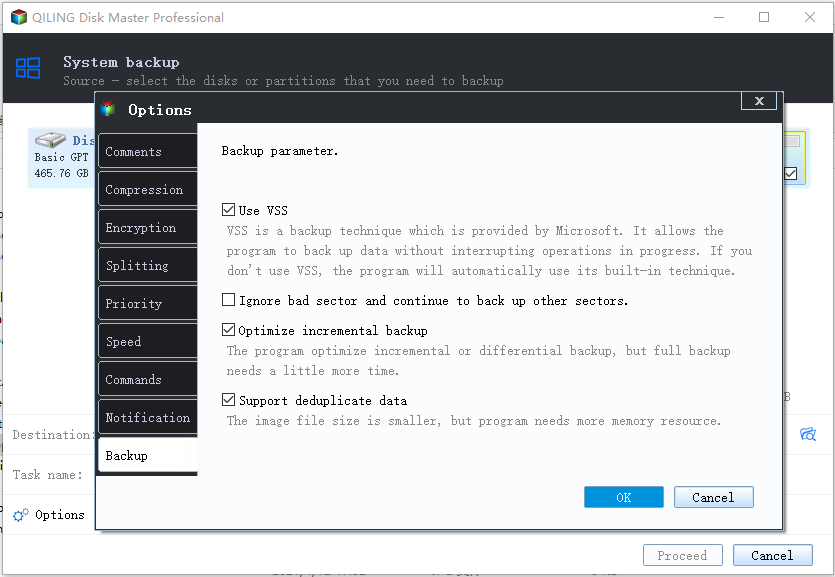
About Options👍:
- Email Notification: This feature informs you of the final result of a backup task, indicating whether it was successful or failed, and allows you to leave immediately if an emergency arises.
- Compression: Normal or high compression levels compress server image backups to save time and disk space, but require more backup time and occupy less space.
-
Encryption for backup: This feature allows you to set a password to encrypt an image, preventing unwanted access from others.
About Schedule Backup👍:
- Daily/weekly/monthly schedule bakcup: Regular backups are essential to ensure your system is secure, and these settings help you achieve that by backing up your system regularly, including the latest updates, newly installed apps, modified files, and more.
- This feature allows you to wake up your computer from sleep mode 2 minutes before a scheduled task is set to start, ensuring it's ready to run on time.
- Event triggers: To backup your system without any interference, you can use the "System Shutdown" feature in the "Event Triggers" backup option.

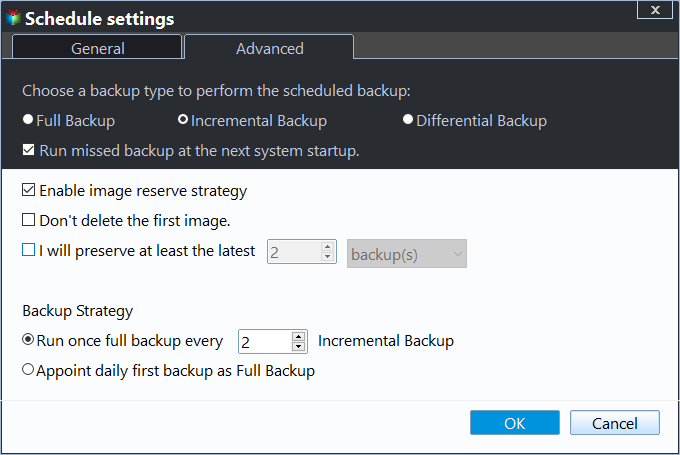
About Backup Scheme👍:
Incremental/Differential Backups: Using incremental backups can save time and space by only backing up changed files, but for recovery purposes, differential backups might be a better choice, requiring more time and space.
Automatic Backup Cleanup: This feature allows for the deletion of backup files to prevent backup disk full issues when the number of backups grows. It supports four cleanup methods: by quantity, by time, by daily/weekly/monthly schedule, and by available space.
To verify if the backup task was successful, wait until it completes, then check the "Home" tab for the backup image. If it's listed, the task was successful. To restore, simply select the image and choose the restore option.
It's recommended to create a Windows Server 2012 R2 recovery disk in advance to ensure server restoration in case of a boot failure.
Way 2: Backup Windows Server 2012 R2 with Qiling Backup
Qiling Backup offers a centralized backup management solution for all Windows operating systems, providing a convenient and reliable way to manage backups.
- A software that allows creating system, disk, or partition backups for multiple Windows PCs and Servers, supporting various Windows versions including Windows 11/10/8.1/8/7 and Windows Server 2022/2019/2016/2012 (R2)/2008 (R2).
- You can save backup images on a local disk, external hard drive, network share, or NAS device.
- You can schedule a backup task to run daily, weekly, or monthly using the full, incremental, or differential backup method.
Download this powerful enterprise backup software to backup Windows Server 2012 R2, and follow the instructions below to get started.
Written in the End
Windows Server Backup, the free backup software for Windows Server 2012 R2, has many backup limitations that may disappoint you. For a more reliable backup solution, we recommend using either Qiling Disk Master Server or Qiling Backup, which offer better backup capabilities.
Qiling Disk Master Server provides a comprehensive backup solution, including system, disk, partition, and file backup, as well as features like incremental/differential backup, scheduling, and encryption, to protect your server.
Don't let computer issues cause data loss - download the free trial of Qiling Disk Master Technician to protect your server now. For unlimited servers and PCs, upgrade to the full version.
Related Articles
- Easily Create Windows Server 2012 Incremental Backup | 2 Ways
You will learn 3 backup types and find the 2 ways to make Windows Server 2012 incremental backup, try the best way to do incremental backups in Windows Server 2012 (R2), 2016, 2019. - Set Windows Server 2012 Backup Schedule Weekly Step by Step
How to create Windows Server 2012 (R2) backup scheduled weekly? There are 4 solutions for you offered in this article to backup Windows Server 2012 (R2) once a week easily. - Create Windows Server 2012 Restore Point with 2 Alternative Ways
A restore point allows you to restore system to the previous state. This article will show you how to create Windows Server 2012 restore point with two ways. - Backup Windows Server 2012 (R2) to Synology NAS
You can learn how to backup Windows Server 2012 to Synology NAS with a professional server backup software if Windows Server Backup failed to backup to Synology. - Windows Server 2012 (R2) Backup to USB Drive [2 Ways]
This article will introduce how to create Windows Server 2012 backup to USB drive or other external hard drives with detailed steps. - How to Transfer OS to SSD without Losing Everything on HDD
To transfer your operating system to an SSD without losing anything on your HDD, you can find the solution in this post.