Hot Tutorials


Latest Tutorials
-
Sync Two Synology NAS Server Effortlessly
To sync data between two Synology NAS servers, you can use the free NAS synchronization software Qiling Disk Master, which makes it easy to synchronize data between the two servers.
-
Best Free Allway Sync Alternative 2024 - Qiling Disk Master
The article recommends the best Allway Sync alternative freeware, providing a brief introduction to Allway Sync and highlighting situations where an alternative is needed.
-

Fix Amazon Cloud Drive Not Syncing Problem (3 Solutions)
Amazon Cloud Drive not syncing issues can be frustrating, but there are possible solutions to resolve them. If you're experiencing syncing problems, try checking your internet connection, restarting the Amazon Drive app, and ensuring that the correct Amazon account is selected.
-
Turn on Automatic File Sync in Windows 11, 10, 8, 7 | 2 Ways
This tutorial offers two methods for automatic folder synchronization in Windows 11, 10, 8, and 7. You can utilize either the built-in Sync Center or the reliable freeware, Qiling Disk Master, to achieve seamless synchronization of your folders.
-

How to Sync Folders to NAS Automatically in Windows 11/10/8/7
Syncing folders to NAS (Network-Attached Storage) devices can be a convenient way to access and share files across multiple devices. In this guide, we'll show you how to automatically sync folders to NAS in Windows 11/10/8/7 using the Qiling Disk Master file sync software.
-

Top 2 Ways to Automatically Upload Photos to Dropbox
To automatically upload photos to Dropbox, you can either use camera uploads or choose a free file sync software.
-
3 FREE Ways to Backup External Hard Drive to Dropbox
Backing up or syncing your external hard drive to Dropbox is a safe way to protect your data.
-

3 Ways to Backup Files on My Cloud Home to External Drive
This article explores three free methods to backup files from My Cloud Home to an external drive, one of which is automatic.
-

Freeware to Backup Files to Another Computer over the Internet
Backing up files to another computer over the internet with best freeware is a great way to protect data from system failure. Get it and the operating steps now!
-

Backup WD My Cloud to Amazon Drive or Other Clouds
Amazon will be deprecating Amazon Drive on January 31, 2023, so you can still use it to backup your WD My Cloud, but it's recommended to create multiple backups to ensure your data is safe.
-
Easily Backup WD My Cloud to Google Drive | Best Freeware
This tutorial provides a detailed guide on how to backup your WD My Cloud to Google Drive. The freeware Qiling Disk Master is a helpful tool in achieving this cloud backup.
-
How to Easily Perform Continuous File Sync on Windows
This article provides a guide on how to perform continuous file sync on your PC, offering two possible methods. Whether you're looking for a straightforward solution or a more tailored approach, you can choose the method that best suits your needs.
-

How to Copy Files without Booting Windows (Step by Step)
You can copy files on your hard disk without booting Windows 10, 8, or 7 by using a simple method that allows you to rescue your files even when Windows won't start. This method provides a straightforward way to access and transfer your files, making it an essential tool in case of a system failure or crash.
-

How to Use Dropbox to Mirror Folders in Windows 11, 10, 8, 7
This tutorial shows how to use Dropbox to mirror folders in Windows, and also offers an alternative free tool to mirror folders to Dropbox.
-
Fixed: Dropbox Smart Sync Not Working | 6 Solutions
Having issues with Dropbox? If Dropbox Smart Sync isn't working or your Dropbox selective sync is not functioning, don't worry! We've got solutions for you.
-

Solved: External Hard Drive Freezes When Copying Files
Are you experiencing issues with your external hard drive freezing when copying files? This tutorial will guide you through troubleshooting steps and provide a more efficient way to copy files with external hard drives.
-

File Sync to OneDrive during Shutdown and Operating Steps
Want to perform file sync to OneDrive during shutdown to boost efficiency and safeguard data? Click on the article for more information and step-by-step instructions.
-

5 Best PC to PC File Transfer Software | FREE Download
The article highlights the 5 best PC to PC file transfer software that can be used in different situations, providing a step-by-step guide and comparison tab to help users choose the most suitable option. Whether you need to transfer files between two PCs on the same network or across the internet, these software options offer a reliable and efficient way to share files, making it easier to collaborate, backup, and manage your digital data.
-
![Best Real-Time Backup Software for Windows 10/11 [2023]](https://www.idiskhome.com/resource/images/tip/recover-autocad-file.jpg)
Best Real-Time Backup Software for Windows 10/11 [2023]
This article provides an overview of real-time backup, including its meaning and the best software to use for performing it. Real-time backup refers to the process of automatically backing up data as it is created or modified, ensuring that critical information is always up-to-date and protected. By using the right software, users can easily set up and manage real-time backups, providing a high level of data security and peace of mind.
-
Best FreeFileSync Alternative Freeware - Qiling Disk Master
If you're looking for a FreeFileSync alternative to sync your files, consider Qiling Disk Master, a great option that can help you with your file syncing needs.
-

Best Free GoodSync Alternative for Windows 7, 8, 10, 11
This article introduces you to GoodSync and the best free GoodSync alternative for Windows 7, 8, 10, and 11. Learn about these synchronization tools and how to use them here!
-

Download, Install, Set up Google Backup and Sync Tool
Google Drive for desktop is a tool that replaces Google Backup and Sync to easily sync Google Drive with your PC.
-

Fix Google Drive not Syncing All Files (11 Solutions)
This article provides solutions to the issue of Google Drive not syncing all files, offering 11 fixes to resolve the problem, as well as an alternative to directly sync all files.
-
Sync Files to Google Drive in Windows Server 2008 or Similar Storage
This article provides guidance on performing Google Drive sync in Windows Server 2008, covering various scenarios. To learn more about syncing Google Drive in this operating system, please click on the link to access the full information.
-
How to Sync Two Folders on Same Computer (2 Ways)
To sync two folders on the same computer in Windows, you can use a software like SyncToy, which offers an intuitive interface and reliable syncing capabilities. It allows you to select the folders you want to sync, and then set up the syncing process with options such as bidirectional syncing, where changes made to either folder will be reflected in the other. With SyncToy, you can easily keep two folders in sync on the same computer.
-

Transfer Everything from One Computer to Another (5 Ways)
Transferring everything from one computer to another can be a daunting task, but it's made easier with the right guidance. In Windows 7, 8, 10, and 11, there are several practical ways to accomplish this task.
-
Mirror Folder to Network Drive Automatically (Safest)
Mirroring a folder to a network drive is the safest way to copy original files without unwanted changes, preventing unnecessary data loss.
-

MirrorFolder Software: Mirror Folder in Windows 10
Have you ever wondered what a mirror folder is or how to mirror files in Windows 10? This article provides a clear explanation of these concepts and guides you through the process of mirroring a folder in Windows 10.
-
How to Monitor a Folder and Move Files Automatically
This tutorial demonstrates how to monitor a folder and move files automatically with the best automated file mover utility in Windows and presents the necessity of doing so.
-

How to Move Files to Google Drive Easily (8 Methods)
This article provides a comprehensive guide to moving files to Google Drive, covering 8 practical ways and step-by-step guides for various situations. To learn more, simply click on the link to access the information.
-

Quickly Move My Documents to Another Drive in Windows 10
To move your My Documents folder to another drive in Windows 10, you have two easy options. Firstly, you can use Windows' built-in feature to relocate the folder to another drive, which is a straightforward process.
-

Move Users Folder to Another Drive in Windows Server 2012
This tutorial provides a step-by-step guide on how to move the Users folder to another drive in Windows Server 2012 (R2), 2016, 2019, and 2022. Two efficient methods are presented to achieve this task.
-

How to Do Synology NAS to NAS Sync Easily (5 Steps)
If you're looking for a hassle-free way to sync data between NAS devices, consider using Qiling Disk Master, a user-friendly and free NAS sync software that makes the process a breeze.
-
Offline Files Sync Pending in Windows 10? Try 5 Solutions Now!
Discover effective solutions to resolve offline files sync pending issues in Windows 10. Five troubleshooting methods can help fix sync problems, making it easier to access and sync files on your computer.
-

Offline Files Cannot Synchronize Access Is Denied Windows 10
In Windows 10, if you encounter issues with offline files not synchronizing due to access being denied, there are three methods to resolve this. Firstly, ensure that the account you're using to access the files has the necessary permissions. Secondly, check if the issue is caused by a corrupted file or folder, and if so, delete the problematic item and try synchronizing again.
-

Best Free One-way File Sync Software for Windows 7, 8, 10, 11
One-way file sync is a method of synchronizing files from one location to another, typically from a source to a destination, without making any changes to the original files. This type of sync is useful for backing up data, transferring files to a new device, or updating a secondary storage location.
-

Automatically Mirror PC Folder to OneDrive | 3 Ways
Learn how to mirror any folder to OneDrive automatically with these 3 practical methods. Discover how to easily sync your files and stay organized with OneDrive, and click on the article to learn more about it!
-
10 Way to Fix OneDrive Not Syncing in Windows 10 or 11
If you're experiencing issues with OneDrive not syncing on your Windows 7, 8, 10, or 11 device, there are several reasons and solutions to consider. To fix the problem and get your files syncing again, try one of the following 10 solutions: [insert solutions here]. By following these steps, you should be able to resolve the issue and ensure that your OneDrive account is syncing correctly.
-

PC Synchronization: How to Sync PC to PC in Windows 11/10/8/7
This tutorial explains what PC sync is and shows how to sync two PCs using the free PC sync software Qiling Disk Master.
-
Best Portable Sync Software to Sync Files on Any Computers
This page highlights the benefits of using portable sync software, which can be run from a removable device, and recommends the best sync software for Windows that offers these advantages.
-

How to Create QNAP to Dropbox Sync | 2 Free Tools
This tutorial offers two easy methods to sync QNAP with Dropbox: using QNAP Cloud Drive Sync or the free Qiling Disk Master.
-

Easy Steps to Sync QNAP NAS and Google Drive Cloud
You can sync your QNAP NAS with Google Drive in two ways. The first method allows you to sync your NAS with Google Drive, while the second method enables you to sync multiple folders from your NAS to Google Drive, effectively backing up your data and freeing up local disk space.
-
Best Real-Time Sync Software to Auto Sync Changed Files
Sync changes automatically from source to destination with real-time sync software, ensuring seamless updates since the last full file or folder sync in Windows 11, 10, 8, 7.
-
How to Run Robocopy Two-Way Sync in Windows 11/10/8/7
Robocopy is a powerful command-line utility in Windows that can be used to perform various file operations, including two-way sync. In this tutorial, we will guide you through the process of running Robocopy two-way sync in Windows 11/10/8/7.
-
How to Schedule SyncToy to Run Automatically in Windows 10
This tutorial shows how to automatically run SyncToy in Windows 10 using Task Scheduler, and also provides a free SyncToy alternative to make auto file sync easier.
-

How to Create Scheduled Task to Copy Files to Another Folder?
To create a scheduled task to copy files using robocopy and Task Scheduler, follow these steps: First, open Task Scheduler, then click on “Create Basic Task” and give it a name. Next, click on the “Triggers” tab and select “New” to schedule the task to run at a specific time or frequency. Then, click on the “Actions” tab and select “New” to add an action to the task.
-
Fixed: SD Card Copy Hangs While Copying Files to Computer
If your SD card copy hangs when copying files from the SD card to a PC or another SD card, there could be several reasons for this issue. One possible reason is that the SD card is not properly initialized or formatted, leading to file system corruption. Another reason could be that the SD card is damaged or worn out, causing the copy process to hang.
-
Best Second Copy Alternative for Easy File Backup and Sync
For a comprehensive overview of Second Copy and the best free alternative, read this guide to learn how to automatically back up and sync your files.
-
Secure Copy and Best Alternative on Windows Server
Secure Copy is a utility that allows users to securely copy files and directories between two locations. However, there are often better alternatives available, and this article will explore one of the best options. To learn more about Secure Copy and find out about a superior alternative, click on the link provided for details and step-by-step instructions.
-

How to Sync Desktop to OneDrive Automatically (2 Ways)
Syncing your Desktop to OneDrive in Windows 11, 10, 8, 7 is a straightforward process that can be achieved in two easy ways. To get started, you can use the OneDrive app to sync your Desktop, or you can enable the “OneDrive - Files On-Demand” feature, which allows you to access your Desktop files online without taking up space on your device. Both methods are simple to set up and can be completed in just a few steps, making it easy to keep your Desktop files in sync with your OneDrive account.
-

Sync Files between Computer and Flash Drive | Easy Way
Want to keep your USB flash drive and computer files in sync? This article shows you how to easily auto sync your USB flash drive with a specific folder on your computer in simple steps.
-

Sync Files between Two Computers without Cloud | 2 Free Ways
To sync files between computers without using cloud storage, you can use two free and reliable file sync software to connect the computers over the internet.
-
Best Free Way to Sync Files between Desktop and Laptop
There are various methods to sync files between desktop and laptop in Windows 10, with options such as using OneDrive, Google Drive, or other cloud storage services, or employing file synchronization software like SyncToy or GoodSync. Users can also explore other alternatives like using a USB drive or network drive to transfer files between devices.
-
Auto Sync Files between Two Computers on the LAN (Freeware)
Syncing files between two computers can be a convenient way to keep your data up-to-date and accessible across different devices. Qiling Disk Master is a powerful and free file sync tool that can help you achieve this goal. In this tutorial, we'll show you how to sync files between two computers using Qiling Disk Master.
-
Sync Files to Google Drive Automatically | 4 Ways Included
Syncing files to Google Drive can be a convenient way to access and share your files across devices. However, manually transferring files can be time-consuming and prone to errors. Fortunately, there are several free file synchronization software options that can help you sync files to Google Drive automatically.
-
How to Sync Files and Folders in Windows 7 Computer?
This tutorial presents two easy ways to sync files in Windows 7. You can use Windows 7's built-in tool or the free file sync software Qiling Disk Master to sync your files.
-
Auto Sync Folder to Network Drive in Windows 10 (2 Ways)
Whether you want to automatically sync a local folder with your Network Drive or make network files available for offline access, this article can guide you through the process.
-

How to Sync Files & Folders between Computers over Network
This article introduces you to 3 methods to sync folders between 2 computers over network, whether it's on the same LAN or not.
-
![How to Sync Google Drive with PC in Windows [2 Ways]](https://www.idiskhome.com/resource/images/tip/canon-photo-recovery1.jpg)
How to Sync Google Drive with PC in Windows [2 Ways]
To sync Google Drive with your PC, you can use two auto methods and one manual method. The auto methods include using the Google Drive desktop app, which allows you to sync files and folders with Google Drive automatically, and using the OneDrive sync feature, which also allows for automatic syncing. The manual method involves using the Google Drive folder on your PC to manually upload and download files and folders.
-
Sync Local Folder to Dropbox Easily Even Outside Folder (3 Ways)
Discover how to sync your local folder to Dropbox with ease using 3 practical methods. Whether you need to sync changes or folders outside of Dropbox, this article has got you covered. Learn more by clicking on [link].
-

3 Methods to Automatically Sync Local Folder to Google Drive
To auto-sync a local folder to Google Drive without any human intervention, consider using Google Drive for desktop, Google Drive folder, or Qiling Disk Master Standard. These tools can help keep your local files in sync with your Google Drive account, eliminating the need for manual updates.
-
Automatically Sync Multiple Folders to Google Drive | 3 Ways
This article introduces three practical methods for syncing folders to Google Drive and running it as a scheduled task, providing a convenient way to keep your files organized and accessible.
-

How to Sync My Documents with Network Folder Easily
Looking for an easy way to sync your My Documents folder with a network folder? This article provides a step-by-step guide on how to do it, making it a convenient solution for syncing your documents.
-
Sync Network Folder to Google Drive Automatically (Freeware)
To sync a network folder to Google Drive automatically, even if Google Drive for desktop says it's not supported, you can follow these steps. First, create a Google Drive folder on your computer and then copy the network folder's contents into it.
-
How to Sync OneDrive to Computer in Windows 11/10 Flexibly
To sync OneDrive to your computer and access files stored on the cloud easily, you can use the OneDrive app, or consider using a freeware that allows for flexible syncing options.
-
Auto Sync OneDrive to External Hard Drive in Windows 11/10/8/7
You can use a free tool to sync your OneDrive files to an external hard drive in Windows 11, 10, 8, or 7, allowing you to set up a scheduled sync or file sync task. This enables you to easily transfer and access your files across different devices and locations.
-

Top 2 Ways to Sync QNAP NAS to OneDrive in Windows 11/10/8/7
This tutorial demonstrates how to sync QNAP to OneDrive in two efficient ways. Both Cloud Drive Sync offered by QNAP and powerful sync software Qiling Disk Master can do you a favor.
-

How to Sync Two Directories in Windows 10 Automatically
To automatically sync two directories in Windows 10, you can follow a simple process. First, open File Explorer and select the two directories you want to sync. Then, right-click on one of the directories and select “Properties.
-
Best Free Syncthing Alternative to Sync Files Between PCs
This tutorial provides a step-by-step guide on how to sync files between computers via Syncthing and its best free alternative for Windows, showing how to set up and use these tools to keep your files in sync.
-

Best Free SyncToy Alternative for Windows 11, 10, 8, 7
This page provides you with the best free SyncToy alternative for Windows 11/10/8/7 - Qiling Disk Master, as well as an introduction to other common file sync tools.
-

2 Easy Ways to Run Synology Bidirectional Sync in Windows
This tutorial will guide you through the process of setting up bidirectional sync between your Synology NAS and a cloud drive using Cloud Sync and a professional file sync tool.
-
Synology Cloud Sync Not Syncing All Files – Solved Now!
Synology Cloud Sync is a powerful tool for syncing files between your Synology NAS and cloud storage services like Google Drive, Dropbox, and OneDrive. However, some users have reported issues with Synology Cloud Sync not syncing all files efficiently.
-
Fixed: Synology Cloud Sync Not Working Even Up to Date
This article offers 5 practical solutions and 2 workarounds to address issues with Synology Cloud Sync not working, providing you with helpful information and potential fixes to resolve the problem.
-
Complete Guide: Synology Drive Sync Multiple Folders
Synology Drive does not allow you to sync multiple folders. However, you can achieve the same result by using the “Shared Folder” feature, which allows you to sync multiple folders to a single folder, effectively achieving the same result as syncing multiple folders. This feature can be accessed through the Synology Drive web interface.
-
Perform Synology Mirror Folder with PC Automatically | 2 Simple Ways
Are you looking for a way to mirror folders to your Synology NAS automatically? Look no further! In this article, we'll explore two simple methods to help you achieve this.
-
Top 2 Ways to Sync Local Folders to Synology NAS on Windows
Syncing local folders with Synology NAS can be a convenient way to access and manage your files across devices. Here are two efficient ways to do it using Synology Drive Client and Qiling Disk Master.
-
Synology Sync Folders to External USB Drive with 4 Steps
This article guides you on how to run Synology sync folder to external drives and offers two helpful ways to do so. By using the NAS sync software, you can easily sync your data between your Synology device and external drives.
-
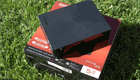
How to Transfer Data from microSD Card to Laptop Easily
Transferring data from a microSD card to a laptop is a crucial skill to have, as it ensures that you don't lose any important information. By learning how to do this, you can easily move files, photos, and other data from your microSD card to your laptop, keeping everything safe and secure.
-
5 Ways to Easily Transfer Files from Old PC to New PC
To transfer files from an old PC to a new one and keep them organized, consider using a cloud storage service like Google Drive or OneDrive, which can sync files across devices. Alternatively, you can use a USB drive to transfer files, or use software like Qiling Disk Master or AOMEI Backupper to clone the old PC's hard drive to the new one. Another option is to use a tool like RoboCopy to manually copy files, or use a migration tool like Laplink's PCmover to transfer data and settings.
-
Transfer Files from One Computer to Another (5 Easy Ways)
This tutorial offers 5 ways to transfer files from one computer to another in Windows 11, 10, 8, 7, with Qiling Disk Master being the most compatible and simplest method.
-
How to Transfer Files from PC to PC Using an Ethernet Cable
This tutorial explains how to transfer files between two PCs using an Ethernet cable. If you don't have a spare LAN cable, you can also use a free file synchronization software as an alternative solution.
-
How to Transfer Files to a New Computer Using an External Drive
This tutorial shows you how to transfer files to a new computer using an external hard drive or a free file transfer tool over a network, making it easy to move files to your new PC.
-
Two-Way Data Synchronization Meaning and Best Practices
Two-Data synchronization ensures that files on both sides are always up-to-date, including creations, deletions, and changes. Click for details and best practices!
-
Prime USB Drive Sync Software for USB Auto Sync in Windows
This tutorial explores the top USB drive sync software for Windows and provides step-by-step instructions on how to auto-sync a USB drive when plugged in.
-
Perform WD My Cloud Dropbox Sync Automatically
You can easily and quickly sync Dropbox files to your WD My Cloud by using a third-party sync software. This allows you to automatically sync your Dropbox files to your My Cloud, eliminating the need to manually transfer files. This can be a convenient and efficient way to keep your files up-to-date and accessible across both services.
-

WD SmartWare Pro Continuous Backup Not Working (5 Fixes)
WD SmartWare Continuous Backup may not be functioning as expected, and this article provides causes and fixes for the issue. Alternatively, performing continuous backup with a simpler solution can be achieved.
-

What Is the Best Free WD Sync Alternative?
If WD Sync is not working for you, don't worry! You can easily resolve the issue or find an alternative to WD Sync for data security. Click here to learn more about it!
-
![[Solved] WD Sync Not Working in Windows 11/10/8/7](https://www.idiskhome.com/resource/images/tip/sandisk-sd-card.jpg)
[Solved] WD Sync Not Working in Windows 11/10/8/7
This tutorial provides effective solutions to resolve the WD Sync not working error in Windows 11/10/8/7, and also offers the best free WD Sync alternative.
-

Run Windows 10 Backup Using SyncToy Even on a Schedule
If you're experiencing issues with Windows 10 backup or SyncToy, or having trouble scheduling SyncToy, this article is here to help. It provides solutions to these problems and offers a free alternative.
-
Solved | Windows 10 File Sharing Not Working (6 Fixes)
If you're experiencing issues with Windows 10 file sharing not working, there are several solutions and alternatives you can try. One solution is to enable file and printer sharing on your network, which can be done by going to Control Panel > Network and Sharing Center > Change advanced sharing settings. Another option is to check for any firewall or antivirus software blocking the file sharing service, and adjust the settings accordingly.
-
Windows 10 Home Sync Center | Alternative & Guide
Windows 10 Home Sync Center allows syncing files between two computers, but its capabilities are limited compared to the Professional edition. If you're on the Home edition and want to sync files between two computers without upgrading, there are alternative solutions available. This article can provide you with the necessary guidance.
-

Fix Windows 7 Sync Center Problems (8 Ways)
You can resolve Windows 7 Sync Center issues with 8 simple solutions, or consider using a more powerful sync software to sync network files and make it offline.
-

Windows Bidirectional Folder Syncing with Best Software
Windows bidirectional folder sync allows for the synchronization of files between two directories, where changes made in one directory are reflected in the other, using the best software available.
-

Windows 10 Copy Large Files Over Network (Fastest Way)
Looking for the fastest way to copy large files over a network on Windows? Click on this article to learn more about the best approach.
-
Best Free Windows 10 Easy Transfer Alternative - Qiling Disk Master
For a free alternative to Windows Easy Transfer, consider using Qiling Disk Master, which can help with PC to PC data migration in Windows 11, 10, 8, 7.
-
3 Ways to Make Windows Sync Folders between Computers
To sync folders between computers in Windows 7, 10, or 11, follow these 3 practical methods. You can use built-in tools like Windows Sync Center, which allows you to sync files and folders between computers. Alternatively, you can use cloud storage services like OneDrive, Google Drive, or Dropbox to sync your folders across devices.
-
Sync Folders between Drives in Windows 11, 10, 8, 7 (with Video)
This article provides a guide on how to sync folders between drives in Windows 7, 8, 10, and 11, including a tutorial video.
-
Sync Two Folders with Robocopy Command Line in Windows
Syncing two folders can be a useful task for maintaining data consistency and ensuring that files are up-to-date across different locations. In this article, we will explore how to sync two folders using the Robocopy command line and provide an easier way to automate this process.
-
How to Exclude Files/Folders with Xcopy (Guide and Alternative)
This article will guide you on how to use xcopy to exclude specific folders or files from your Windows backup, as well as provide an easier alternative to exclude certain files and folders.